Adding clients and auditors
Invite the firm auditors who will work the engagement and the client contacts who will respond to requests. Understand what "adding" an auditor actually changes about their access.
Once a client and engagement exist, the next step is bringing the right people in. There are two groups to invite, and they behave differently:
- Auditors: users from your firm. Any auditor in your firm can already open any engagement; adding them to a specific engagement makes the engagement convenient to find and assign work to.
- Client contacts: users from the client organization. Client contacts only see what you grant them access to, so adding them is what unlocks the client-facing portal for this engagement.
The important distinction
Auditors in your firm always have access to every engagement. Adding an auditor to an engagement pins it to their sidebar so they can find it quickly and so they can be assigned requests, tasks, and reviews. It does not grant any new permission.
Client contacts are the opposite. They have no access until you add them, and they only see this specific engagement (not anything else under the client).
Open the engagement team and clients
You manage both groups from Engagement Settings.
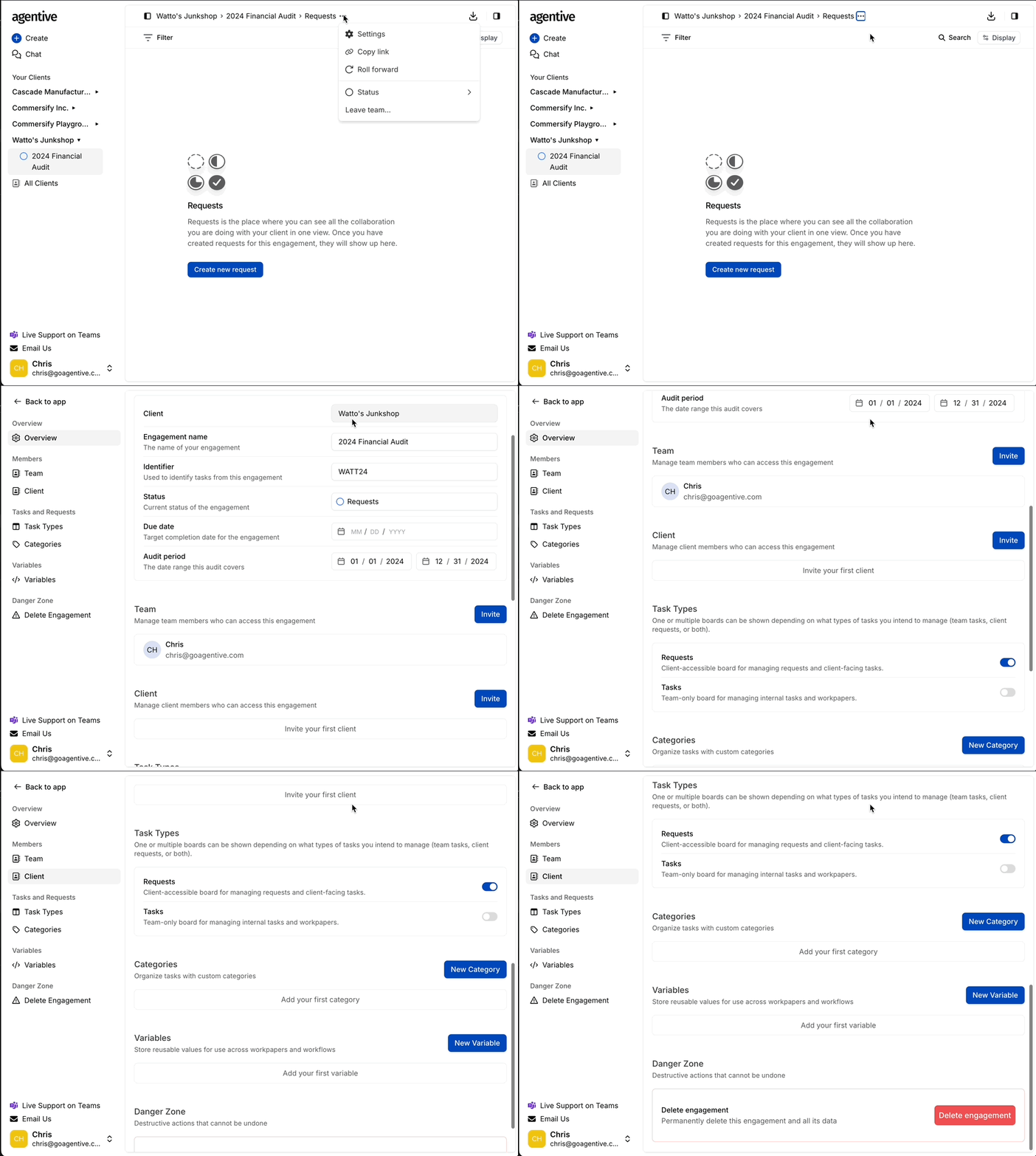
Open the engagement
From the sidebar, open the client and click into the engagement.
Open Engagement Settings
Click the three-dot ⋯ menu at the top of the engagement and choose Edit Engagement (or Settings). You can also reach the same screen from the breadcrumb menu at the top of the Request Board.
Choose Team or Client
- Team: manage the firm auditors on this engagement.
- Client: manage the client contacts who can sign in to this engagement.
Add an auditor to the engagement
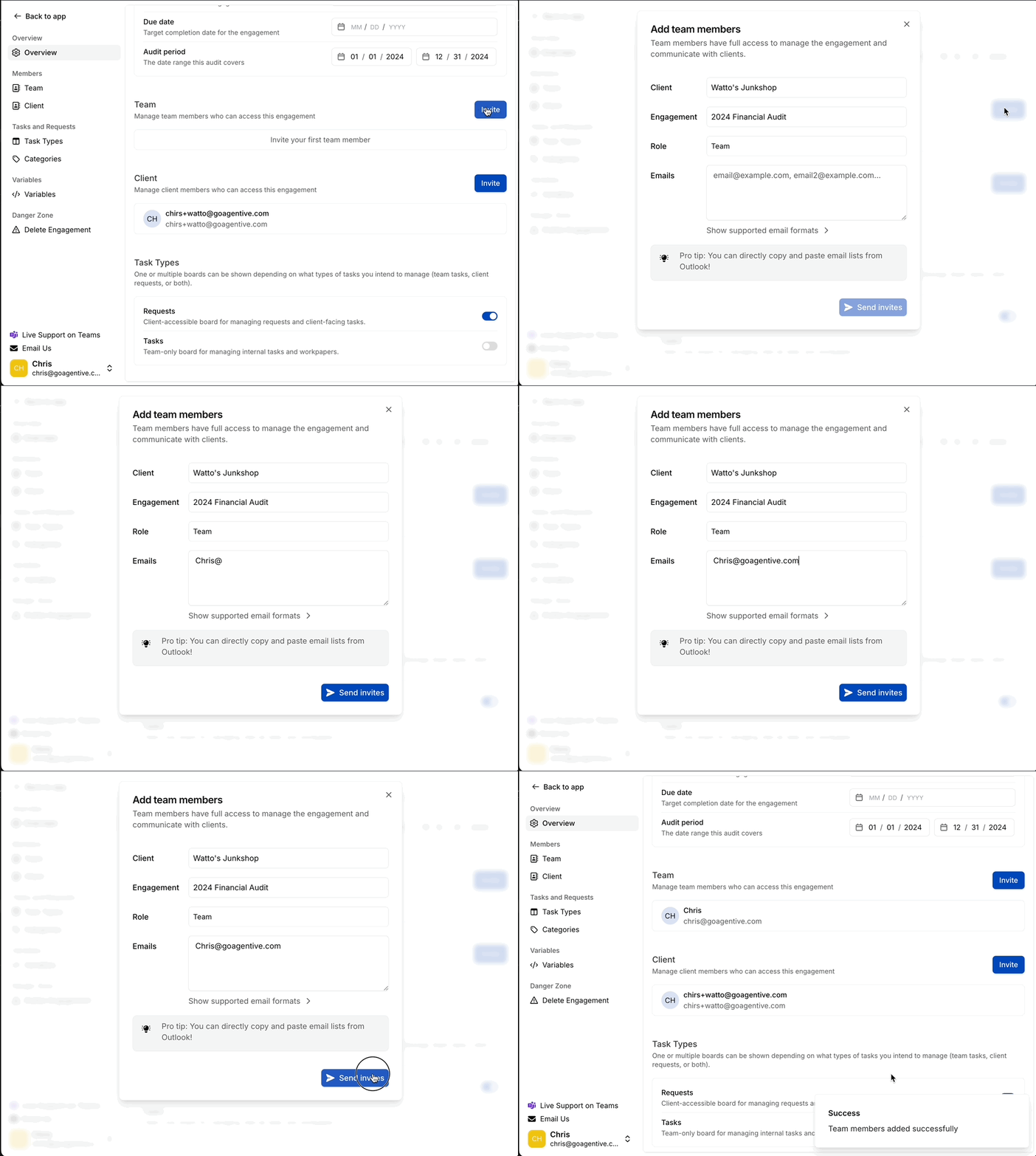
Open the Team section
In Engagement Settings, select Team.
Click Invite
Click the Invite button at the top of the Team section.
Pick the auditor
Start typing the auditor's name or email. Agentive auto-completes from the list of users already in your firm.
Confirm
The auditor appears in the Team list immediately. The engagement now shows up in their sidebar under the client.
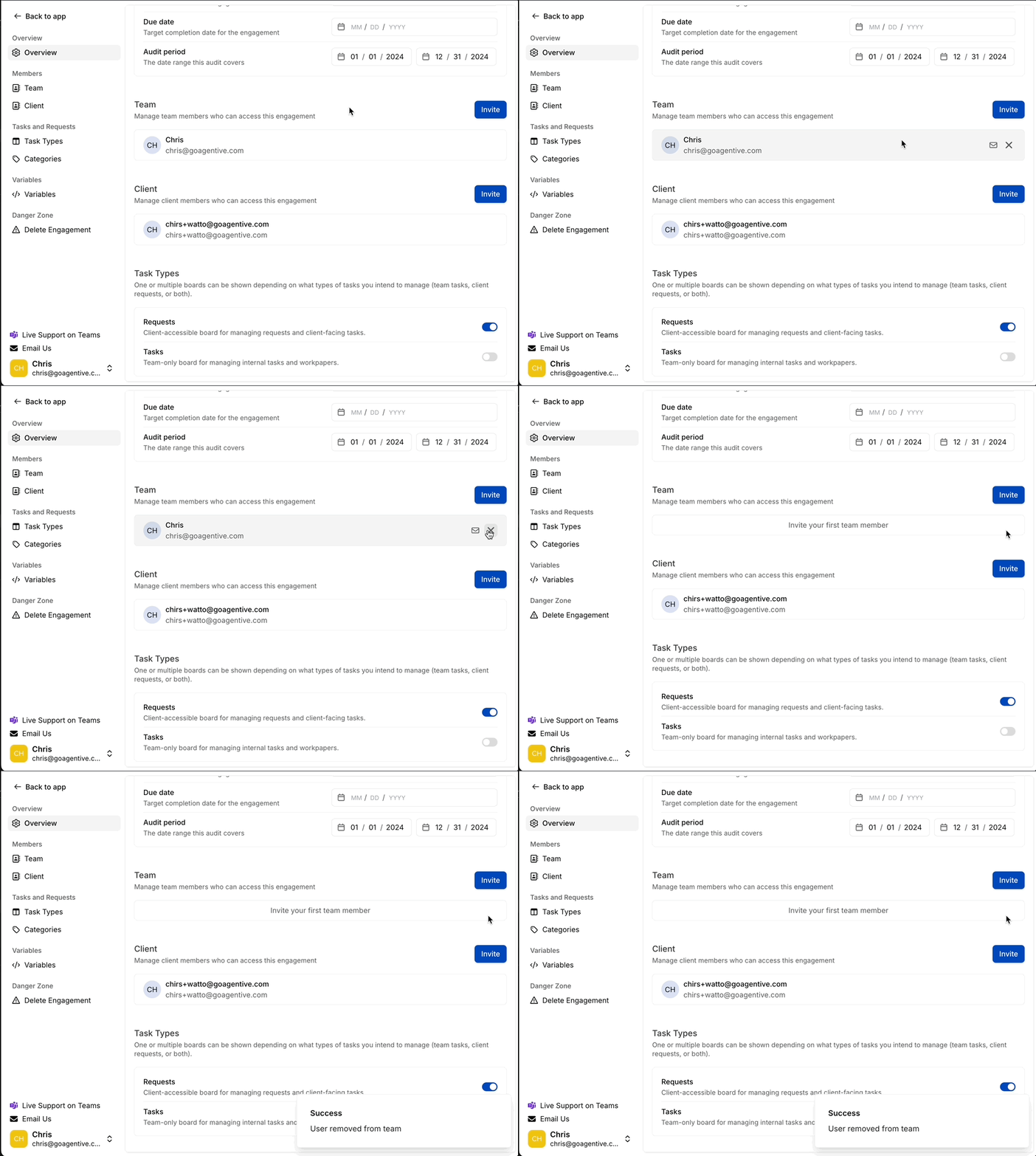
Find the auditor in the Team list
Open Engagement Settings → Team.
Remove
Hover over the auditor's row and click the ✕ that appears.
Removing an auditor takes the engagement off their sidebar and unassigns them from any open requests or tasks. They can still open the engagement from the Client List if they need to; firm auditors retain access either way.
What adding an auditor actually does
Adding an auditor to an engagement does not grant access. Every auditor in your firm can already open every engagement. What adding them does is:
- Pins the engagement to that auditor's sidebar so they can jump to it in one click.
- Makes them assignable as the owner or reviewer of requests, tasks, and workpapers in the engagement.
- Adds them to the team roster that clients see, so client contacts know who is on the audit.
If you want someone to be able to find and work the engagement day to day, add them. If they just need to peek in occasionally, they can open the engagement from the Client List without being added.
Add a client contact to the engagement
Client contacts are the people at the client organization who will sign in, see the Request Board, upload supporting documents, and reply to comments. Unlike auditors, client contacts have no access to the engagement until you add them.
Open the Client section
In Engagement Settings, select Client.
Click Invite
Click Invite at the top of the Client section.
Enter the contact's email
Type the client contact's email address. If they have signed in to Agentive before (for example, on a prior-year engagement for the same client), Agentive matches the existing user. Otherwise, an invite email is sent.
Confirm
The contact appears in the Client list. They receive an email invitation with a link to sign in to the engagement.
A client contact added to this engagement only sees this engagement. If you run multiple engagements for the same client (for example, a financial statement audit and an EBP audit) and the same person should see both, add them to each engagement separately.
Client contacts only see Requests on the Request Board; they never see the internal Task Board, engagement settings, or anything not explicitly published as a Request. Use the Task Board for any internal work you don't want them to see.
Continue your journey
← Clients & Engagements overview
See how clients, engagements, and the people on them fit together.
Updating engagement settings →
Walk every tab in Engagement Settings, including team, client, task types, categories, and variables.
How is this guide?
Clients & Engagements
How clients, engagements, and your firm fit together in Agentive, and how to create a new client and engagement from scratch.
Updating engagement settings
A tour of every tab in Engagement Settings (Overview, Team, Client, Task Types, Categories, and Variables), plus how to delete an engagement when it's done.