The Request Board
A tour of the Request Board and Task Board. Learn what each one is, how to read the views, filter and group requests, and create the first request in an engagement.
The Request Board is the home view of every engagement. It is the list of every item you have asked the client for (the PBC list, the evidence you are tracking, the work in flight) with status, owner, due date, and category at a glance. Everything on the Request Board is client-visible unless its status is Backlog. If you want a board that is internal-only, that is the Task Board (see Task Board).
This page covers what the Request Board is, how to read the views, how to filter and group it, and how to create the first request in an engagement.
What you'll learn
- How the Request Board is organized and what the columns mean.
- The difference between the Request Board and the Task Board.
- How to switch between Board and List views, filter, and group.
- How to create a request from scratch and the fields you fill in.
The Request Board at a glance
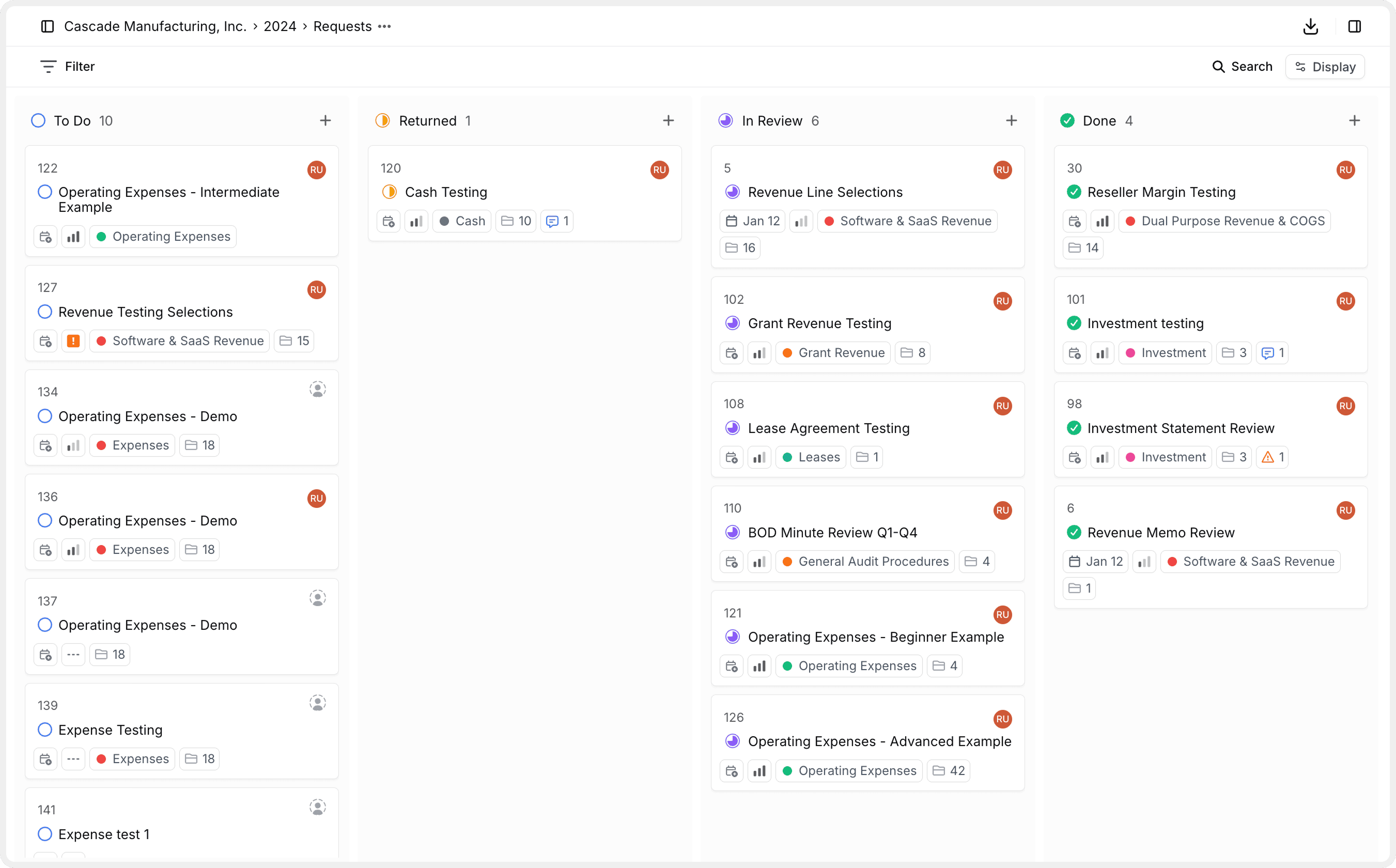
Each card or row on the board is a single Request. A request bundles:
- A title and a description the client reads.
- A status that moves the request through the workflow (
Backlog→To Do→In Progress→Review→Done). - An assignee on your team and (optionally) an assignee on the client side.
- A due date, priority, and category.
- The Requested Files the client uploads, plus any Reference Files you attach.
- A Workflow and Workpaper tab where extraction, calculations, and tie-outs happen.
- An activity feed with comments,
@-mentions, and a full audit trail.
Anything in Backlog is hidden from the client. Move a request out of Backlog to publish it to the client portal. This is the single switch that decides whether the client sees it.
Request Board vs. Task Board
Every engagement can have two boards. They look identical, but they serve different audiences.
The default view in every engagement. Client-visible. Every item with a status other than Backlog shows up on the client's portal: title, description, status, reference files, uploaded files, and comments. This is your PBC list, your evidence tracker, and the surface the client interacts with.
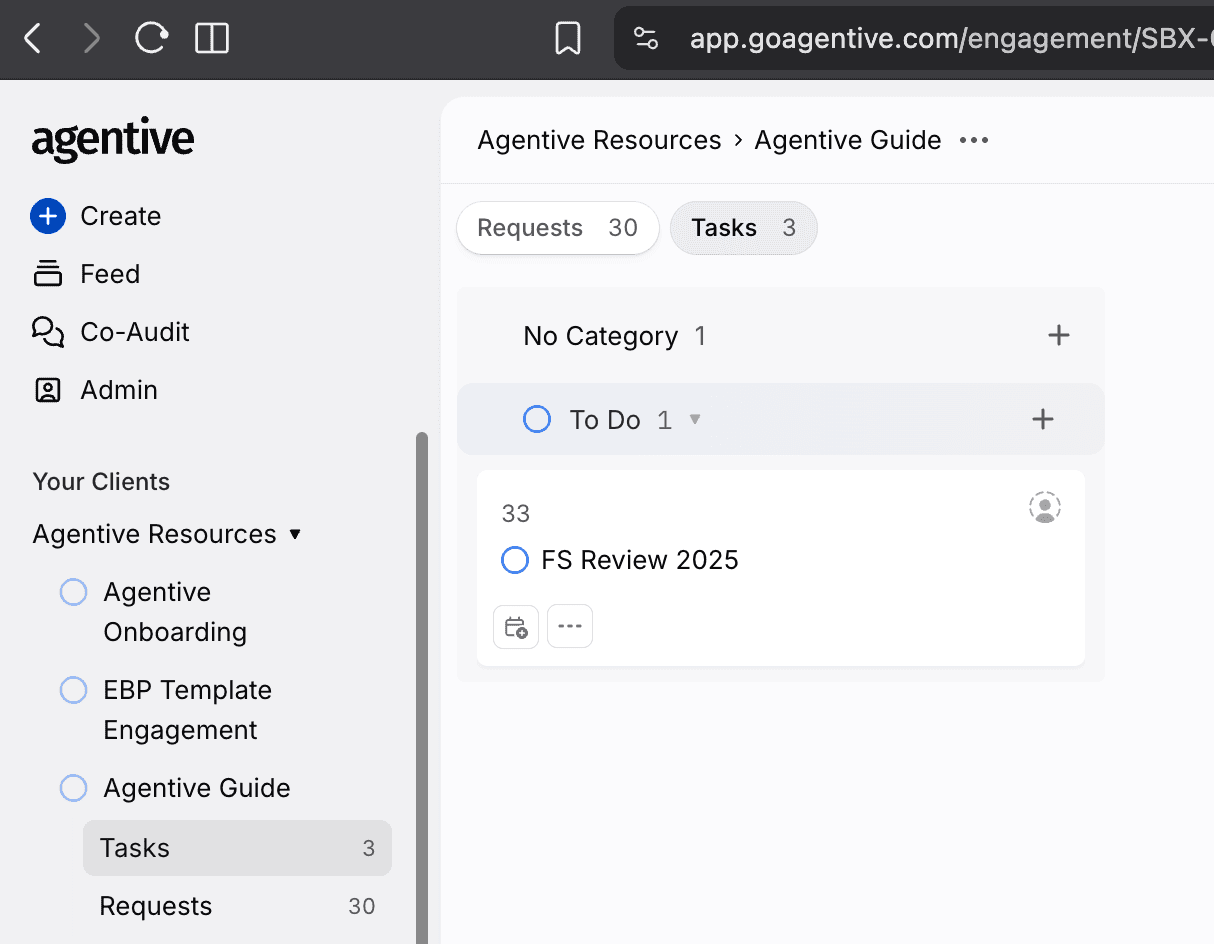
The internal-only board. Clients never see it. Use it for Financial Statement Reviews, internal memos, planning work, or any procedure you do not want to surface to the client. It is structurally identical to the Request Board, with the same statuses, the same assignees, and the same workpaper layer.
Off by default
The Task Board is hidden by default. Turn it on in Engagement Settings → Task Types. See Updating engagement settings for details.
Switch views, filter, and group
The board adapts to how you want to read your work. The view picker in the top toolbar swaps the layout; filters and grouping refine what's on screen.
Create a request
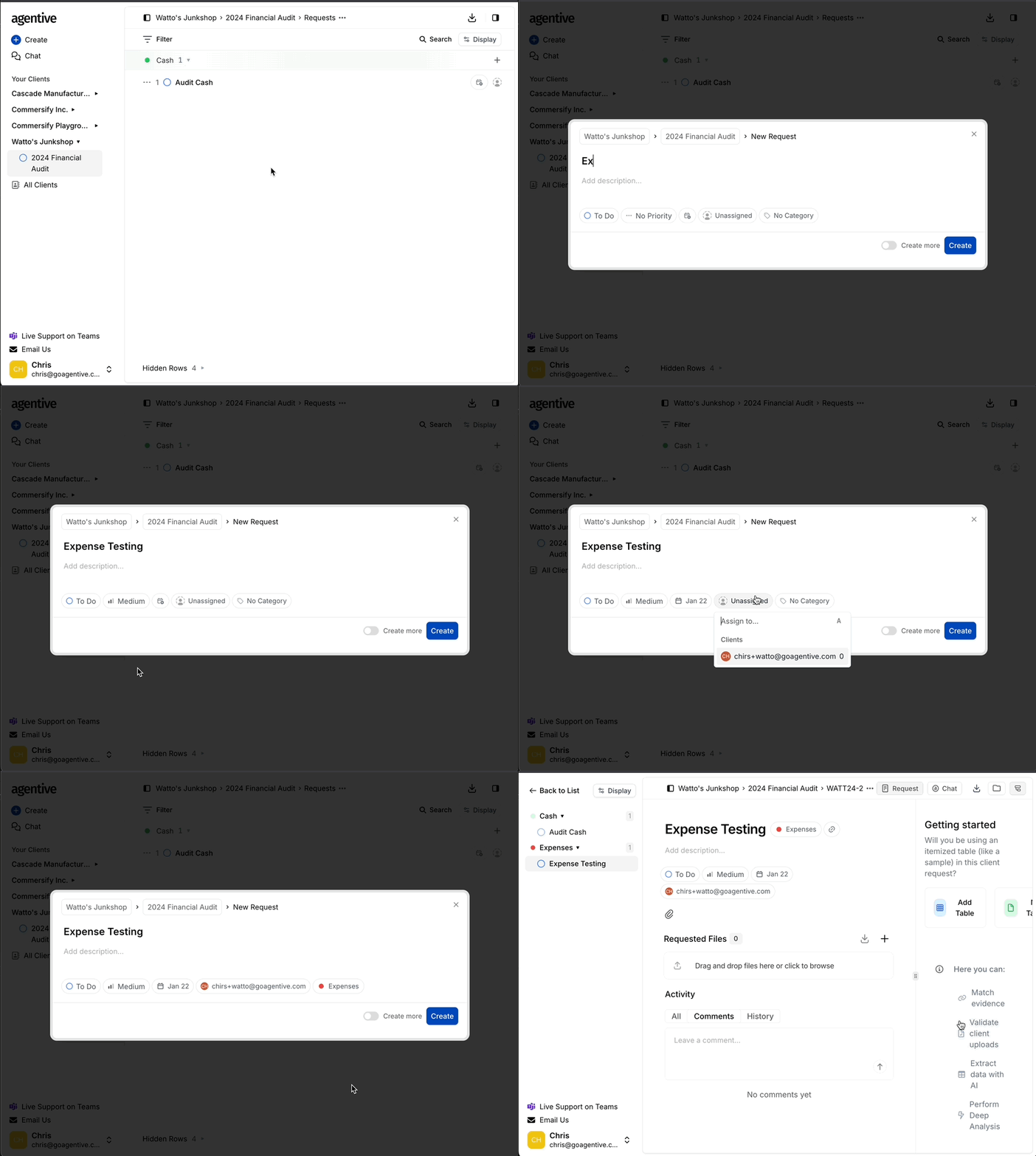
Every piece of work in an engagement starts as a request. You can build one from scratch or generate one from a natural-language instruction in Co-Audit; this section covers the from-scratch path.
Click + Create
From inside the engagement, click the + Create button at the top of the Request Board. Choose Start from Scratch (use Co-Audit if you want to describe the workpaper in natural language and have Agentive build the structure for you).
Fill in the details
Title (required)
A clear, client-readable title (e.g., Bank Reconciliations Q4, Cash Disbursements Listing).
Description
What you need, in what format, for what period. Use checklists when there are multiple deliverables.
Status
Defaults to To Do. Leave at Backlog if you are not ready to publish it to the client yet.
Priority
Low, Medium, High, or Urgent. Drives sorting and highlights on the board.
Due date
The date you need the client (or the team) to have the request closed out.
Assignee
The auditor on your team who owns the request. Add a client contact as the client-side owner so they know it's theirs.
Category
The audit area (Cash, Revenue, A/R, Payroll, etc.). Set up the list in Engagement Settings → Categories.
Click Create
The request appears on the board and opens automatically. From here you can attach reference files, set up the workflow, or move on and come back later.
Toggle Create another in the dialog to keep the composer open after saving. Useful for bulk-loading a PBC list manually. For larger lists, use Excel import instead.
A request in Backlog is invisible to the client. Move it out of Backlog to publish it. This is the gate between drafting internally and turning the work loose on the client portal.
Inside a request
Every request has the following views:
| Tab | Location | What it's for |
|---|---|---|
| Co-Audit | Left Side Pannel | Chat assisted auditing partner that can create workflows, answer questions, and document findings. |
| Request | Button in the Top Center | The request that the client can see. |
| Workpaper | Button in the Top Center | The populated grid where extracted values, calculations, matches, and tickmarks live. This is what you review and validate. |
| Memo | Button in the Top Center | Workpaper Purpose, Procedures, Testing Attributes and Accounting Policies the AI reads as context before any procedure runs. |
| Files | Botton in the Top Right | The files uploaded to this request organized by Document Group. |
| Workflow | Button in the Top Right | Set up the structure of the workpaper: selections, document groups, AI Prompt Columns, Formulas, and Testing Attributes. |
The fastest way to start a new request is to describe it in plain English to Co-Audit. Co-Audit can scaffold the request, the workflow, and the memo in one shot, so you can refine the details rather than build them from scratch.
Continue your journey
← Create an amortization schedule with Co-Audit
Build an amortization schedule from a single instruction.
The Request tab →
Configure the client-facing view: title, description, files, and comments.
How is this guide?
Create an amortization schedule
Upload a lease, loan, or debt document and ask Co-Audit to build the full amortization schedule from it, with period dates, interest, principal, and ending balance calculated row by row.
The Request Tab
The client-facing surface of a single request. Title, status, and assignment up top; reference files and requested files in the middle; activity and comments at the bottom. The full read of one item of audit work in one view.