Updating engagement settings
A tour of every tab in Engagement Settings (Overview, Team, Client, Task Types, Categories, and Variables), plus how to delete an engagement when it's done.
Engagement Settings is where you configure everything about an engagement that lives outside of an individual request: the name and period, who is on the team, who from the client has access, which task boards are turned on, the categories you tag requests with, and the engagement-wide variables that flow into your workpapers. This page walks each tab top to bottom and finishes with how to delete an engagement.
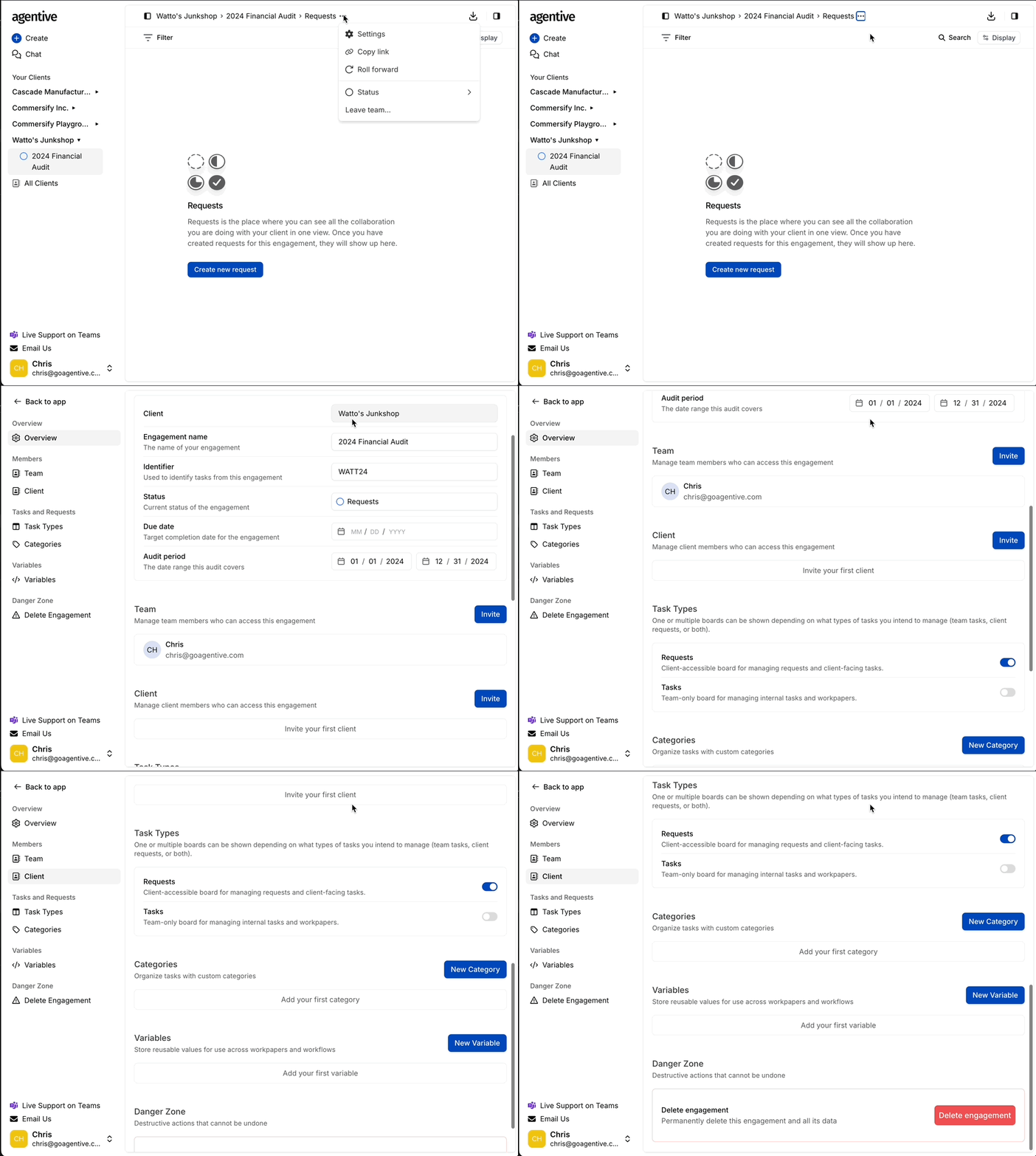
How to open Engagement Settings
From inside the engagement, click the three-dot ⋯ menu at the top and choose Edit Engagement. You can also reach the same screen from the breadcrumb menu at the top of the Request Board, or from the ⋯ menu under Actions in the client engagements table.
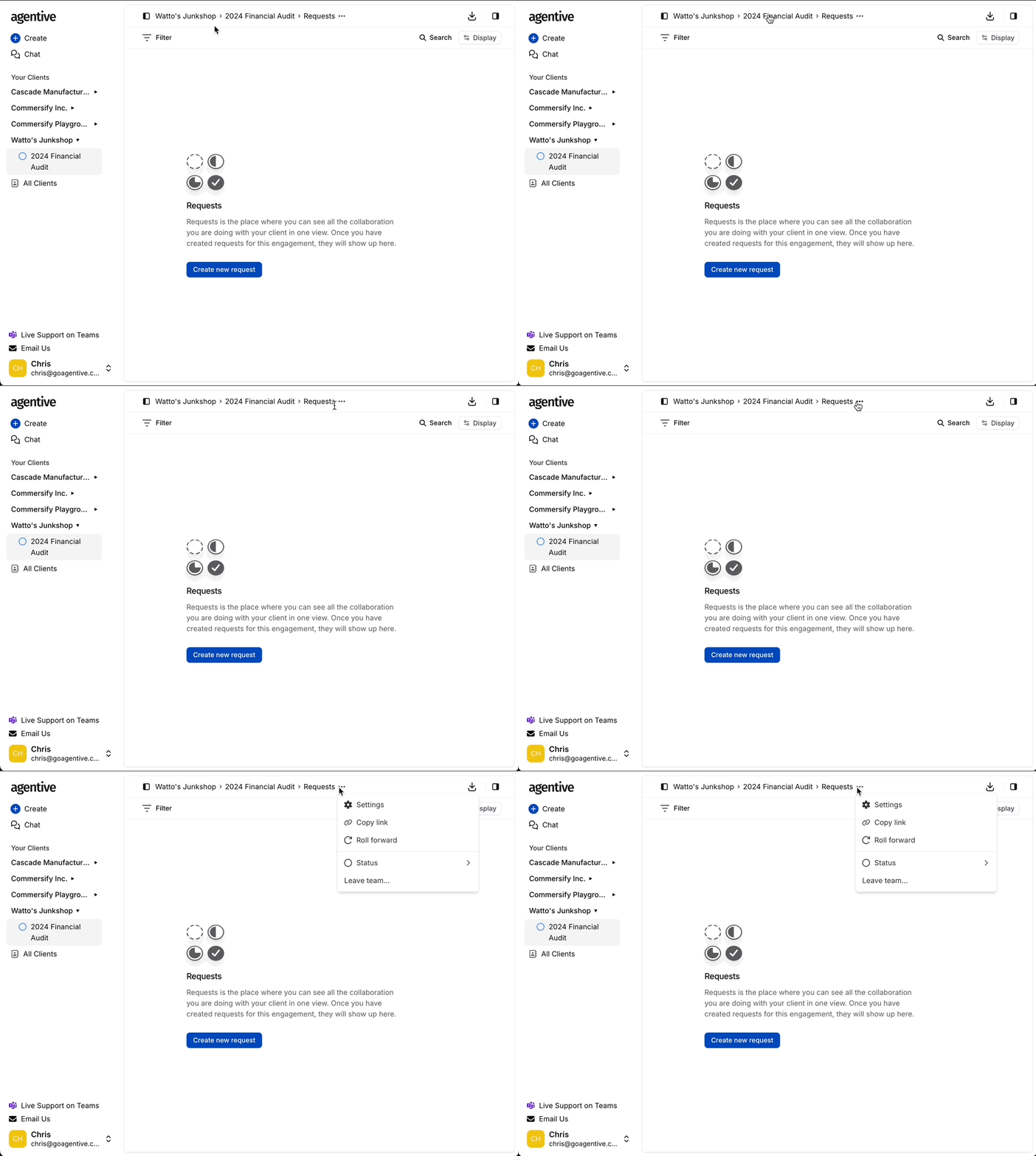
Overview
The Overview tab holds the core identity of the engagement. These are the fields you set when you created the engagement, plus a couple you can adjust as the work progresses.
| Setting | Description |
|---|---|
| Engagement Name | A descriptive name (e.g., 2025 Financial Statement Audit). Shown in the sidebar, breadcrumbs, and the client portal. |
| Identifier | A short prefix used in every request and task number (e.g., FSA25). Keep it tight, because it appears on every ID in the engagement. |
| Status | The current state of the engagement (Active, On Hold, Complete). |
| Audit Period | The start and end dates the engagement covers. |
| Due Date | The target completion date. |
Updating the Engagement Name or Identifier updates them everywhere in the app, including on existing requests and tasks. The IDs themselves don't renumber, but new items use the updated prefix.
Team
The Team tab lists the firm auditors on this engagement. Adding an auditor here pins the engagement to their sidebar and makes them assignable on requests, tasks, and reviews. It is not what grants access; every auditor in your firm can already open every engagement.
For the full workflow on inviting and removing auditors, see Adding clients and auditors.
Client
The Client tab lists the client contacts who can sign in to this engagement. Unlike the Team tab, adding someone here is what unlocks the client portal. Without it, the contact has no access to the engagement.
For the full workflow on inviting and removing client contacts, see Adding clients and auditors.
Client contacts on this tab can see every Request on the Request Board. They never see Tasks, settings, variables, or anything internal. Keep anything you don't want the client to see on the Task Board.
Task Types
The Task Types tab is where you turn on or off the two boards inside the engagement.
| Task Type | Visibility | Purpose |
|---|---|---|
| Request | Client-facing | The PBC items, evidence collection, and documentation that the client responds to on the Request Board. Always on. |
| Task | Internal only | Planning, financial statement reviews, internal workpapers, and any work the client should not see. Off by default; turn it on here. |
The Task Board is hidden by default to keep new engagements clean for firms that don't separate internal work. Turn it on when you need a space for Financial Statement Reviews, internal memos, or any work that should not appear on the Request Board.
Open Task Types
In Engagement Settings, select Task Types.
Toggle Tasks on
Switch on Tasks to enable the Task Board. The Task Board appears next to the Request Board in the engagement view.
Save
The change applies immediately.
Categories
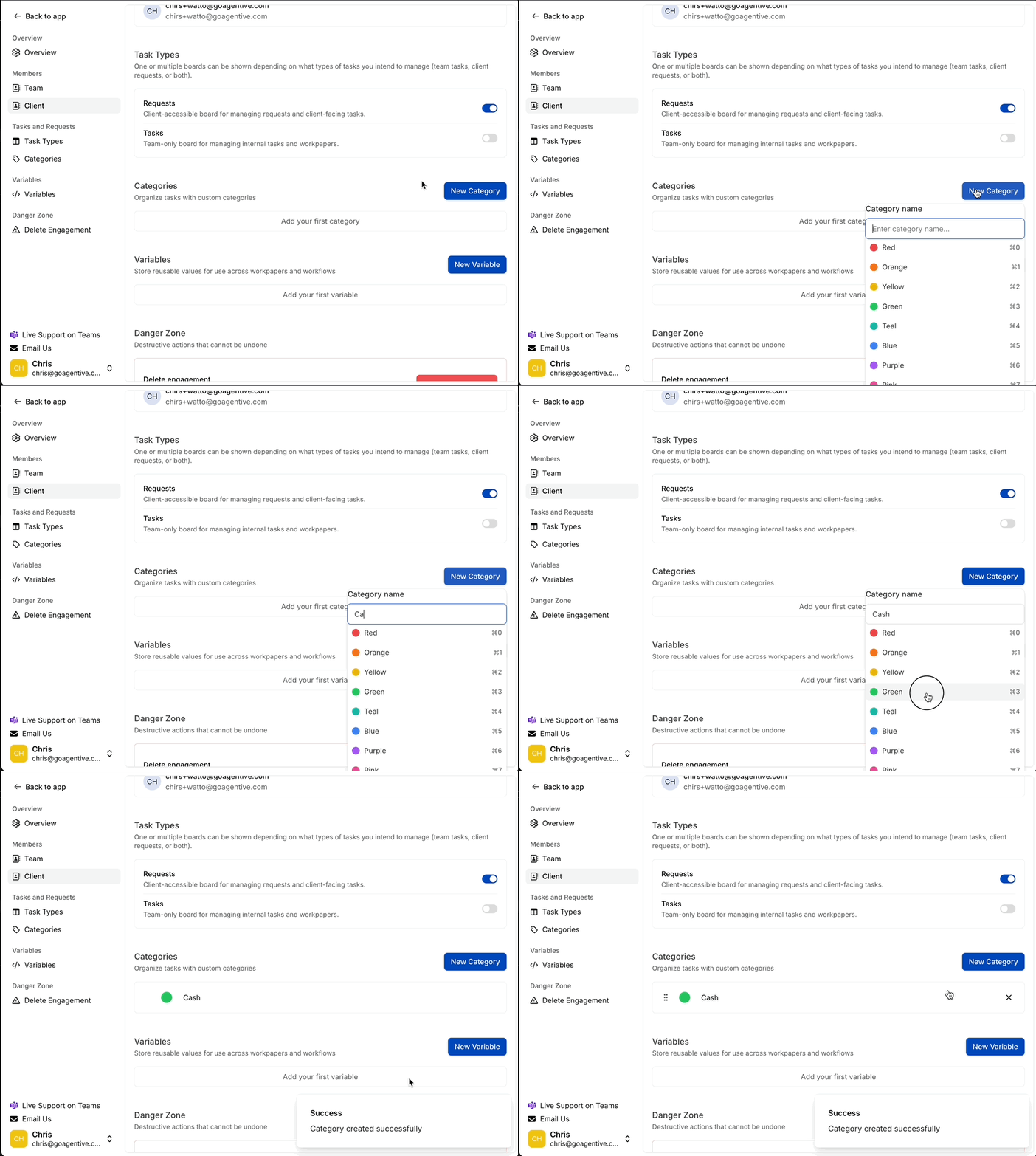
Categories are the audit-area tags you apply to requests (Revenue, Cash, A/R, Payroll, and so on). They drive grouping and filtering on the Request and Task Boards. Set them up once per engagement and tag as you create requests.
Open Categories
In Engagement Settings, select Categories.
Click New Category
Click the + New Category button.
Name the category and pick a color
Type the category name (e.g., Revenue) and choose a color for the badge. The color shows up everywhere the category appears.
Save
The category becomes available in the category picker on every request and task in the engagement.
Categories roll forward with the engagement, so the second-year audit inherits the set you tuned this year. You only need to build the list once per recurring engagement.
Variables
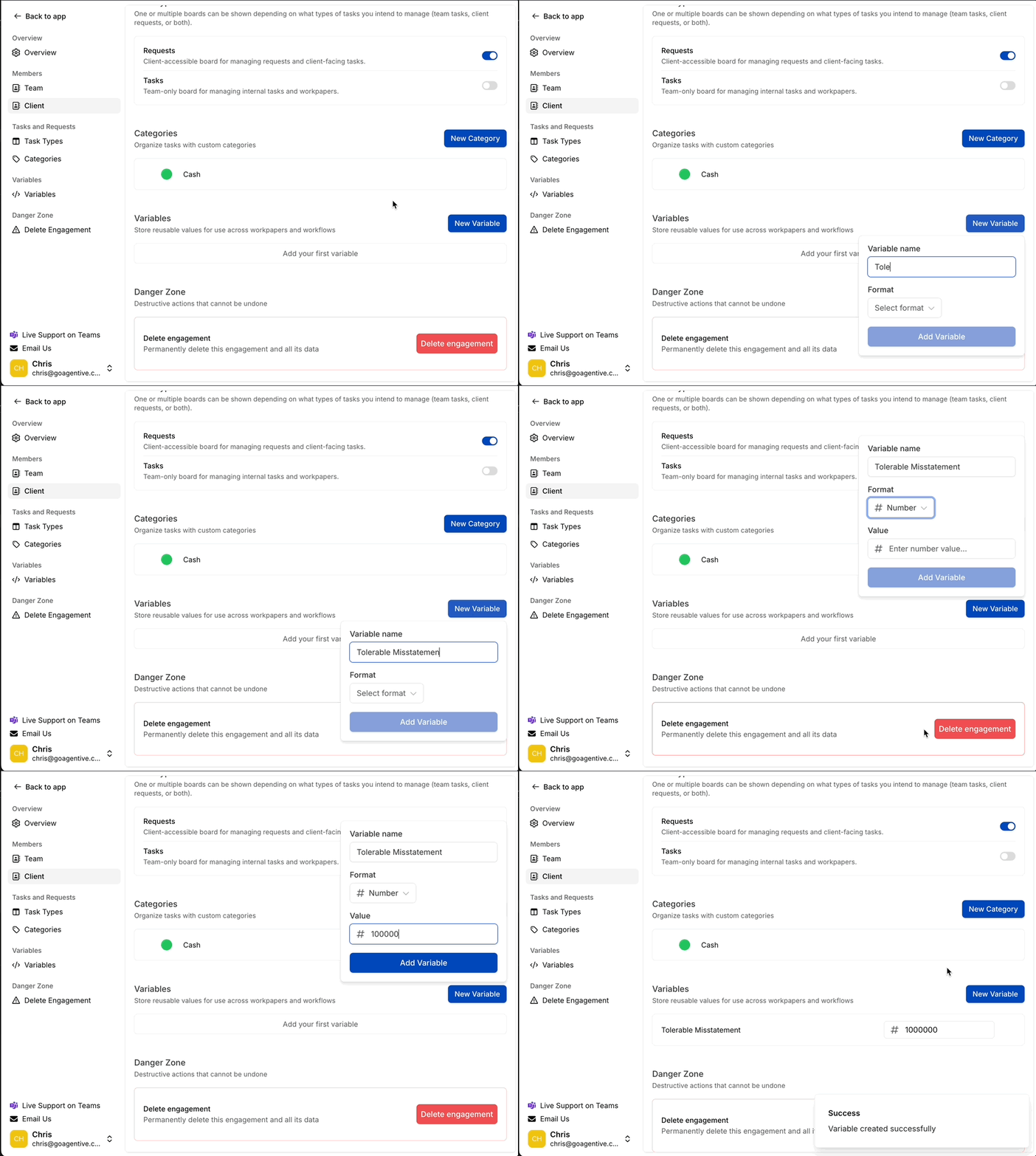
Engagement Variables are named values defined once at the engagement level and reused everywhere in workpapers, formulas, and AI prompts via @. They keep client-specific values (period-end date, materiality, plan provisions, IRC thresholds) consistent across every request without re-entering them. Variables also flow into the Memo tab.
Two ways a variable gets here:
- Manually, by typing a name and value in this tab.
- Automatically, when a workpaper publishes an overview row as a variable (for example, the EBP Plan Analysis publishes Eligibility Overview, Compensation Overview, and the other plan provisions).
Add a variable manually
Open Variables
In Engagement Settings, select Referenced Variables (or Variables).
Click New Variable
Click + New Variable.
Name, format, and value
- Name: what you reference with
@(e.g.,Materiality,Period End Date,Annual Comp Limit). - Format: Text, Date, or Number.
- Value: the value for this engagement.
Click Add Variable
The variable is now available across every request and workpaper in the engagement. Type @ in any AI Prompt, Formula, or request description to insert it.
Variables are engagement-specific. They roll forward with the engagement, so values you tune this year start populated for next year's audit.
The clearer the variable, the cleaner the workpapers that read it. A variable named Eligibility Overview with a vague value will leave the dependent tests guessing. Keep the names short and the values precise.
Delete an engagement
When an engagement is finished and you no longer need to keep it active, you can delete it from the bottom of Engagement Settings.
Before you delete, consider Roll Forward instead. Rolling forward preserves the engagement's structure (requests, categories, variables, automations) into next year's engagement without carrying over the prior year's supporting documents. You almost always want to roll forward an annual audit, not delete it.
Continue your journey
← Add clients, engagements, and team members
Create the engagement structure before configuring its settings.
Rolling forward an engagement →
Carry an engagement forward to a new period or client so you reuse established workflows.
How is this guide?
Adding clients and auditors
Invite the firm auditors who will work the engagement and the client contacts who will respond to requests. Understand what "adding" an auditor actually changes about their access.
Roll Forward an Engagement
Learn how to roll forward an audit engagement to a new period or a different client to reuse established workflows and tasks rather than starting from scratch.