Create a workpaper with Co-Audit
Describe what the workpaper needs to do and let Co-Audit generate the client-facing request, the document groups, and the column set from one natural-language instruction.
The fastest way to build a workpaper in Agentive is to describe what it needs to do in the Co-Audit panel and let the agent generate the structure for you. Instead of adding a document group, configuring AI Prompt Columns, writing extraction prompts, and drafting client copy one piece at a time, you write one instruction and Co-Audit assembles the whole workflow: request description, document groups, columns, and references.
This page walks through that flow end to end. Create the empty request, write the Co-Audit instruction, let the workflow build, then upload documents and run it.
What you'll do
- Create an empty request with just a title (no description, no columns).
- Submit a single Co-Audit instruction that describes the workpaper.
- Watch Co-Audit build the request description, document groups, and AI Prompt Columns.
- Upload the client's documents and run the workflow.
- Review, validate, and refine any column that needs tuning.
Create the empty request
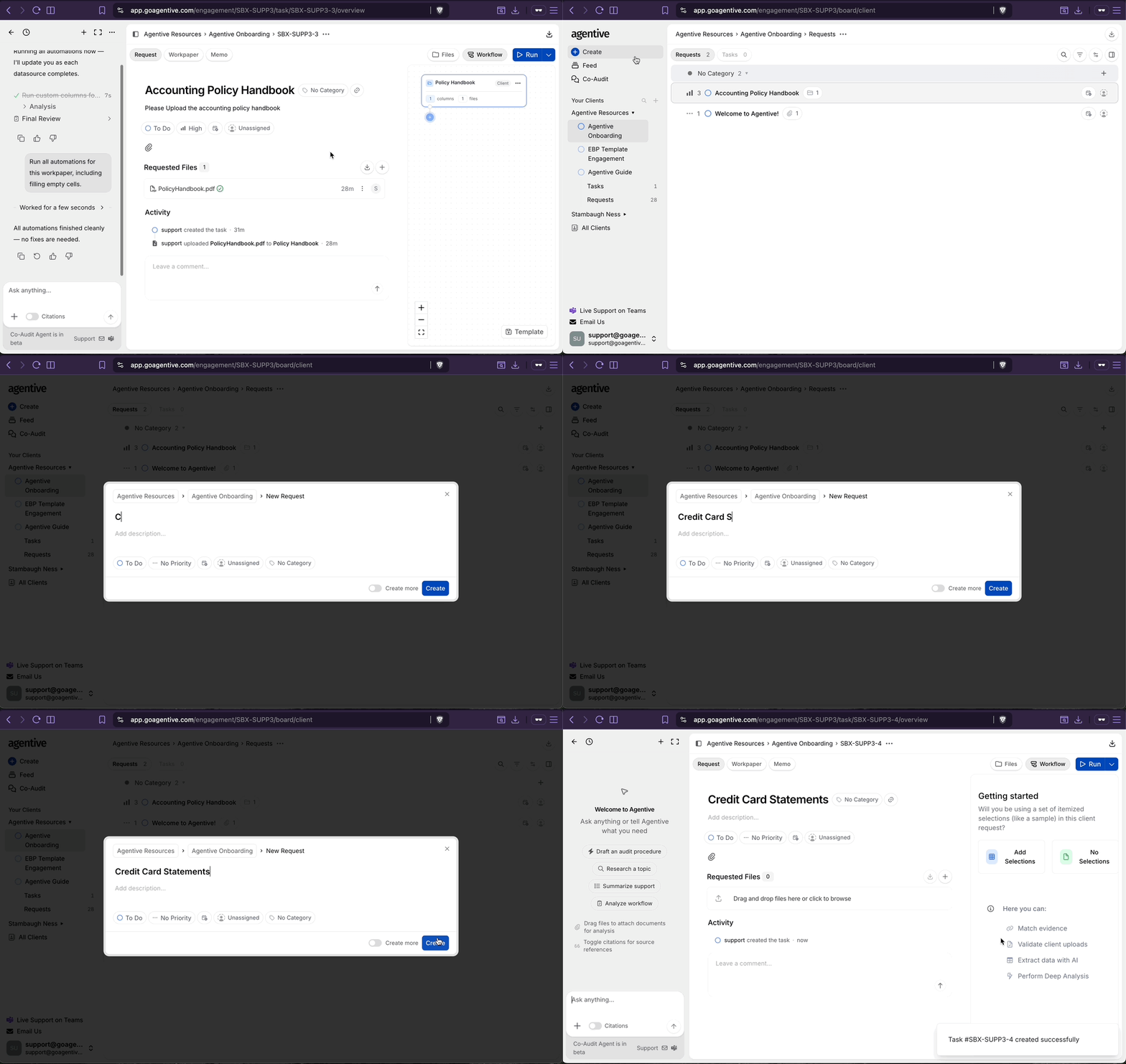
Co-Audit needs somewhere to build, so start with an empty request shell. Skip the description; Co-Audit will write it.
Open the Request Board
Open the engagement and make sure you are on the Request Board (or the Task Board if the workpaper is internal-only).
Click + Create, then Start from Scratch
Click + Create at the top of the board, then choose Start from Scratch.
Title the request and Create
Give the request a clear title (for example, 2025 Credit Card Statements or Fixed Asset Additions Testing). Leave the description blank; Co-Audit will fill it in.
Click Create. The request opens with the Co-Audit panel on the left.
Write the Co-Audit instruction
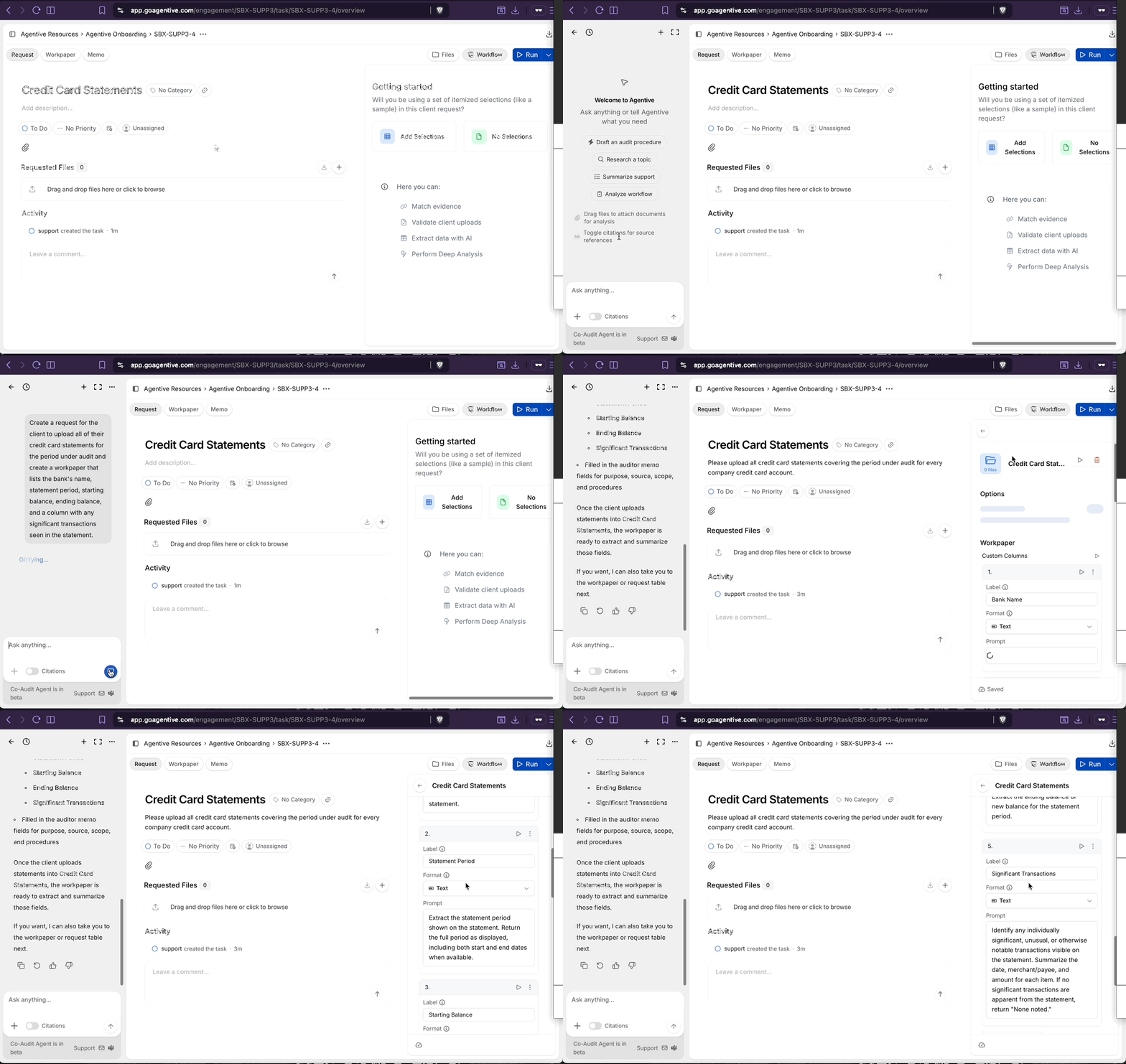
This is where the work happens. Treat Co-Audit like a new staff auditor: state the goal, the documents the client will provide, and the values you want extracted or calculated.
Open the Co-Audit panel
The Co-Audit panel opens by default on the left side of the request. If it is collapsed, click the Expand Sidebar button in the top-left.
Type your instruction
Describe the workpaper in plain English. A solid instruction usually includes:
- What the client uploads (e.g., quarterly credit card statements, invoices, lease agreements).
- The period or scope under audit.
- The columns you want back (extracted values, calculations, tie-outs, and judgment calls).
Example instruction:
Create a request for the client to upload all of their credit card
statements for the period under audit and create a workpaper that
lists the bank's name, statement period, starting balance, ending
balance, and a column with any significant transactions seen in
the statement.
Submit and watch the Workflow tab build
Click submit. Co-Audit works in the open. Switch to the Workflow tab and you'll see it:
- Update the client-facing request description.
- Create one or more document groups for the files the client will upload.
- Generate the AI Prompt Columns and Formulas you described.
- Wire up any references between columns.
Co-Audit reads your instruction the way a new staff auditor would. State the goal, name the document, and list the columns you want. It builds the full workflow without requiring you to configure each column individually.
Upload documents and run
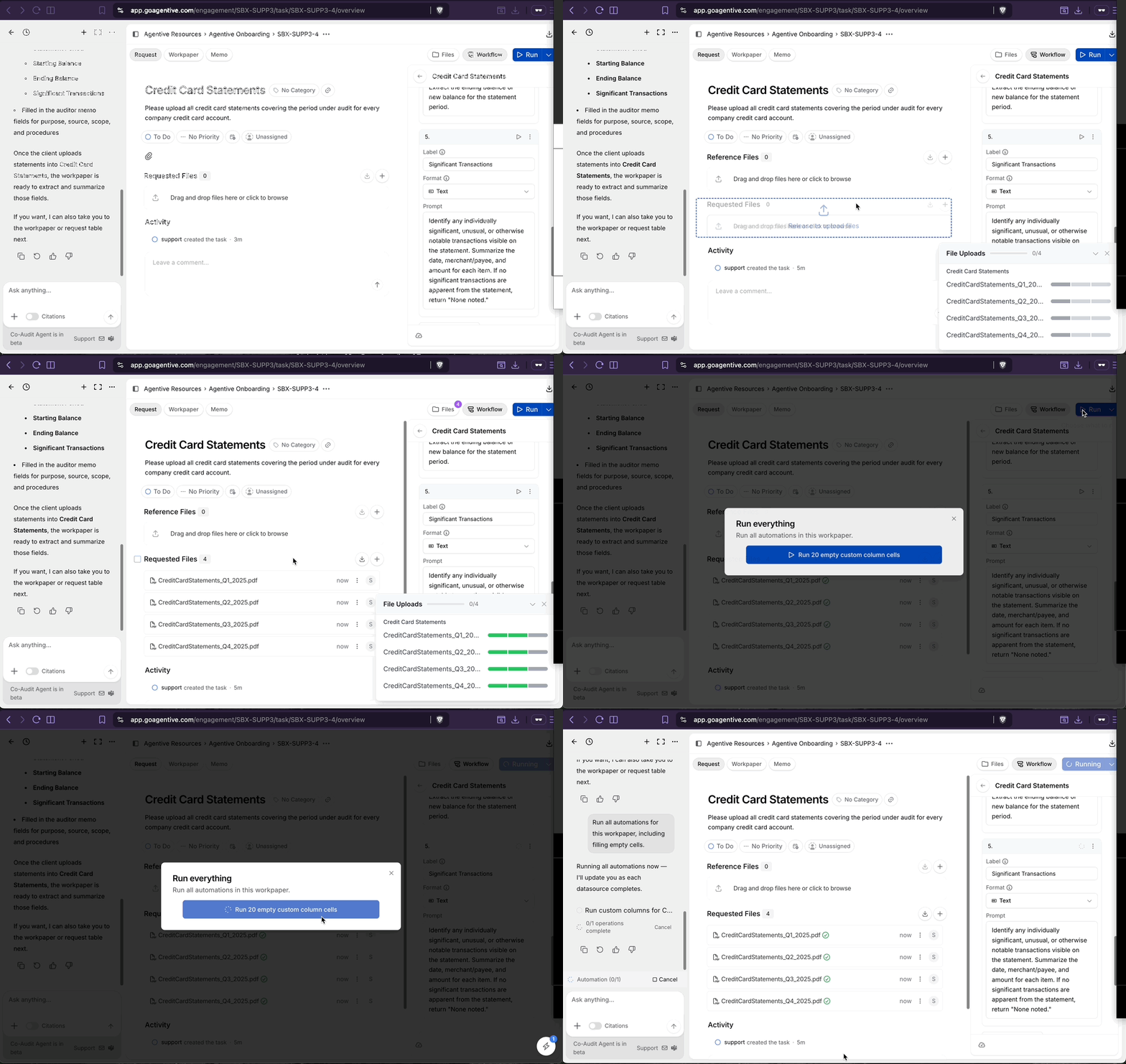
Once Co-Audit has built the workflow, you have an empty workpaper waiting on client documents.
Open the Requested Files area
In the center of the request, find the Requested Files upload area.
Bulk-upload the documents
Drop the client files into the upload area. Wait for each file to show a green status indicator.
Uploading to the bulk area (instead of pre-sorting into specific groups) lets the Match Agent decide which document belongs to which selection or row. This usually beats pre-sorting.
Click Run in the Workflow tab
In the Workflow tab, click Run at the top and confirm. The Match Agent runs first, then the AI Prompt Columns, Formulas, and Testing Attributes populate.
Review, validate, and refine
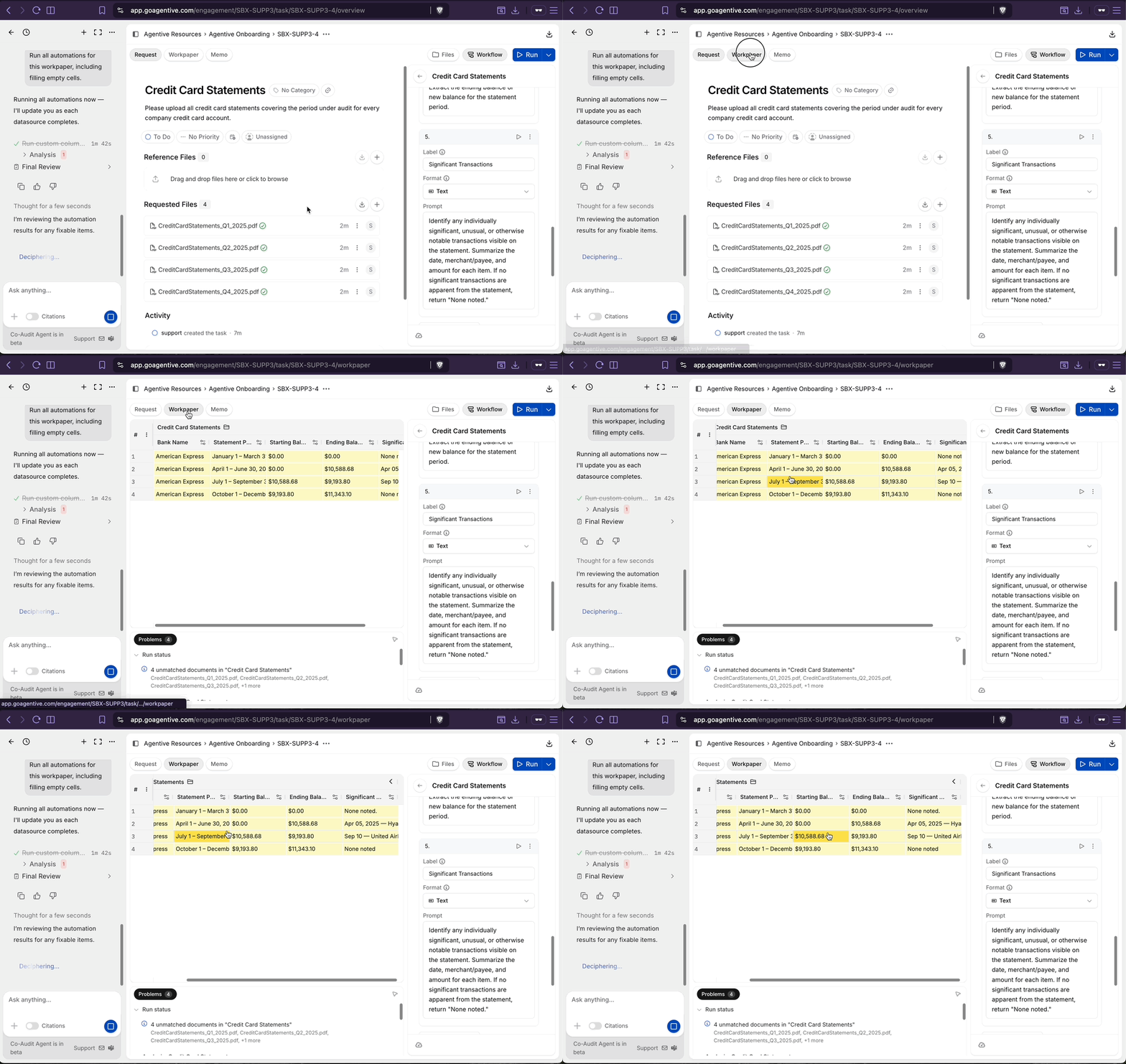
Co-Audit gets you to a populated workpaper fast. The job from here is to review the cells, validate what's right, and tune anything that isn't. For tests that require statistical sampling, also see Sampling.
Walk the columns in the Workpaper tab
Open the Workpaper tab. For each column:
- Click the citation pill in a cell to jump to where the value was found in the source document.
- If the value and reasoning are correct, click Validate.
- If the value is wrong, click Rerun on that cell, or fix the prompt on the column header.
Tune any judgment column
Judgment columns (anything where you asked for an opinion, summary, or significance call) are the ones most worth refining. Edit the prompt on the column header, click the play icon on that column to rerun only it, and compare. Validated cells are locked and won't rerun.
Iterate with Co-Audit
When a whole section of the workflow needs work, go back to the Co-Audit panel and describe the change. For example, "add a column that recalculates the total based on the unit price times quantity" or "the client provides an annual report instead of monthly statements; update the procedures to read it." Co-Audit edits the workflow in place.
Watch for red text and math
Co-Audit is fast and accurate at structure but still makes mistakes. Red text in a custom column means a reference is broken, usually a column-name mismatch. And for any column that should recalculate (rather than extract) a number, double-check; the AI sometimes copies a value forward instead of doing the math.
Continue your journey
← Co-Audit overview
Understand how the natural-language agent fits into every request.
Create an amortization schedule with Co-Audit →
Build a row-by-row amortization schedule from a lease, loan, or debt document.
How is this guide?
Co-Audit
Co-Audit is the natural-language agent that lives in the left sidebar of every request. Describe what you want and it builds the workflow, document groups, columns, and client-facing request copy for you.
Create an amortization schedule
Upload a lease, loan, or debt document and ask Co-Audit to build the full amortization schedule from it, with period dates, interest, principal, and ending balance calculated row by row.