Sampling
Pull selections from a full population with the right method for the job (No Sampling, Monetary Unit Sampling, Random Sampling, Test Coverage Sampling, or Journal Entry Testing). Agentive saves the methodology and the original population to a documentation file you can attach to the audit file.
Sampling in Agentive starts with a population pasted into the Selections table on the Workflow tab. Once the table data is in, you pick a sampling method, set the parameters, and save. Agentive draws the sample, writes a documentation file for the audit file, and turns the surviving rows into an itemized request the client can respond to.
This page walks the full flow: get the data in, pick a method, run the sample, and save.
What you'll learn
- How to import a population by pasting from Excel.
- The five sampling methods Agentive supports and when to use each.
- How to add manual selections alongside a sampled set.
- What happens on save: the documentation file and the itemized request.
Step 1: Import the population
Both the sampling methods and the no-sampling path read from the Selections table on the Workflow tab. The first step is getting the full population in.
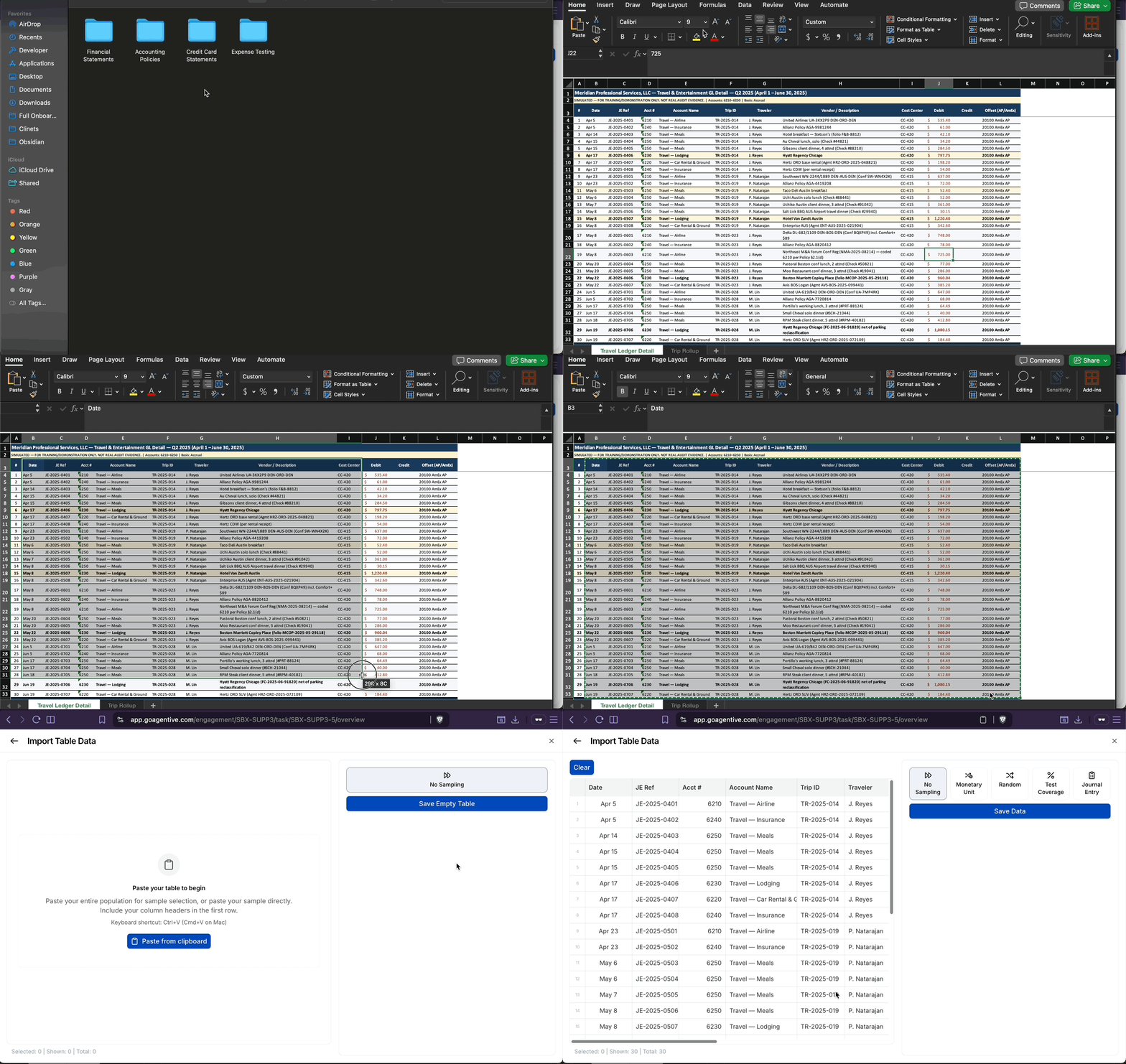
Open the workpaper's Workflow tab
From the request, open the Workflow tab and pick Add selections from the Getting started panel.
Copy from Excel (include the header)
Open the source spreadsheet (GL detail, payroll register, AR aging, journal entry export), select from the header row through the last data row, and copy.
Paste into Agentive
Click Paste from Clipboard in the Selections table and paste. Agentive infers the header row from the first row of the paste.
Confirm headers and columns
Spot-check that the columns line up. Any dollar column you intend to sample on needs to come in as a number, not text.
Column headers carry forward through the whole workpaper. Use clean, consistent names (Vendor Name, Invoice Number, Debit, Posting Date); downstream AI Prompts and Formulas reference these via @.
Step 2: Pick a sampling method
With the table data loaded, Agentive offers five sampling options. Pick the one that matches the test.
| Method | Best for |
|---|---|
| No Sampling | Testing the entire population; no sample is drawn, and every pasted row becomes a selection. |
| Monetary Unit Sampling (MUS) | Dollar-weighted populations: expense testing, disbursements, AR balances, anywhere larger items carry more audit risk. |
| Random Sampling | Populations where every item carries similar audit risk: confirmations, controls testing, employee files. |
| Test Coverage Sampling | When you need to cover a target percentage of the population's dollar value. |
| Journal Entry Testing | Selecting JEs from a GL detail by timing, amount, content, and control criteria. |
Click between the tabs below to walk each method end to end, with no scrolling required.
No Sampling assumes you're going to test the entire population you pasted in. No sample is drawn. Every row becomes a selection on the itemized request, and the client uploads against the whole list.
Use this when the population is small enough to test in full, or when the test calls for 100% coverage.
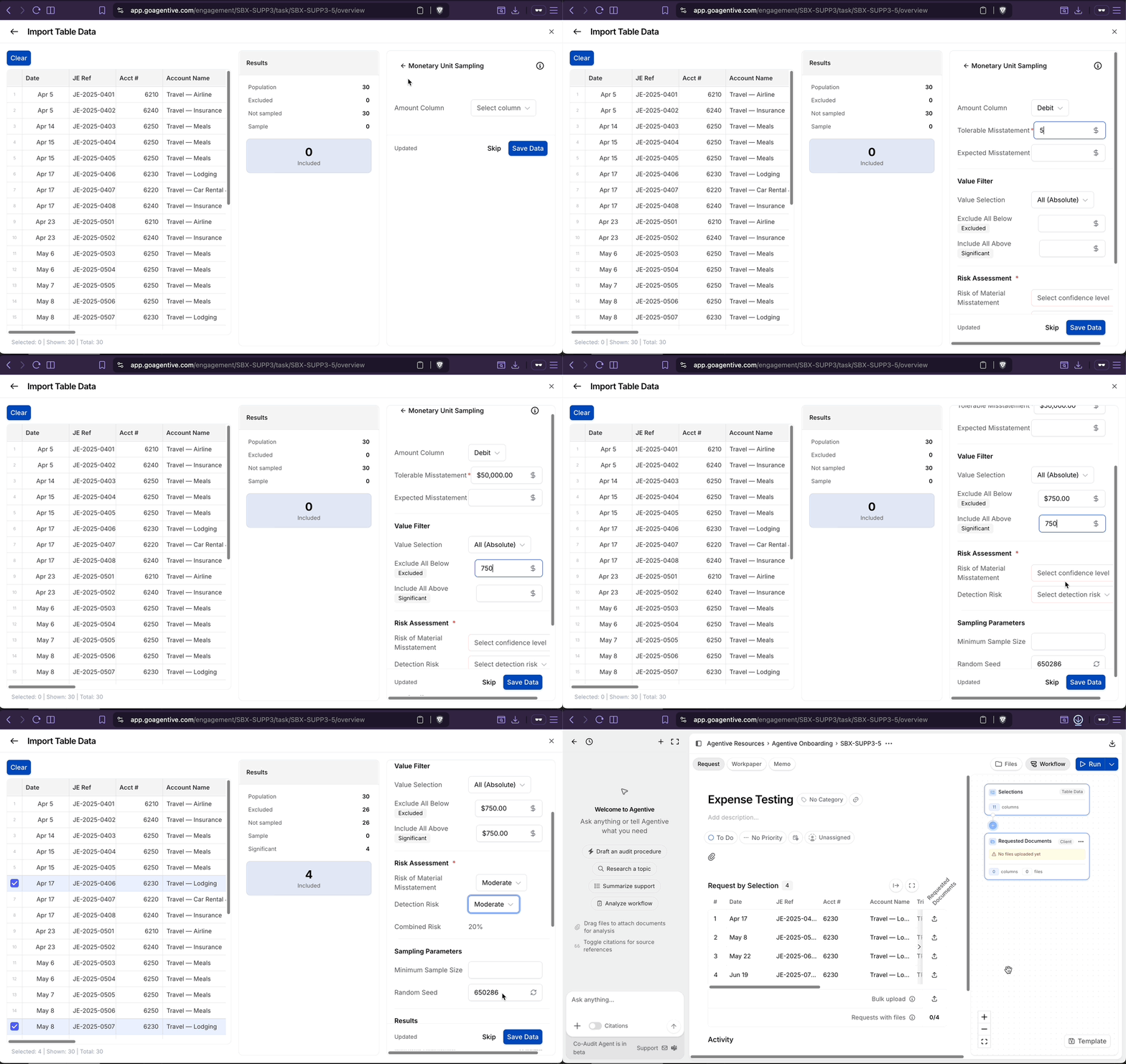
Use Monetary Unit Sampling (MUS) when audit risk scales with dollar amount: expense testing, cash disbursements, journal entries, AR balances, anywhere a larger item carries more weight than a smaller one.
Select an amount column
Choose the column that holds the dollar value (e.g., Debit, Invoice Amount, Distribution Amount). MUS weights selection probability by this column.
Set the entire-statement requirement
Pick whether the entire statement is Required, Expected, or Not Required. This tells MUS how to handle items above the sampling interval.
(Optional) Add a value filter
Restrict which items are eligible for selection:
- Value selection: defaults to Absolute; you can switch to Negative or Positive only.
- Exclude all below a specific amount: set a floor (e.g.,
$750) so smaller items are ignored by the sampling logic. - Exclude all above a specific amount: set a ceiling for the same reason.
All value filters are optional.
Set the risk assessment (required)
- Risk of material misstatement: Low / Moderate / High.
- Detection risk: Low / Moderate / High.
Both fields are required; together they drive the sampling interval.
(Optional) Set sampling parameters
- Minimum sample size: a floor on the count of items drawn, independent of the interval.
- Random seed: set a seed to make the sample reproducible. The same population + same parameters + same seed will always produce the same sample.
Save
Agentive shows the implied sample count and draws the sample on save.
MUS always catches the largest items. Any single item larger than the sampling interval is selected automatically (a "top stratum" / individually significant item). This is by design: it's the reason MUS is the standard for dollar-weighted populations.
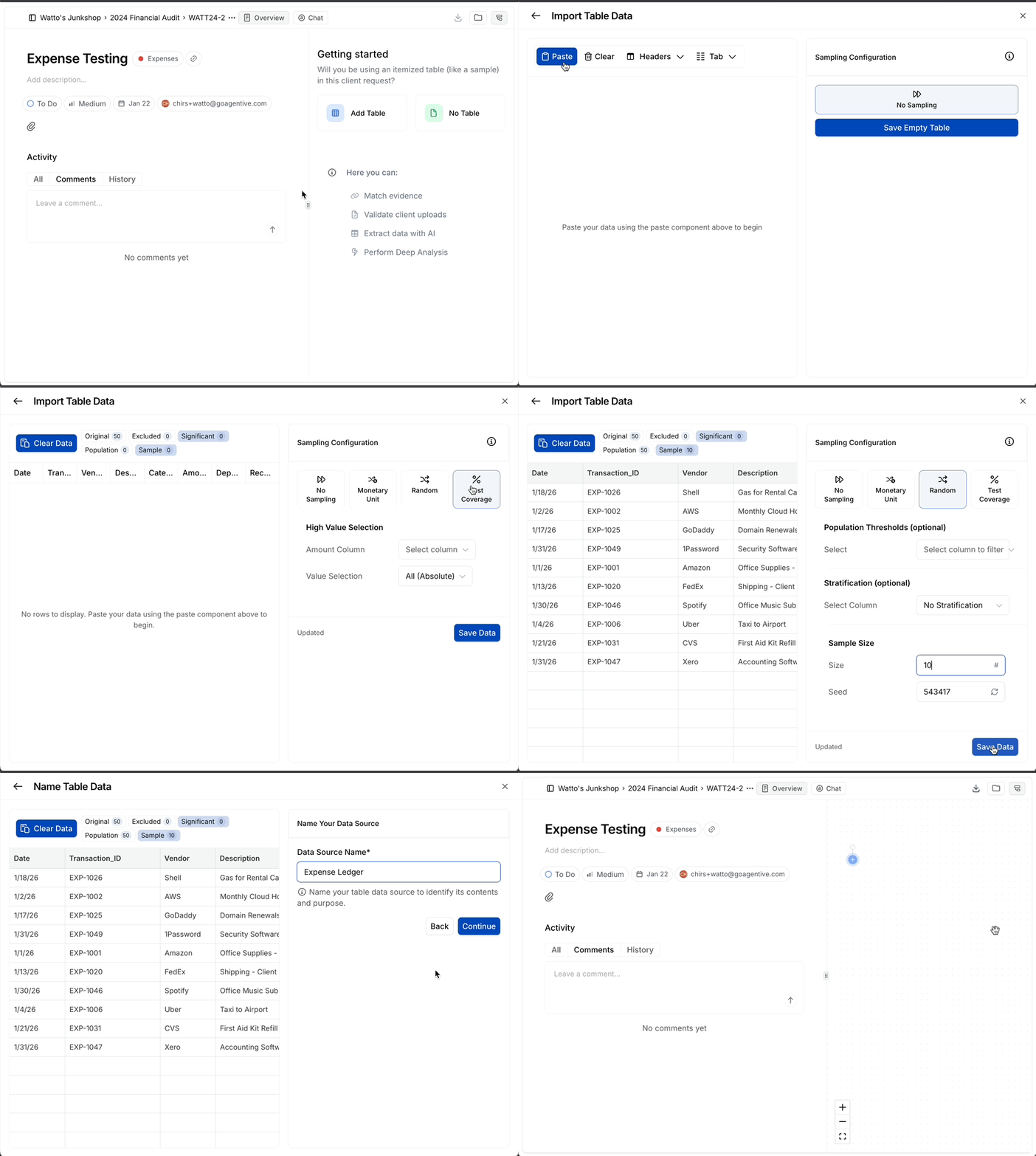
Use Random Sampling when every item in the population carries roughly the same audit risk and you want a simple, defensible sample.
(Optional) Set a population threshold
Filter the population before sampling (for example, only consider items above a certain amount).
(Optional) Stratify by column
Split the population by a column (category, amount band, region) and sample within each stratum to get even coverage across groups.
Set the sample size
Enter the number of items to draw. Agentive can also derive this from a confidence level and tolerable rate if you'd prefer to express it that way.
Set the random seed
Set a seed to make the sample reproducible: same population + same seed + same parameters always returns the same sample.
Save
Agentive picks the rows and hides the unselected items.
Use Test Coverage Sampling when the engagement requires you to test a target percentage of the population's dollar value. It's common on revenue, AR, and large-balance testing where a coverage threshold is the requirement.
Select an amount column
Choose the column the coverage percentage is calculated against (e.g., Invoice Amount, Balance).
Set the value selection
- Absolute: value magnitude, ignoring sign.
- Positive: positive amounts only.
- Negative: negative amounts only.
Set the coverage target
Set the percentage of the population you want the sample to cover (e.g., 70% of total revenue dollars). Agentive picks the largest items first until the target is met.
Save
Agentive returns the smallest set of items that meets the coverage target.
Use Journal Entry Testing for fraud-risk testing of the general ledger: selecting JEs from a full GL detail by timing, amount, content, and control criteria.
Fill out the JE Rules Engine columns
Map the columns from your pasted GL detail to the JE Rules Engine fields:
| Column | Required | What it's for |
|---|---|---|
| JE ID | Yes | The unique journal entry identifier. |
| Posting Date | Optional | Enables timing-based rules (period close, weekend postings). |
| Account | Optional | Enables account-based rules (sensitive accounts). |
| Debit | Optional | Enables amount-based rules on the debit side. |
| Credit | Optional | Enables amount-based rules on the credit side. |
| Description | Optional | Enables content-based rules (keyword search, round numbers). |
Only JE ID is strictly required. Leaving the others blank still lets the engine run, but it removes rule options that depend on those fields.
Review the auto-mapping
Agentive auto-maps the columns from the pasted data where it can. Review the mapping for accuracy before continuing, because a miss-mapped Debit/Credit will skew every rule that reads it.
Configure rules in the JE Rules Engine
Pick the rules you want to apply. Rules fall into four categories:
- Timing: period-close postings, weekend / holiday postings, late entries.
- Amount: round-dollar postings, postings near a threshold, large credits to revenue.
- Content: keyword matches on the description (e.g., "reclass", "true-up", "manual").
- Control: postings by unusual users or with unusual approver patterns.
Save
Agentive returns the JEs that match the rule set. Each selected JE becomes a row on the itemized request, ready for the client to upload supporting documentation.
Journal Entry Testing is the most data-dependent of the five methods. The more columns you map cleanly in the Rules Engine, the more rules you can layer, and the more defensible the resulting selection is.
Add a manual selection
You don't have to pick everything through the sampling engine. After the table data is loaded (or after a sample is drawn), you can add a specific row by hand.
Click the number on the far right of the imported table data to manually add a specific selection. This is the right move for items the test specifically requires (a known related-party transaction, a top-N item the engagement letter calls out, an item with management interest).
What happens when you save
When you save the sample, two things happen at once:
Documentation file downloads automatically
Agentive downloads a sampling documentation file for the audit file, containing the full population as it was at the moment of sampling and the final sample drawn from it. This is the auditor's proof of reproducibility.
Itemized request goes to the client
The sampled rows become the itemized request on the client side. The client sees one upload area per document group, ready to drop the supporting evidence into.
What's in the documentation file
The downloaded Excel file is what supports the audit work; you keep it with the workpaper in the audit file.
Methodology
Which method (No Sampling, MUS, Random, Test Coverage, JE Testing), the parameters you set (sample size, tolerable misstatement, risk levels, coverage target, JE rules, floor/ceiling), and the date/time the sample was drawn.
Original population
The full population as it was at the moment of sampling (header row plus every data row) so reviewers can see what you sampled from.
Sampling interval (MUS)
For Monetary Unit Sampling, the calculated interval and the cumulative dollar markers that triggered each selection.
Final selections
The selected rows, with their original row identifiers preserved so a reviewer can trace any selection back to the source population.
The documentation file is regenerated every time you re-sample. If you adjust parameters and re-sample, the file reflects the final parameters and the final selections, not a running history of every attempt. Set a random seed if you need bit-for-bit reproducibility across runs.
Common situations
Continue your journey
← The Workpaper tab
Review and validate the workpaper before exporting.
Exporting workpapers →
Export the finished workpaper to Excel with the right format for your firm.
How is this guide?
The Workpaper Tab
Review the populated workpaper (matches, AI-extracted values, and testing attributes) from one spreadsheet-style surface. The AI gives you proposals; this is where you turn them into validated audit conclusions.
Exporting Workpapers
Download a finished workpaper from the Workpaper tab in one of three formats (the .zip bundle that keeps live Excel add-in links, the .xlsx with embedded document groups, or the data-only .xlsx) and pick the format that matches how the audit file will be used.