The Workflow Tab
Build a workpaper end to end. Pick a selections vs. no-selections shape, add selections, wire up document groups (new or shared from the engagement), configure the Source and Workpaper sections, set match inputs, add AI Prompts, Formulas, and Testing Attributes, and run. The complete reference for the Workflow tab.
The Workflow tab is the blueprint half of a workpaper. Selections, document groups, source settings, match rules, AI Prompts, Formulas, and Testing Attributes all live here, and any change you make on this tab flows into the populated Workpaper tab on the next run. Think of the Workflow tab as the place you describe what should happen; the Workpaper tab is the place you read what did happen.
This page is the complete reference for building a workflow: the empty starting state, the selections table, document groups, columns, references, and the run.
What you'll learn
- The difference between the Workflow tab (setup) and the Workpaper tab (the populated grid).
- The two starting paths (Add selections vs. No selections) and when to pick each.
- The building blocks: Selections, Document Groups, AI Prompt Columns, Formulas, Testing Attributes.
- How to share document groups across workpapers in an engagement.
- The Match input and what makes the Match Agent accurate.
- The
@reference rules: what you can reference, what you can't, and how to reach the Memo and Engagement Variables. - The full build → run → review loop, end to end.
Workflow tab vs. Workpaper tab
Every request has these two related tabs. They look at the same data from two angles.
The Workflow tab is the structural view. It is where you:
- Add Selections (rows of items to test).
- Create Document Groups for the files the client uploads.
- Configure the columns on each group: AI Prompt Columns, Formulas, and Testing Attributes.
- Set the Match Input that tells the Match Agent how to pair documents to selections.
- Click Run to execute the automations.
Think of the Workflow tab as the blueprint. Change it here and the populated Workpaper tab follows.
The Workpaper tab is the populated grid: the actual audit workpaper. It is where you:
- Read the extracted values Agentive pulled from the documents.
- Click citation pills to jump back to the exact location in the source PDF.
- Validate cells that are correct (validation locks the cell so it won't rerun).
- Rerun individual cells, columns, or rows that need another pass.
- Set or override tickmarks on Testing Attributes.
For the full review loop, see The Workpaper tab.
A typical workpaper, end to end
Before drilling into each piece, here's the shape every workpaper follows. The rest of this page details each step.
Pick a starting path
On an empty Workflow tab, choose Add selections (for multi-document tracing) or No selections (for a single document group).
Add selections
Paste a population from Excel, upload a CSV, sample it with Random Sampling or Monetary Unit Sampling, or type rows in by hand. Selections become the rows of the workpaper.
Add document groups
One group per type of evidence. Create a new group or share an existing one from another workpaper. Wire each group's Match Input to the Selections table (or to an upstream group for chained tests).
Configure the columns
On each document group, add AI Prompt Columns for values to extract, Formulas for calculations and tie-outs, and Testing Attributes for the audit judgments. Use @ to wire columns together.
Have the client upload, then Run
Once the documents are in the Files tab, click Run in the Workflow tab. The Match Agent runs first, then AI Prompt Columns, then Formulas, then Testing Attributes.
Review on the Workpaper tab
Walk the cells, click citation pills, validate what's right, rerun what isn't, and override tickmarks where the AI got the judgment wrong. See The Workpaper tab.
Export to Excel
When the workpaper is clean, click Download on the Workpaper tab to export it (with the source documents embedded) for the audit file. See Exporting workpapers.
The empty state: your two starting paths
A brand-new Workflow tab opens empty. On the right is a Getting started panel with two choices:
Add selections
Use this when the workpaper traces items through more than one document group. For example, sampling purchase orders and tracing each one to an invoice and then to a bank statement. Selections are the rows of the workpaper and the anchor every downstream document is matched to.
No selections
Use this when you only need one document group and there's nothing to itemize. Good for a single executed lease agreement, a stack of credit card statements, or any single-bucket evidence request.
The only thing that changes between Add selections and No selections is whether the workflow can hold multiple document groups. A no-selections workflow has a single upload area for the client; an add-selections workflow can chain as many document groups together as the test requires.
If you pick Add selections and need to draw the rows from a population, the next step is Random Sampling or Monetary Unit Sampling. See Sampling for the full sampling flow.
This page works through the Add selections path so we can show document tracing across more than one group via the Match Agent. The mechanics inside a document group are identical either way.
Selections
Selections are the rows of the workpaper: the items you are testing. A selection can be an invoice number, an employee, a fixed-asset addition, a sampled transaction, or anything you would otherwise put in the leftmost column of an Excel testing schedule.
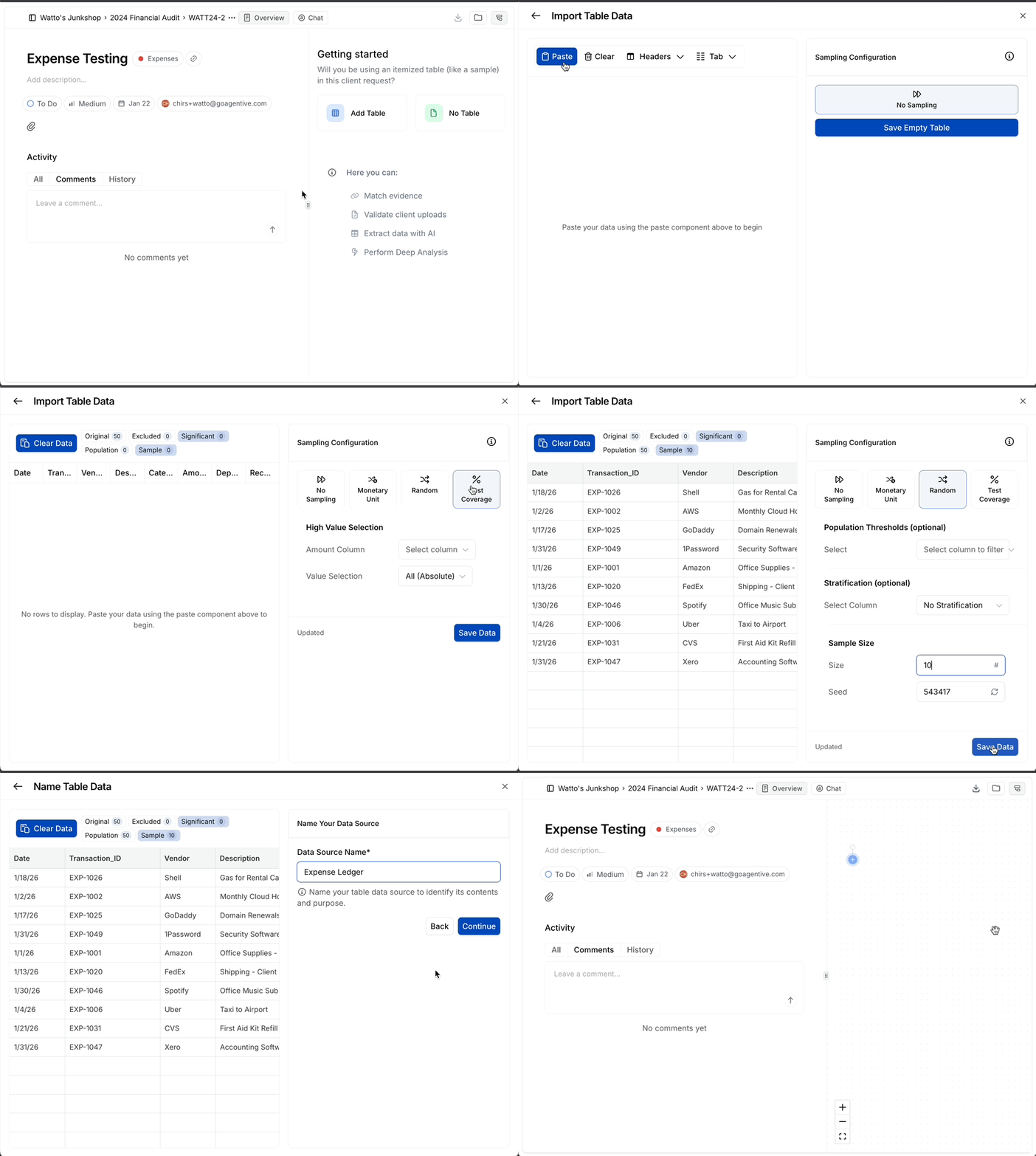
There are four ways to add selections:
Paste from clipboard
Copy a range out of Excel (header row + data) and paste into the selections table. The fastest path for a small population.
Upload a CSV
For populations too large to copy comfortably, upload a .csv. Agentive reads the header row and the data underneath.
Sampling
Run Random Sampling or Monetary Unit Sampling against a full population. Agentive picks the rows for you and writes a sampling documentation file. See Sampling.
Manually
Type rows in by hand. Useful for very small itemized tests.
Column headers on the Selections table drive everything downstream: AI Prompts and Formulas reference them with @. Use clear, consistent names (Employee Name, Date of Hire, Invoice Number) so references resolve cleanly.
Once selection data is added, the workspace updates: the Add selections / No selections buttons go away, and the selections render as a table of itemized rows. Underneath the table sits a blue plus button: the entry point for everything downstream.
The blue plus: add a document group
Click the blue plus underneath the selections table to add the next step in the workflow.
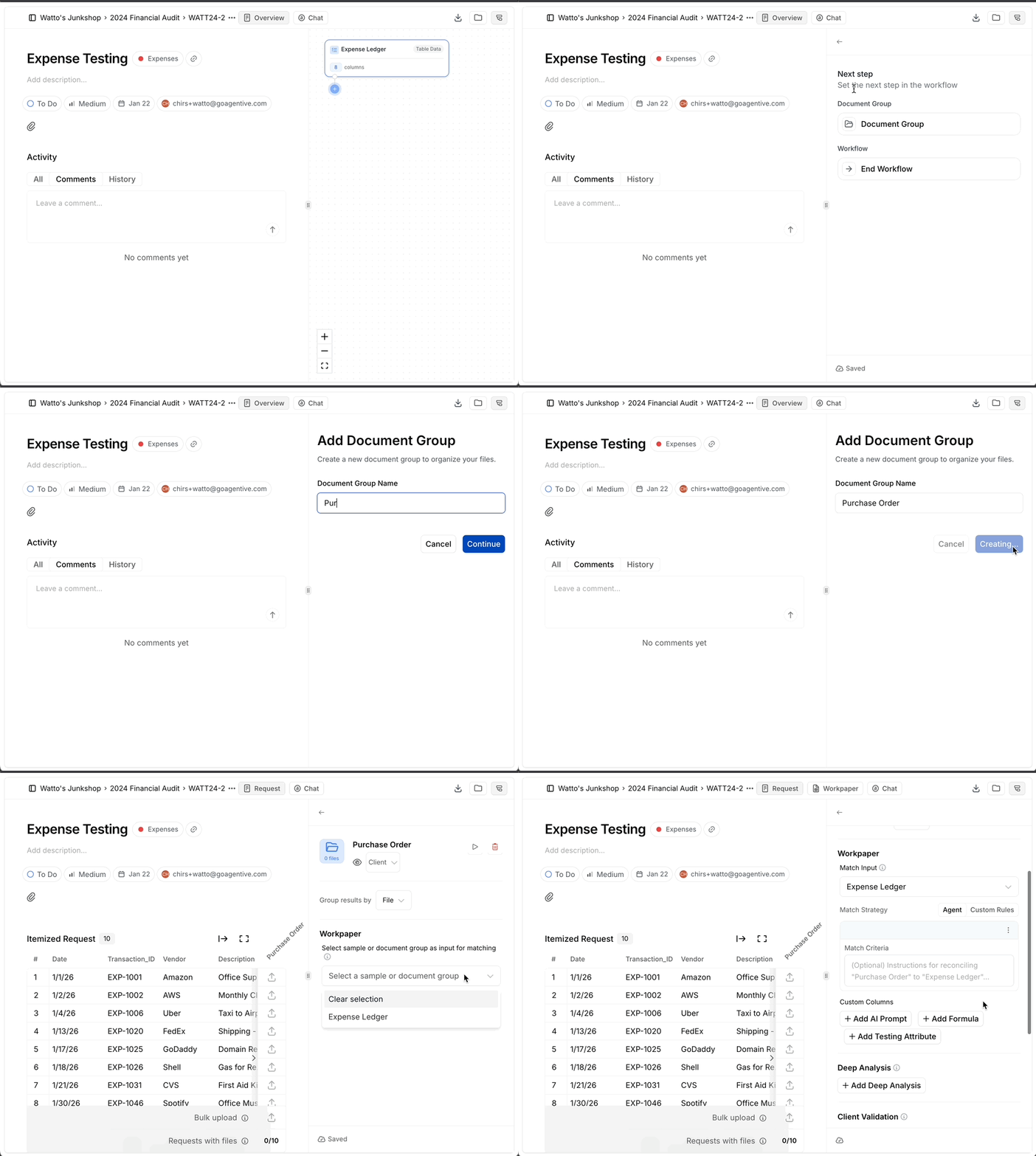
You're given two options:
Pick New to create a document group from scratch. You'll be asked to name the group. That name is visible to the client on the Request tab, so it should represent the documents you want them to upload.
Common names: Vendor Invoices, Bank Statements, Employee Records, Time Cards.
Pair the group name with a clear description of what you're looking for. The description is the client's instruction sheet, so spell out the format, the period, and any naming conventions so they upload the right files the first time.
Pick Existing to share a document group that's already been set up on another workpaper in the same engagement. Agentive opens a picker showing:
- Each prior workpaper's unique identifier and workflow name.
- Underneath each workpaper, the document groups it set up (e.g.,
Credit Card Statements).
Click the group you want to share in. The current workflow now reads from the same client-side upload area as the original workpaper: one upload, many workpapers.
The Match Agent works best with the least information. Leave the match criteria blank as a first pass; it makes its own connections from the documents and the selections. Give it a nudge only when you provide a full population (a payroll report with thousands of rows, a PDF with many check copies in it) and need to name the one identifier to match on.
Inside a document group
Each document group opens to two stacked headers: Source and Workpaper.
Source: newly created group
The Source header controls where the files come from. For a newly created group there are two toggles:
| Toggle | Default | What it means |
|---|---|---|
| Import document group | Off | When off, the group is local to this workpaper. (Turn on if you want to bring in another group's uploads as the source.) |
| Client request | On | When on, the client sees this group on the Request tab and can upload to it. When off, only the auditor can upload, which is useful for internal source files. |
If Client request is turned off, the document group only appears under the Files tab for the audit team. Clients never see it.
Source: shared document group
When you bring in a group with Use an existing document group, the Source header reads slightly differently:
| Toggle | State | What it means |
|---|---|---|
| Shared document group | On | The group is sourced from another workpaper. |
| Client request | Off | The client doesn't upload here on this request; they upload on the workpaper that owns the group. |
| Client uploads in | (n/a) | A link straight to the workpaper / request the client does upload on. |
This makes sharing safe: the upload happens once, the documents flow into every workpaper that shares the group, and there's no risk of the client uploading the same evidence twice.
Workpaper: the match input
Below Source is the Workpaper section. The first thing you configure inside it is the Match input.
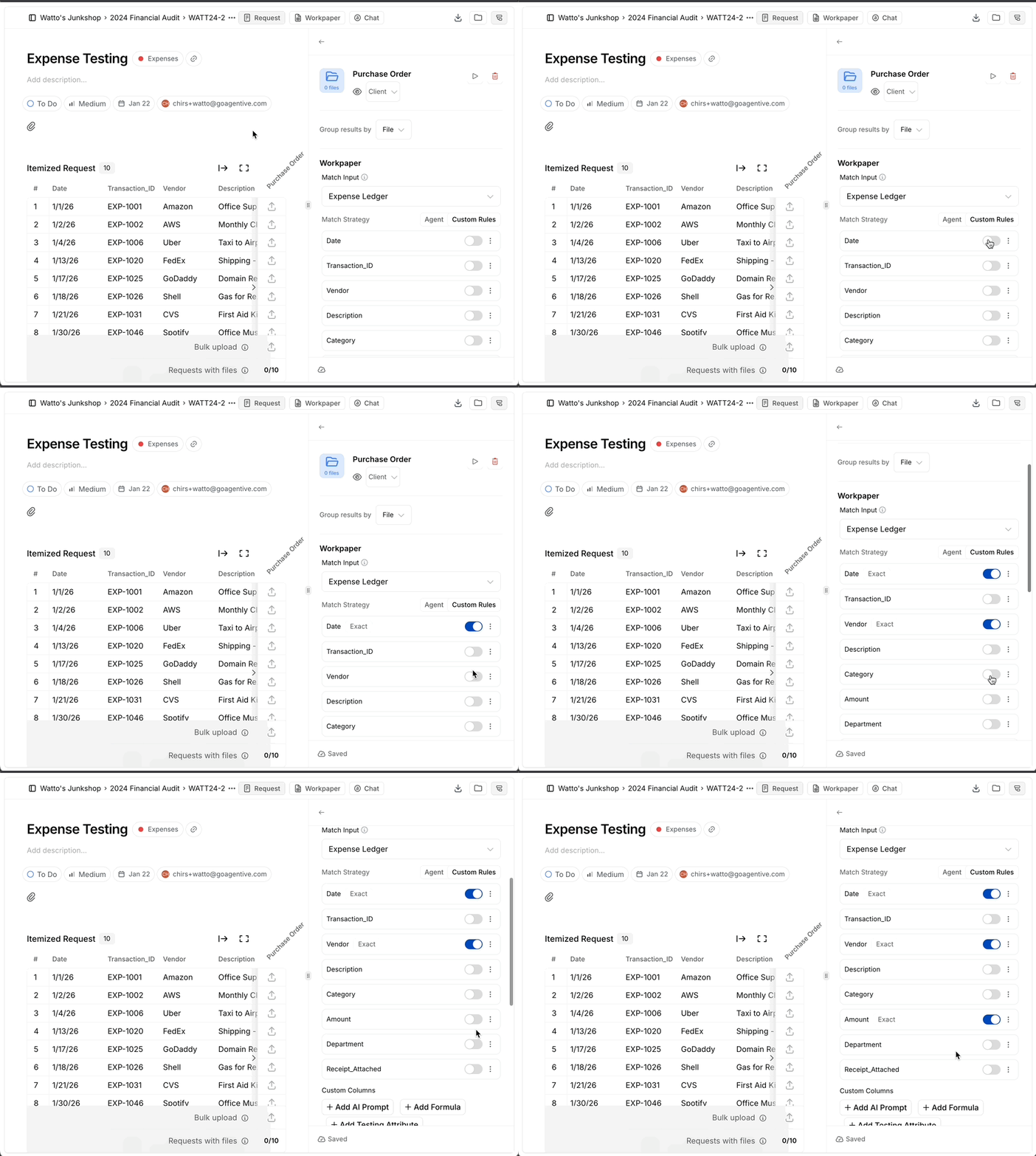
The Match Agent reads two things to decide which document pairs with which selection:
- The fields on the selection (the row).
- The text content of every document in the group.
Picking the right match input is what makes the workflow trace evidence correctly from selections to the final endpoint. For a single document group, the match input is usually the Selections table. For chained evidence (purchase orders → invoices → bank statements), the match input on a downstream group can be another document group rather than the selections, so the Match Agent walks the chain in order.
The Match Agent is only as good as the context you give it on the selection side. Use detailed selection columns (invoice number, vendor name, gross amount, date) so the agent has unambiguous fields to match against. Vague selections produce vague matches.
Custom columns
Below Match sits Custom columns: the heart of the workflow. There are three column types, each added from a + button.
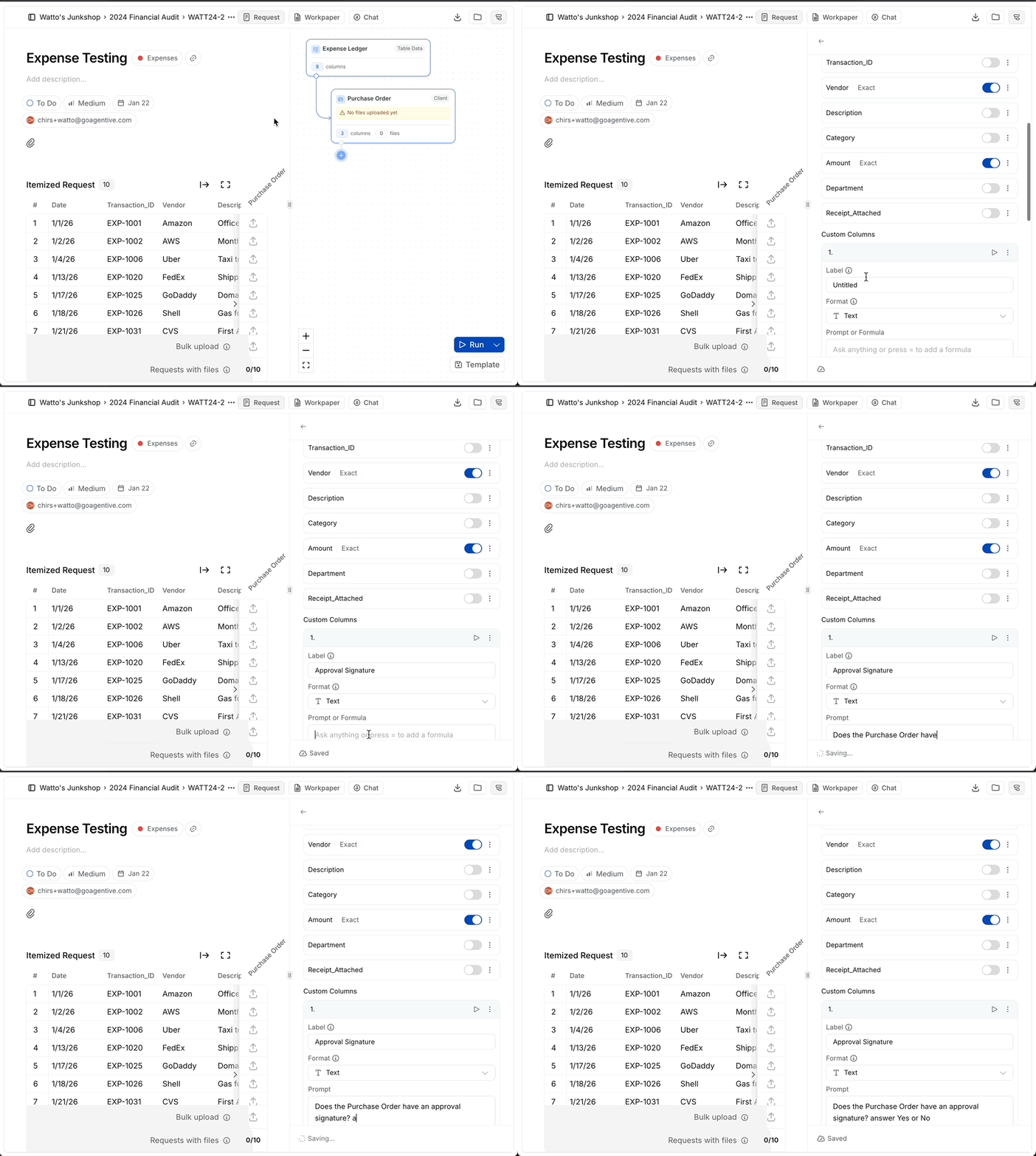
AI Prompt Columns are how you extract a specific value from each matched document. One column per data point: Invoice Total, Approval Date, Bank Name, Statement Period. Each column has a prompt that runs against every matched document in the row.
Example prompt for an invoice total:
Return the invoice total.A solid prompt does three things:
- States exactly what to extract: not "summarize this invoice" but "what is the total amount shown on the invoice?"
- Sets the format: "return the date as MM/DD/YYYY", "answer Yes or No".
- Uses
@to pull in context:@Invoice Numberto pin the prompt to the row,@Period End Dateto scope it to the engagement.
One question per prompt. If you need three values, build three columns. That keeps each value extractable, validatable, and reusable in downstream formulas.
Formula columns are deterministic, spreadsheet-style calculations. Use them whenever the math is mechanical: subtotals, recalculations, variance tie-outs, age in years, balance × rate.
Start the formula with = and use @ references to pull in any column the formula reads from. Many Excel-style functions are supported.
=@Gross Amount - @Tax Withheld - @FeesFormulas can reference any column: a Selection field, another Formula, an AI Prompt value, an Engagement Variable.
For any calculation (recalculating a payment, computing interest, footing a column) prefer a Formula over an AI Prompt. AI sometimes copies a value forward instead of recomputing it. Formulas always recompute.
Testing Attributes are the columns that hold an audit judgment (pass / fail, compliant / not compliant, in-scope / out-of-scope) plus the documented procedure that supports the determination.
Each Testing Attribute carries two fields:
- Audit Procedures: what the auditor did (the documented procedure).
- Prompt: the question the AI evaluates against the document, usually referencing an Engagement Variable or another column with
@.
Example prompt asking the AI to confirm an invoice supports a journal entry:
Does the invoice total support the journal entry amount made in this selection?The output is a tickmark:
- A green ✓ for pass.
- A letter (
E1,E2…) for exception, with a description of the oddity or counter-evidence noted.
A reviewer can read the reasoning and override the tickmark from the Workpaper tab.
@ references and the match chain
Every column type (AI Prompt, Formula, Testing Attribute) supports @ references. Typing @ in any prompt, formula, or memo field opens a picker that shows everything you can reference from this position in the workflow.
The picker is scoped by where you are in the match chain:
What you can reference
Columns on the Selections table, columns on upstream document groups in the same match chain, Memo fields (Accounting Policies, Procedures, etc.), and Engagement Variables (period start, period end, materiality, plan rules).
What you can't reference
Columns on downstream document groups. If the workflow traces a sample through purchase order → invoice → bank statement, the invoice columns can read from the purchase order's columns, but they can't read from the bank statement's columns. Those don't exist yet at the point the invoice runs.
Why the chain rule matters
The chain rule is what makes references safe. The Match Agent and the extraction columns run in order along the chain: selections first, then each document group in turn. A reference to a downstream group would be a reference to a value that hasn't been computed yet. Scoping the picker by chain position is how Agentive prevents that.
Referencing the Memo and Engagement Variables
Beyond columns, @ lets you pull in two kinds of context that aren't workflow columns at all:
- Memo: Accounting Policies, Procedures, Purpose, Scope. Reference these inside an AI Prompt or a Testing Attribute to give the agent the rules it should apply (the plan's contribution rules, the client's revenue-recognition policy, the procedure being performed). See Memo tab.
- Engagement Variables: period start, period end, materiality, plan documents. Setting these once at the engagement level lets every workpaper reference the same values. Combined with roll-forward, this is what makes workflows modular and reusable year over year: change
@Period End Dateon the engagement, and every workpaper's prompts re-anchor automatically.
You cannot copy and paste @ references
@ references are not plain text. You have to type @, narrow the list with a few characters, and click or press Enter to insert. A working reference has a blue pill around it. Plain text that looks like @Invoice Number is not a real reference and won't resolve at run time.
Click Run
When the documents are uploaded, click Run at the top of the Workflow tab. Agentive runs the agents in chain order:
Match Agent
Walks the chain and pairs each document to the right selection (or upstream document).
AI Prompt Columns
Each column runs against every matched document and writes its extracted value.
Formulas
Recompute against the freshly extracted values.
Testing Attributes
Evaluate the prompt against the document and write the tickmark.
Results land on the Workpaper tab.
Validated cells from a prior run are always skipped on a rerun. You can iterate on a prompt without losing reviewed work, and you also can't accidentally re-overwrite a value an auditor already signed off on.
After the run: the review loop
Almost all of your time after the first run happens on the Workpaper tab. The review loop in one paragraph: every cell lands in a state (yellow / green / red), you click each cell's citation pill to confirm the value against the source document, validate what's right (turns green and locks), rerun what isn't, and flag genuine exceptions with a memo.
For the full review surface (cell colors, rerun scope, counter-evidence handling, tickmark overrides) see The Workpaper tab.
Co-Audit can do most of this for you. The pieces here are the underlying structure; in practice you usually describe the workpaper in the Co-Audit panel and let it generate the document groups, columns, and references in one shot. See Create a workpaper with Co-Audit.
Continue your journey
← The Files tab
Organize the documents the workflow will run against.
The Workpaper tab →
Review extracted values, validate cells, and turn AI proposals into conclusions.
How is this guide?
Files Tab
The Files tab on every request. Document-group folders, the four file-match states, OCR/text-readability status, full-text search across uploads, and one-click download of every file in the request.
The Workpaper Tab
Review the populated workpaper (matches, AI-extracted values, and testing attributes) from one spreadsheet-style surface. The AI gives you proposals; this is where you turn them into validated audit conclusions.