The Workpaper Tab
Review the populated workpaper (matches, AI-extracted values, and testing attributes) from one spreadsheet-style surface. The AI gives you proposals; this is where you turn them into validated audit conclusions.
The Workpaper tab is where you review the results of a run. Selecting it opens a spreadsheet-style workpaper view: each row is a selection, and the custom columns are organized by document group, showing the match criteria and the AI's response for every column.
This page covers how to review matches, review AI-retrieved column values, and resolve testing attribute exceptions.
What you'll learn
- What you see when the Workpaper tab opens.
- How to review matches and choose between Validate, Flag, and Remove.
- How to review custom column values the AI extracted via prompts and formulas.
- How to resolve testing attribute exceptions.
- The cell colors that tell you what still needs attention.
Workflow tab vs. Workpaper tab
Every request has these two related tabs. They look at the same data from two angles.
The Workflow tab is the structural view: selections, document groups, AI Prompt Columns, Formulas, Testing Attributes, and the Match input. It's where you describe what should happen. See The Workflow Tab for the full build reference.
The Workpaper tab is the populated grid: the actual audit workpaper. It's where you read what did happen: the extracted values, the matches, the tickmarks, the citations. Almost all of your time after the first run happens here.
What you see
When the workpaper view opens, it displays:
- Selection information: one row per selection.
- Custom columns, grouped by document group, showing the match criteria and the AI's response for each column.
- Indicators on cells and matched documents that show review state and any exceptions.
The cells are colored by where they sit in the review loop:
| Color | State | Meaning |
|---|---|---|
| Yellow | Unreviewed | The AI extracted a value; no auditor has signed off yet. |
| Green | Validated | An auditor reviewed and validated. Locked, won't rerun. |
| Red | Flagged | Counter-evidence, an exception, or flagged for senior review. |
| Blue | Locked | This cell is locked and will not update if the auditor re-runs the workflow |
The review loop is simple in shape: turn yellow cells either green (validated) or red (flagged for follow-up).
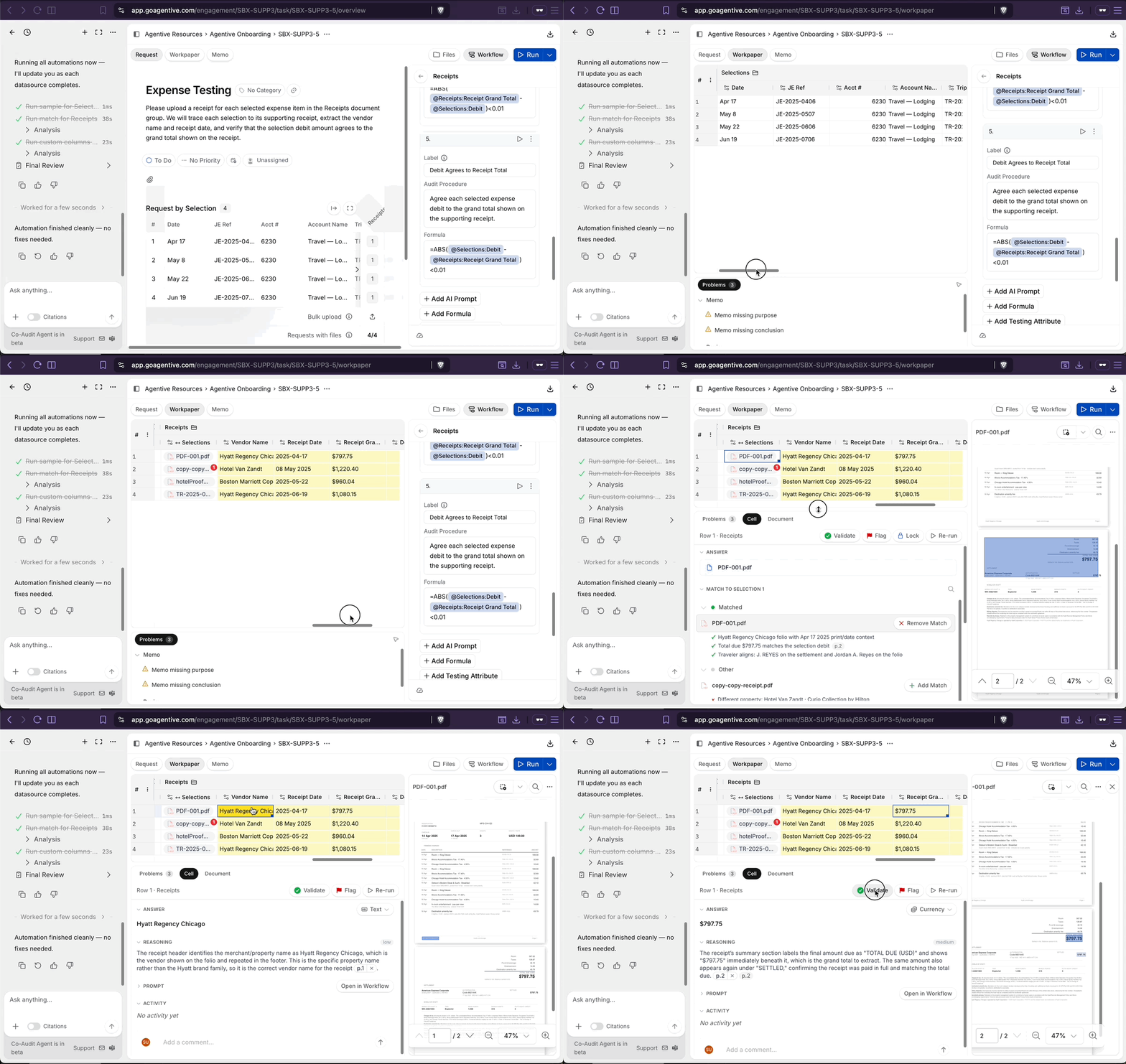
Review matches
The Match column shows which document or documents match a given selection. Walking the matches is usually the first thing you do on the Workpaper tab. If a match is wrong, every downstream column on that row is reading the wrong document.
Open the match for a selection
In a document group, select the match for a selection to see the matched document(s).
Open the document
Select a document. It loads in the document panel on the right.
Read why the match occurred
In the lower panel, review why the match occurred: the criteria the Match Agent used to pair this document to this selection.
Check counter-evidence
If counter-evidence exists, a red circle appears next to the document with the reason the match may be wrong (for example, the document covers the wrong period, or the payee name is spelled differently). The Match Agent surfaces whatever it determines constitutes counter-evidence for that selection.
Choose an action
| Action | Effect |
|---|---|
| Validate match | Locks the match in place. When the Match Agent runs again on this workflow, it will not undo this match. |
| Flag for review | Locks the match in place and marks it for another reviewer's attention. |
| Remove match | Removes the match from this selection. |
Validate vs. Flag for review
Both Validate match and Flag for review lock the match so a rerun of the Match Agent won't change it. Use Flag for review when you want a second set of eyes; use Validate match when you're confident the match is correct.
Review custom column values
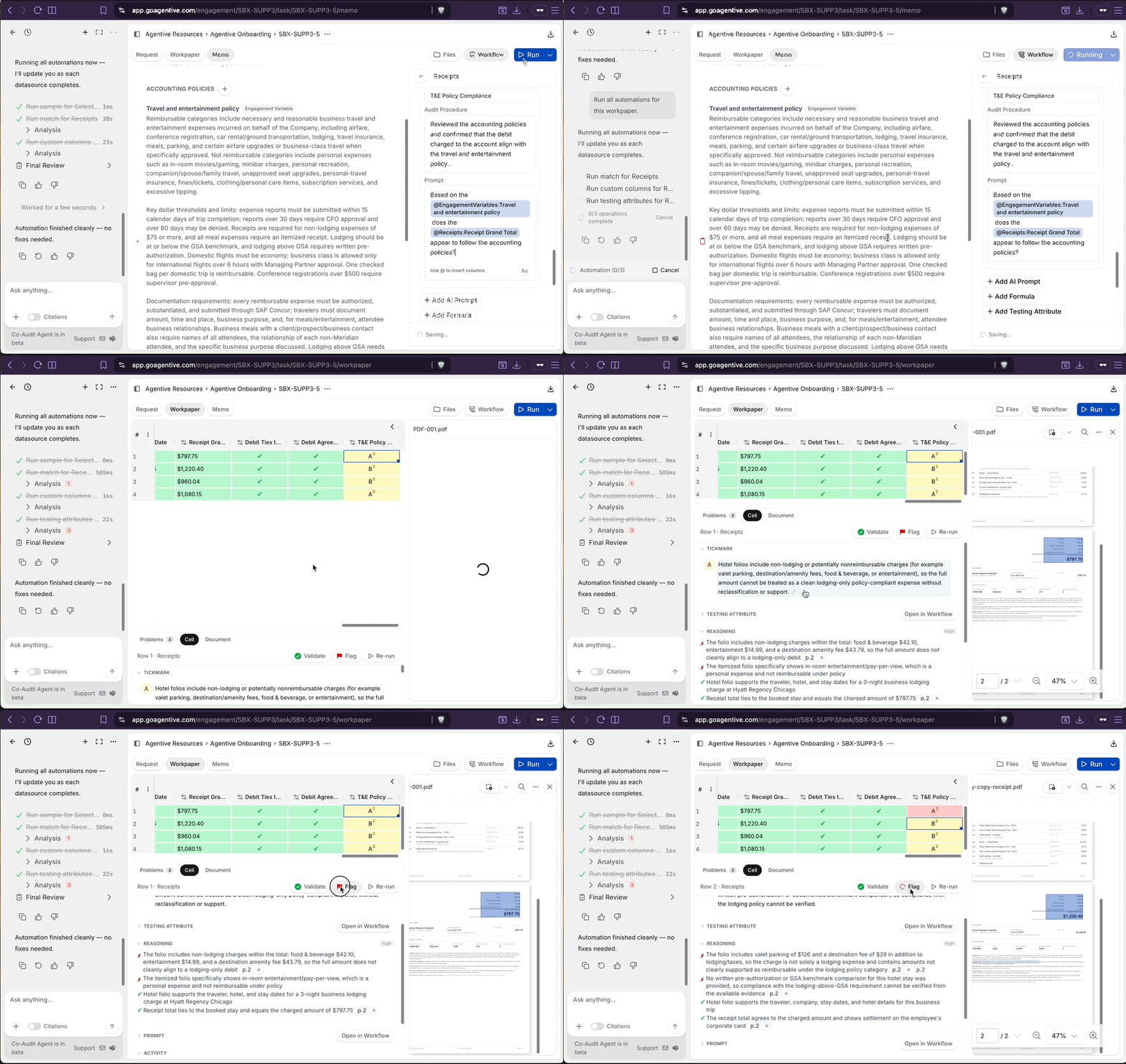
Custom column values load in Yellow. This is what the AI retrieved and responded with based on your prompt, formula, or testing attribute. Review each one before relying on it.
Open the cell
Select a Yellow cell. The lower panel of the workpaper opens with the supporting detail:
| Section | Shows |
|---|---|
| Answer | The AI's response for the cell. |
| Reasoning | Why the AI arrived at that response. |
| Prompt | The prompt, formula, or testing attribute that produced the response. |
| Activity | When the cell was validated or flagged. |
| Comments | Notes on the cell, with the ability to @-reference another auditor. |
Confirm against the source
Confirm the answer against the Reasoning and the source document. Every extracted value carries a citation that links you back to the exact page (and usually the exact line) where the value was found.
Validate or Flag
Select Validate to accept the value, or Flag to mark it for follow-up.
Discuss in place
In Comments, @-reference another auditor to ping them about a specific match or AI response and discuss it in place, with no need to leave the workpaper. The mention sends them an email notification immediately.
Validation without checking the citation is not validation. The citation is the auditor's tie-out, so use it before you turn a cell green.
Review testing attributes
Testing attributes are marked by their result:
Green checkmark ✓
A match was made with no exception. The AI evaluated the prompt against the document and the test passed.
Lettered tick mark (E1, E2…)
There is an issue or exception with the findings. The AI flagged something for the auditor to confirm and resolve.
To investigate a result, select the cell. The lower panel shows the AI's reasoning and links you to the part of the document that supports the evidence, so you can verify the conclusion without hunting for it.
Judgment
A lettered tick mark identifies an exception; it does not resolve it. Confirm every exception against source before sign-off.
Overriding a tickmark
When a Testing Attribute's tickmark is wrong (the AI marked it ✓ when it should be an exception, or vice versa), override it:
Delete the AI's explanation
Open the cell. Delete the AI-generated reasoning text in the cell's memo area.
Pick the correct tickmark
Click the tickmark letter and choose the correct value (Pass, Exception, Not Applicable, etc.).
Add a comment
Type the reason for the override directly into the memo. This is the auditor's documented judgment that sits on top of the AI's first pass.
Validate
Validate the cell. It turns green and locks the override in.
Rerun scope
If a value is wrong, rerun at the granularity you need:
- Cell: right-click a cell and choose Rerun.
- Column: click the play icon on the column header to rerun every unvalidated cell in that column.
- Row: rerun a single selection across every column.
- Workflow: click Run on the Workflow tab to rerun every unvalidated cell in the workpaper.
Validated (green) cells are always skipped, so you can iterate on a prompt or a match without losing reviewed work.
After the review
Once every cell is either validated (green) or flagged with a documented exception (red), the workpaper is ready to leave the Workpaper tab.
Reviewing workpapers
A complementary walk-through of the review loop, counter-evidence handling, and rerun scope for deeper detail.
Exporting workpapers
When the workpaper is clean, export it to Excel with the source documents embedded for the audit file.
Co-Audit can help here too. From the Co-Audit panel you can ask the agent to summarize exceptions, draft conclusion language for the Memo tab, or walk a reviewer through what's still open.
Continue your journey
← The Workflow tab
Build the workpaper before reviewing its results.
Sampling →
Pick a sampling method (MUS, random, test coverage, or journal-entry testing) for your selections.
How is this guide?
The Workflow Tab
Build a workpaper end to end. Pick a selections vs. no-selections shape, add selections, wire up document groups (new or shared from the engagement), configure the Source and Workpaper sections, set match inputs, add AI Prompts, Formulas, and Testing Attributes, and run. The complete reference for the Workflow tab.
Sampling
Pull selections from a full population with the right method for the job (No Sampling, Monetary Unit Sampling, Random Sampling, Test Coverage Sampling, or Journal Entry Testing). Agentive saves the methodology and the original population to a documentation file you can attach to the audit file.