Load your client's accounting policies
Create a client-facing request, upload the policy handbook, summarize the travel and entertainment policy with an AI Prompt, and publish the summary as an Engagement Variable so any workpaper in the engagement can reference it.
In this section you create a new request from scratch, upload the client's policy handbook, summarize the travel and entertainment policy with an AI Prompt, and set that summary as an Engagement Variable. You will reference this variable when you build the expense testing workpaper.
What you'll do
- Create a client-facing request from scratch named
Accounting Policy Handbookso the client knows exactly what to upload. - Add a Document Group named
Policy Handbookinside the Workflow tab. - Use an AI Prompt that summarizes the travel and entertainment policy.
- Create an Engagement Variable so other workpapers in the engagement can reference the policy via
@.
Get to know the request view
A request becomes a workpaper through five surfaces. The Co-Audit panel on the left is how you build with natural language; the Request in the center is what the client sees; the right-hand tabs are where you configure and review.
Create the Accounting Policy Handbook request
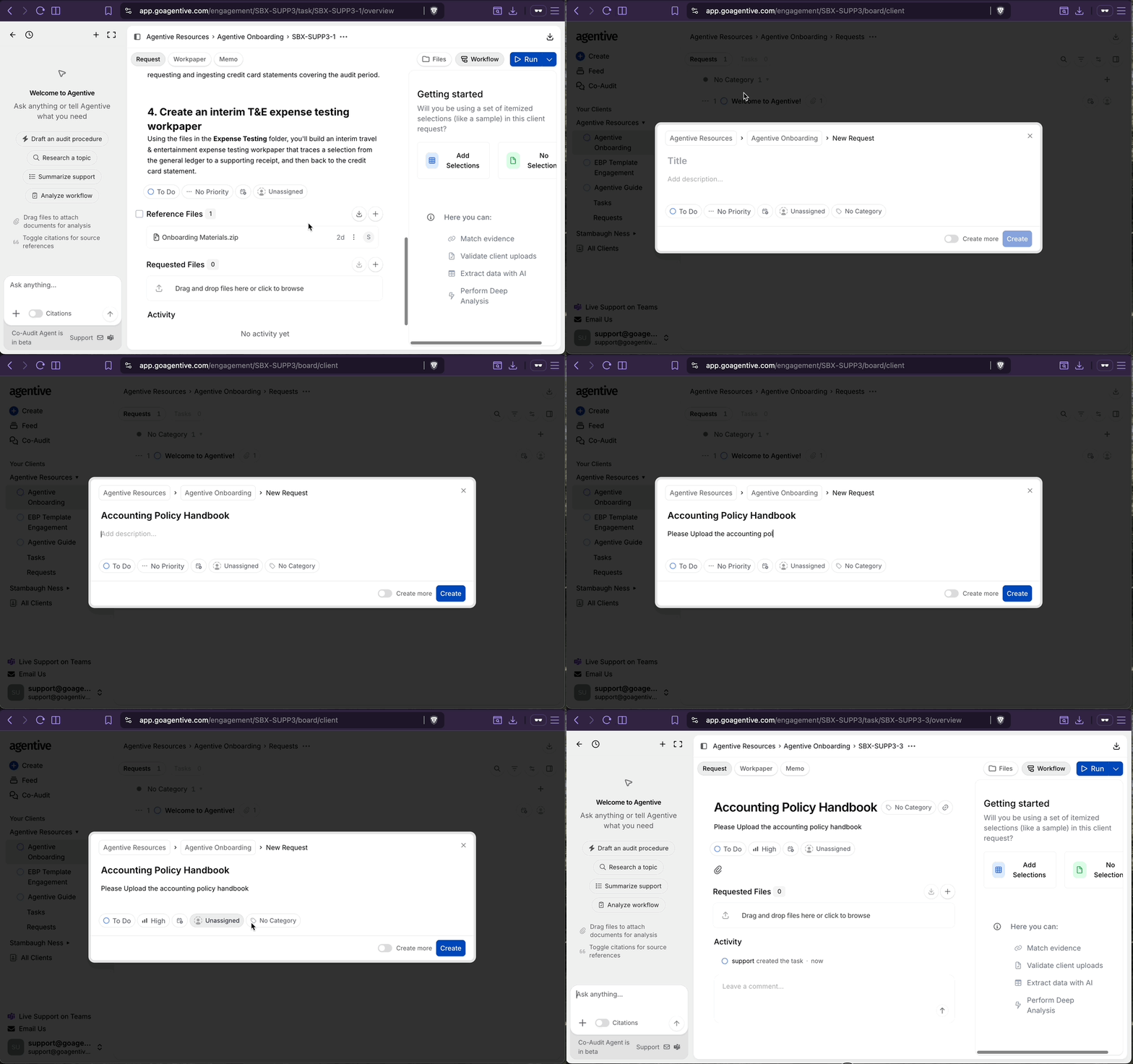
Create a new request from scratch
On the Request Board, click Create, then Start from Scratch.
Title and describe the request
- Title:
Accounting Policy Handbook - Description:
Please upload the accounting policy handbook
Create
Click Create.
Set up the Policy Handbook document group
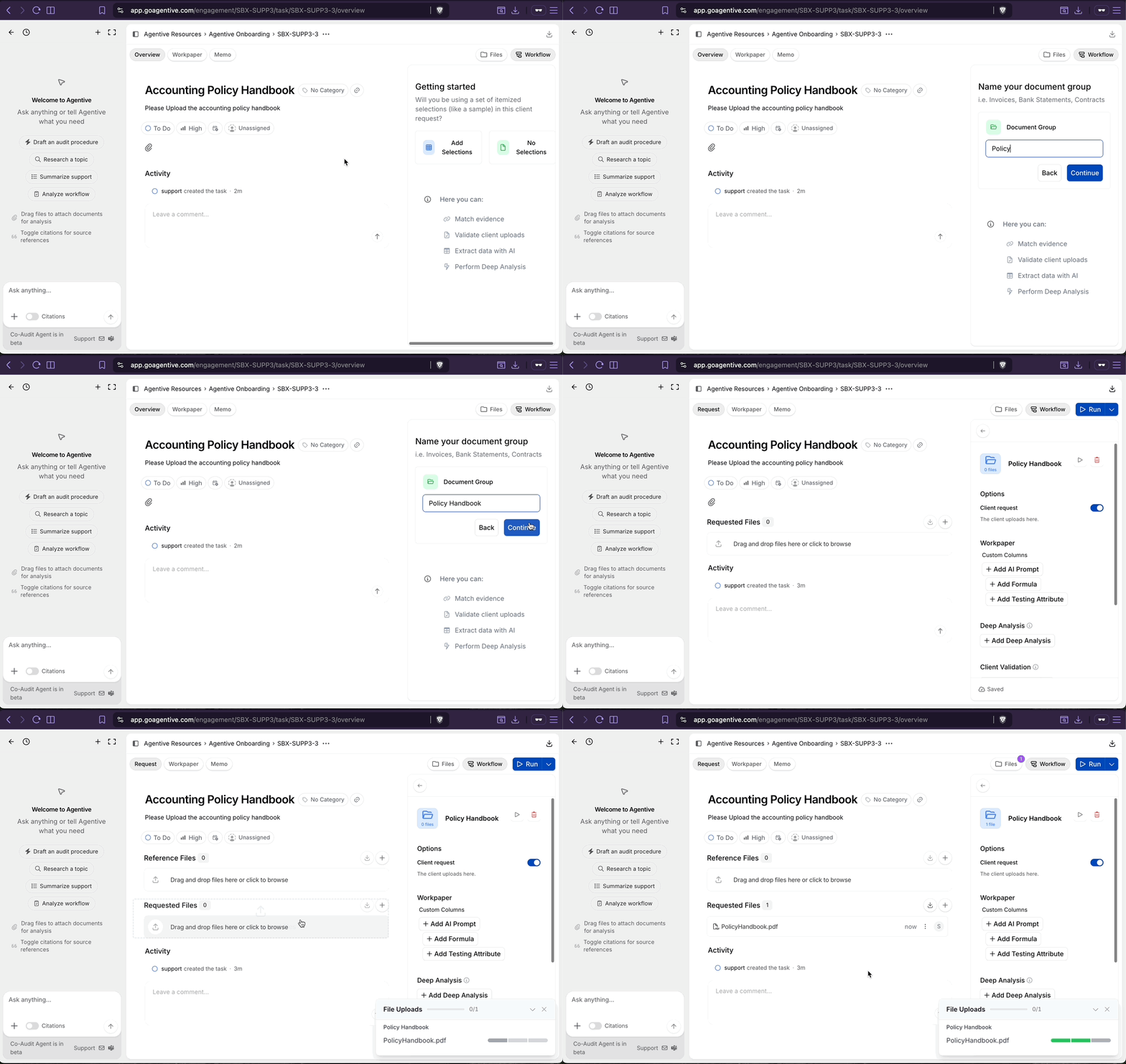
Open the Workflow tab
Inside the new request, click the Workflow tab (top right).
Choose No Selections
The getting-started prompt appears. Click No Selections.
Name the document group
In the document group name field, type Policy Handbook and click Continue.
Upload the policy PDF
Click the Files tab. You will see a Policy Handbook folder. Click into it and drag in the Policy Handbook PDF from the onboarding materials. Wait for the green status indicator. This means Agentive has processed the file and it is ready for AI analysis.
Add an AI Prompt to summarize the policy
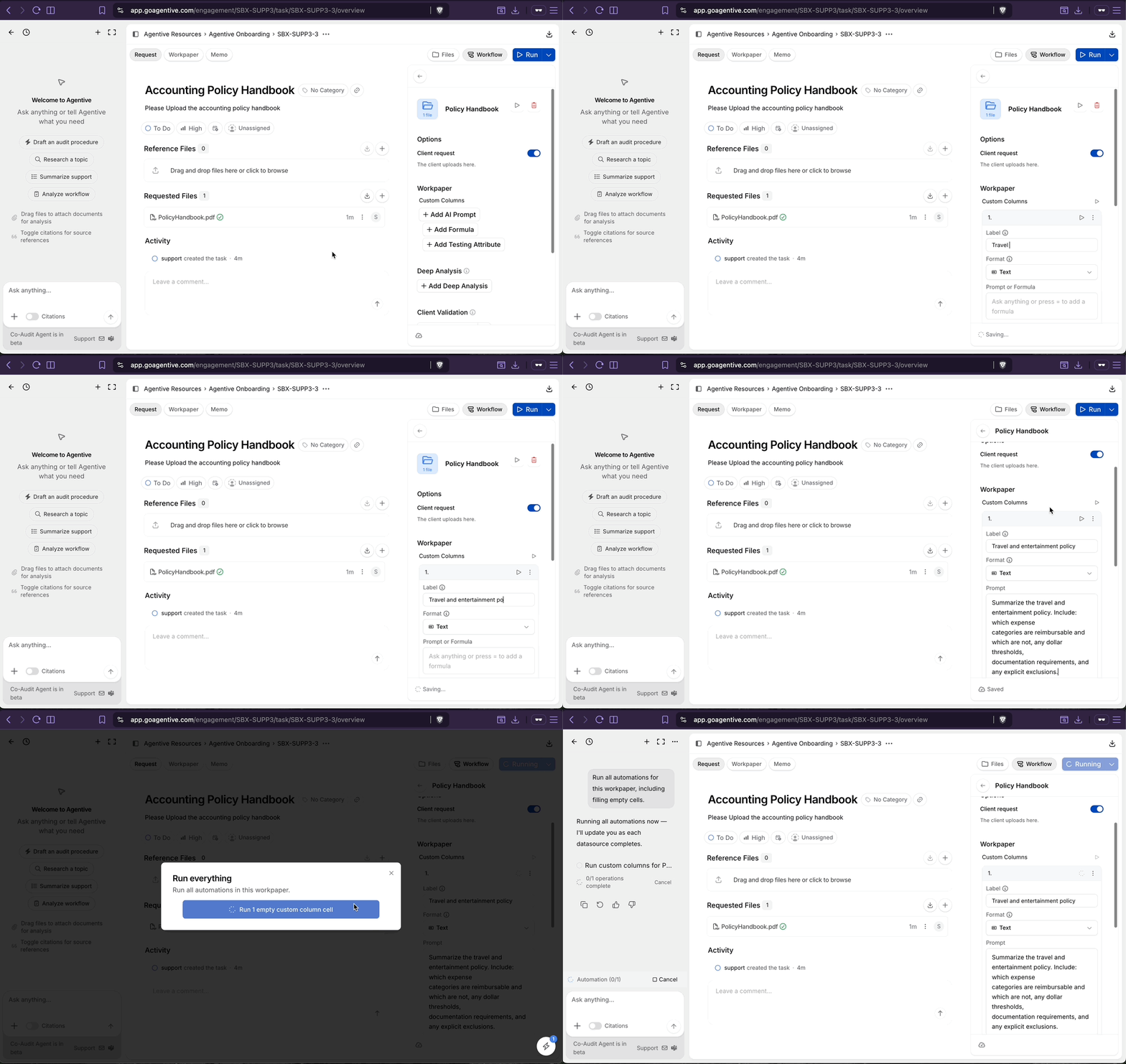
Add an AI Prompt Column
In the Workflow tab, click the Policy Handbook node, then click Add AI Prompt.
Configure the column
- Label:
Travel and Entertainment Policy - Format:
Text - Prompt:
Summarize the travel and entertainment policy. Include: which expense
categories are reimbursable and which are not, any dollar thresholds,
documentation requirements, and any explicit exclusions.
Save and run
Save the column, then click Run at the top of the workflow. Confirm the run; it will process one column. Wait about 15–30 seconds for it to complete.
Review and validate the AI response
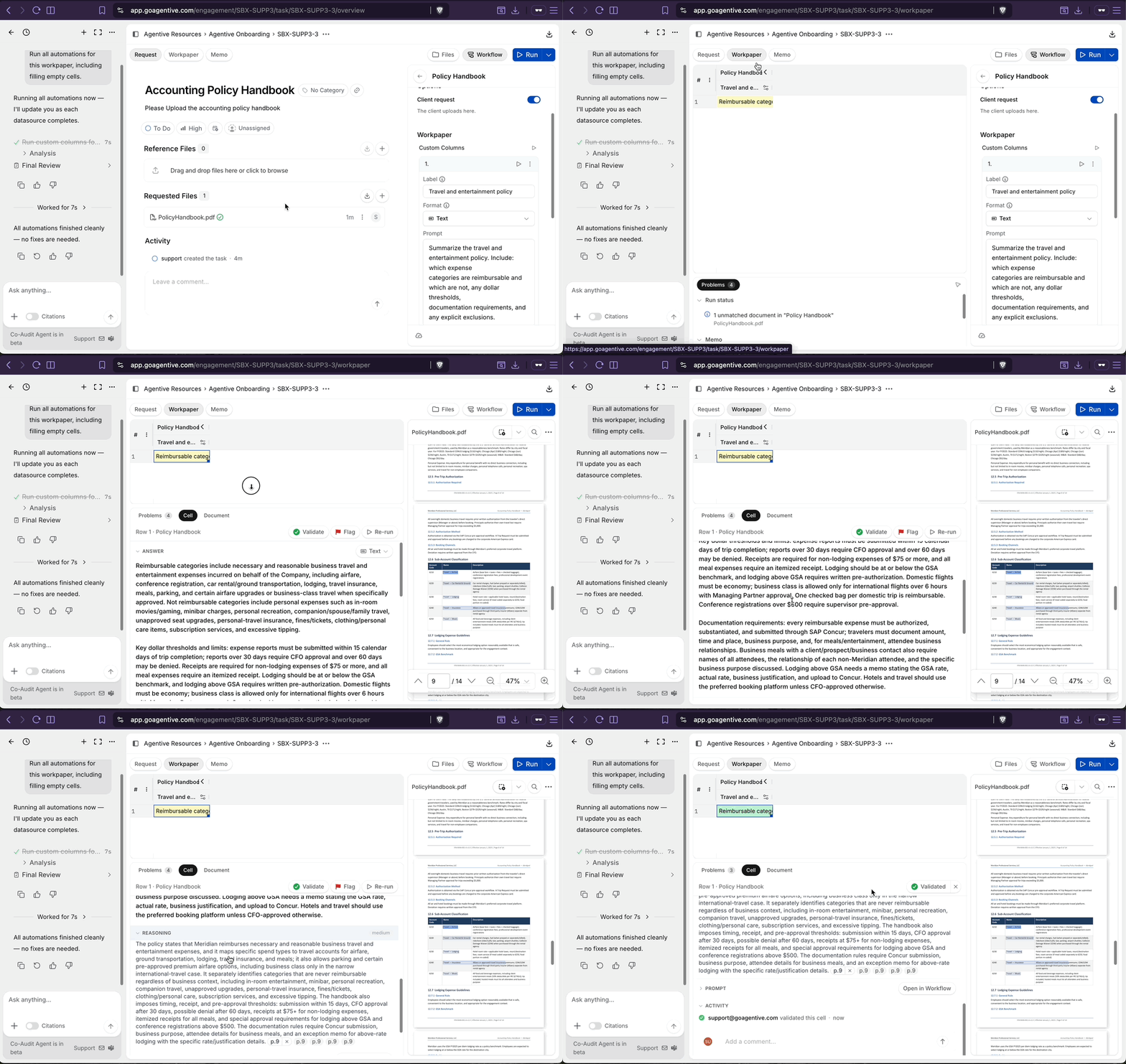
Open the Workpaper tab
In the center of the request screen, select the Workpaper tab.
Open the response in the document viewer
Click the yellow cell in the Travel and Entertainment Policy column to open the document viewer and the response reasoning panel.
Review the reasoning and validate
Review the response reasoning panel in the bottom-center of the screen to confirm accurate results from the AI agent. If the summary is accurate, click Validate. The cell turns green and locks from future automation runs.
Publish the summary as an Engagement Variable
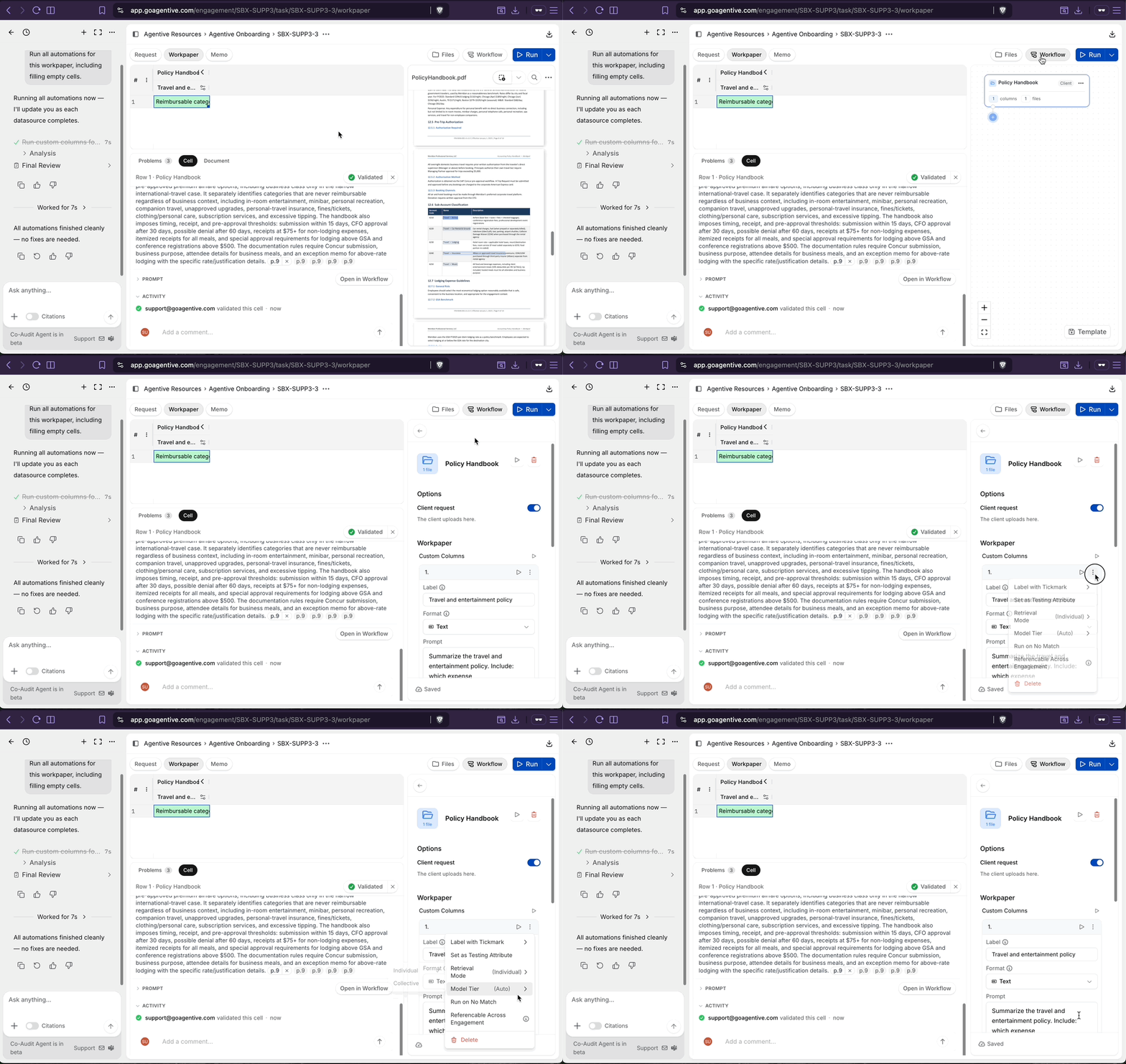
Open the column menu
In the Workflow tab, click the three-dot menu on the Travel and Entertainment Policy column header.
Toggle Referenceable Across Engagement
Click Referenceable Across Engagement. The column is now published as an Engagement Variable and available via @ in every other workflow in this engagement.
The instruction tells Agentive's AI exactly what to extract. AI is literal: the more specific your instruction, the more predictable and consistent the output.
Confirm the variable in Engagement Settings
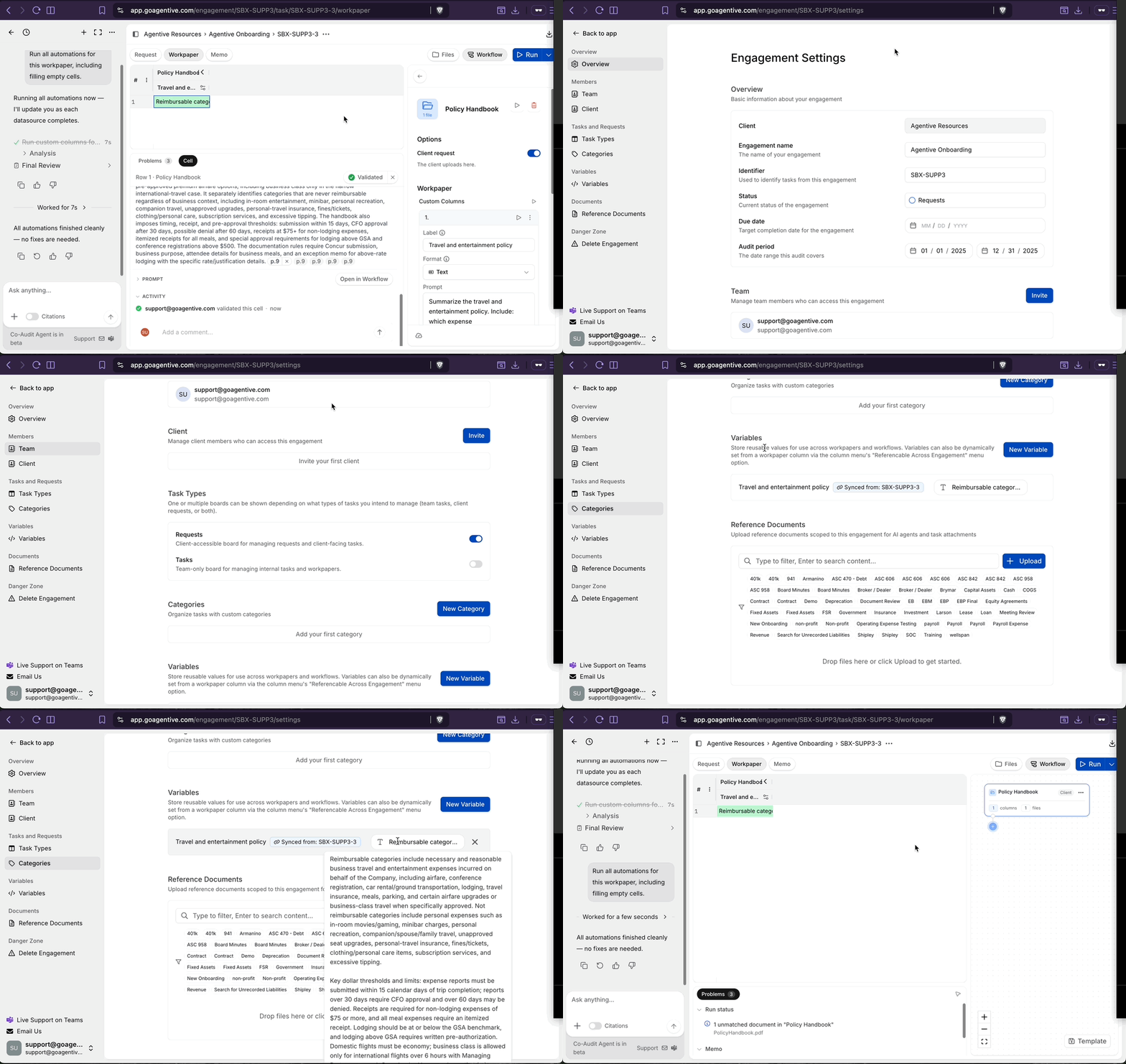
Open Engagement Settings
Click the three-dot menu at the top of the engagement (in the breadcrumb area), then click Edit Engagement.
Confirm the published variable
Click Referenced Variables. The Travel and Entertainment Policy variable now appears, linked to the column you just ran.
Checkpoint
You now know how to create client-facing requests, upload files to Agentive, create AI workpapers, and add client-specific accounting policies to your engagement.
Continue your journey
← Run your first Financial Statement Review
Walk the five FSR review modes with the sample statements.
Build a workpaper from one Co-Audit instruction →
Create a credit card statements request and let Co-Audit build the full workpaper.
How is this guide?
Run your first Financial Statement Review
Create a Financial Statement Review task, upload the sample 2024 and 2025 financial statements, and walk the five review modes (Prior Year Consistency, Internal Consistency, Footing and Cross-Footing, Spell Check, and Review Checklist).
Build a workpaper from one Co-Audit instruction
Create a credit card statements request and let Co-Audit generate the client-facing description and the full workpaper from a single natural-language instruction. Upload the statements, run the workflow, and tune the judgment column.