Build an expense testing workpaper
Sample a GL subledger with Monetary Unit Sampling, generate the workflow with Co-Audit, trace selections to hotel receipts, run a policy compliance check against your published policy variable, chain to the credit card statements, validate the workpaper, and export to Excel.
In this section you build an expense testing workpaper end to end: sample a GL subledger with Monetary Unit Sampling, generate the workflow with Co-Audit, upload hotel receipts, run a policy compliance check that references the variable you published earlier, chain to the Credit Card Statements group, validate results, and export to Excel. Plan for 45–60 minutes.
What you'll do
- Create the
Expense Testingworkpaper from scratch. - Sample a population with Monetary Unit Sampling.
- Build the workflow with Co-Audit: generate an
Expense Receiptsdocument group and the trace and tie-out columns from a single natural-language instruction. - Reference the T&E policy by adding it to the Memo tab and creating a Policy Compliance testing attribute that uses the
Travel and Entertainment Policyengagement variable. - Chain the existing
Credit Card Statementsdocument group and tie the receipts to the Credit Card Statements. - Export the workpaper to Excel and install the Excel Add-In to keep source documents one click away inside Excel.
The workflow you are building: four lodging selections → expense receipts → policy compliance check → tie out to credit card statements.
Create the Expense Testing request
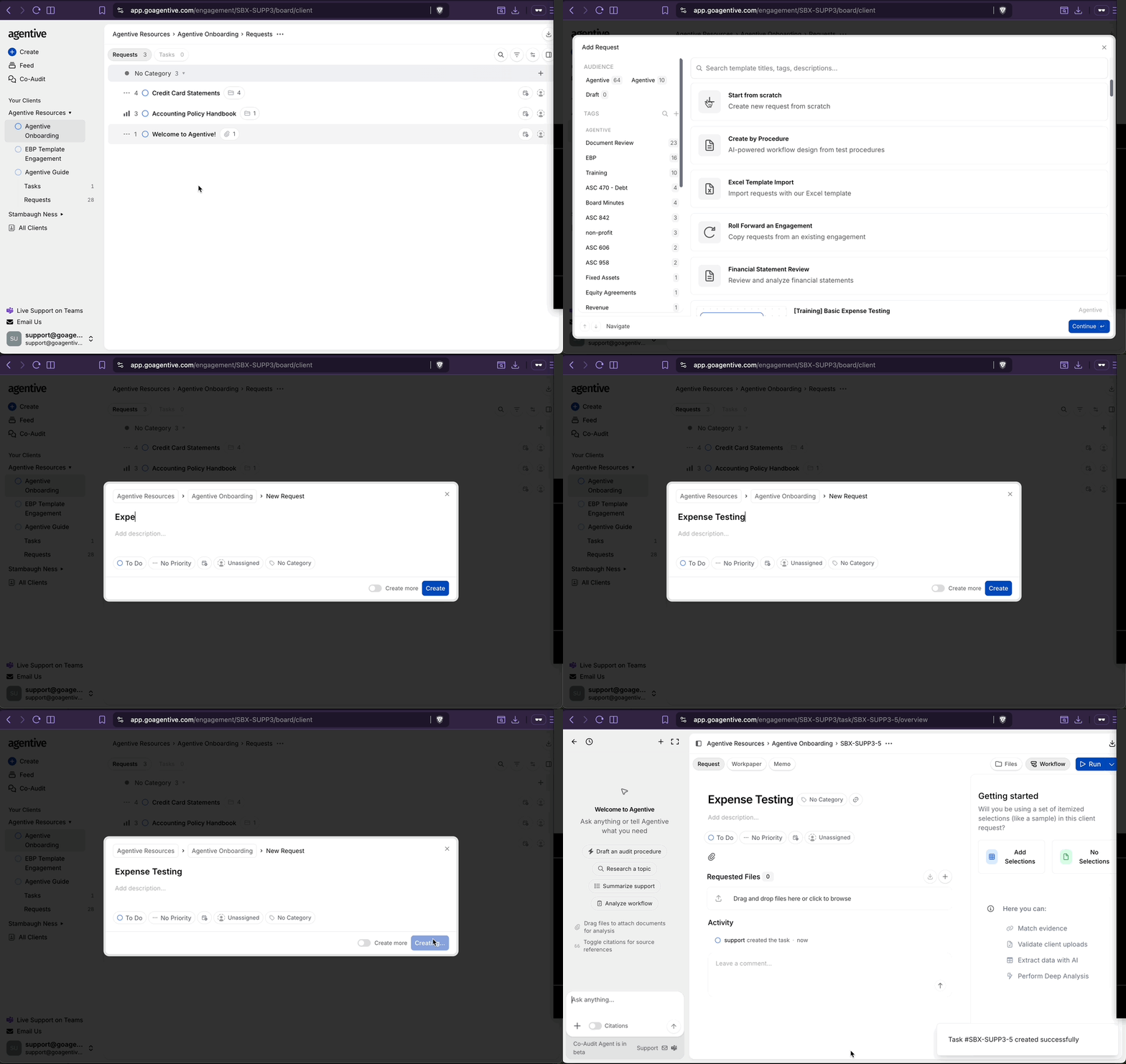
Create a new request from scratch
On the Request Board, click Create, then Start from Scratch.
Add the GL data to Agentive
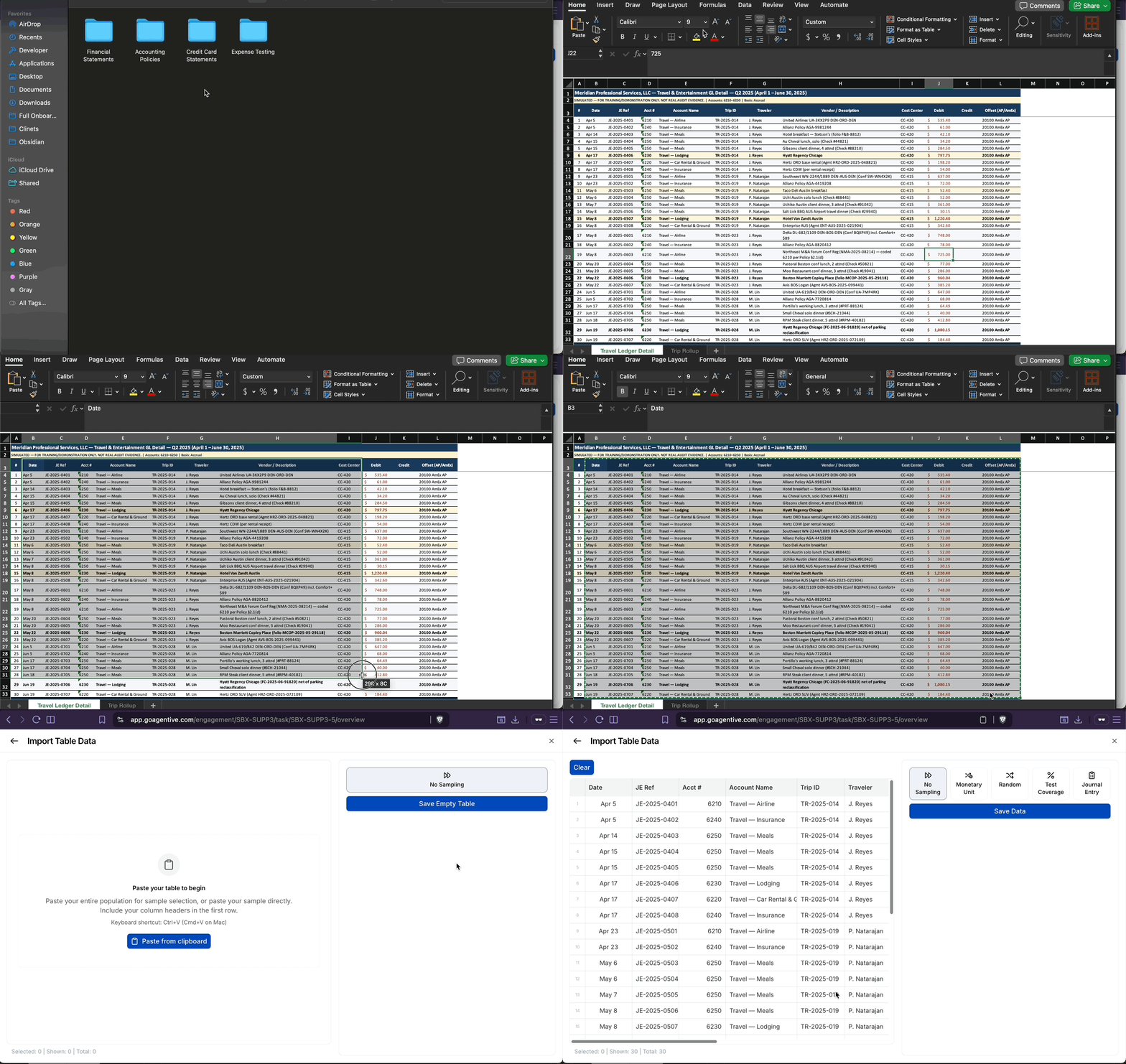
Copy the population
Open the T&E ledger spreadsheet from the onboarding materials. Select from the header row through the last data row (approximately 30 rows total). Copy.
Paste into Agentive
Inside the Expense Testing request, click the Workflow tab, then Add Selections, then Paste from Clipboard.
Sample the population with Monetary Unit Sampling
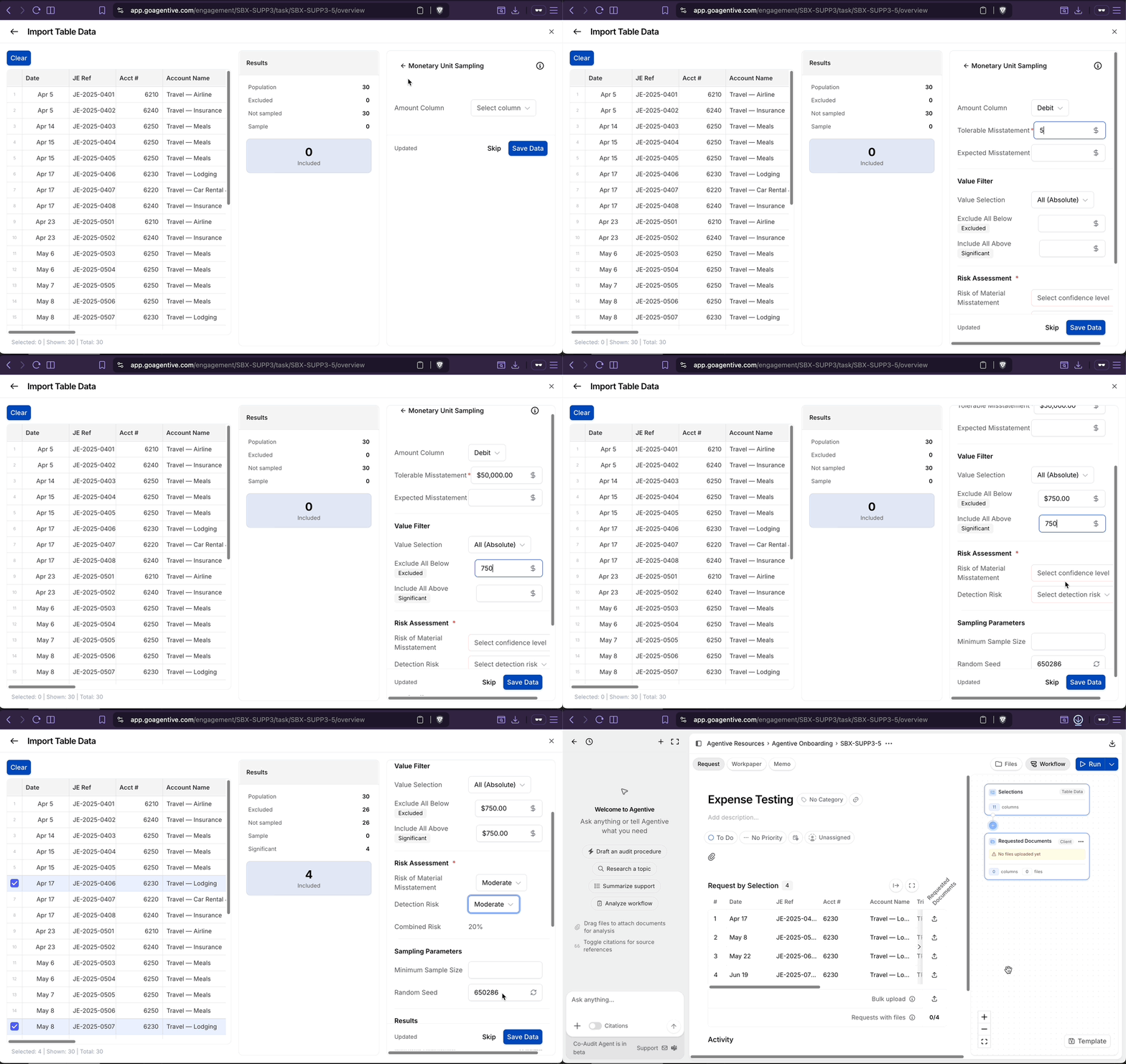
Choose Monetary Unit Sampling
The full population appears. Click Monetary Unit Sampling and set:
- Sampling column: Debit
- Tolerable misstatement:
50,000 - Exclude transactions below:
$750 - Risk of material misstatement: Moderate
- Detection risk: Low
Confirm and save
Confirm that 4 selections are shown, then click Save.
Monetary Unit Sampling weights selections by dollar value, so larger transactions have a proportionally higher chance of selection. Saving generates an Excel sampling documentation file containing the methodology, original population, and final selections.
Build the workflow with Co-Audit
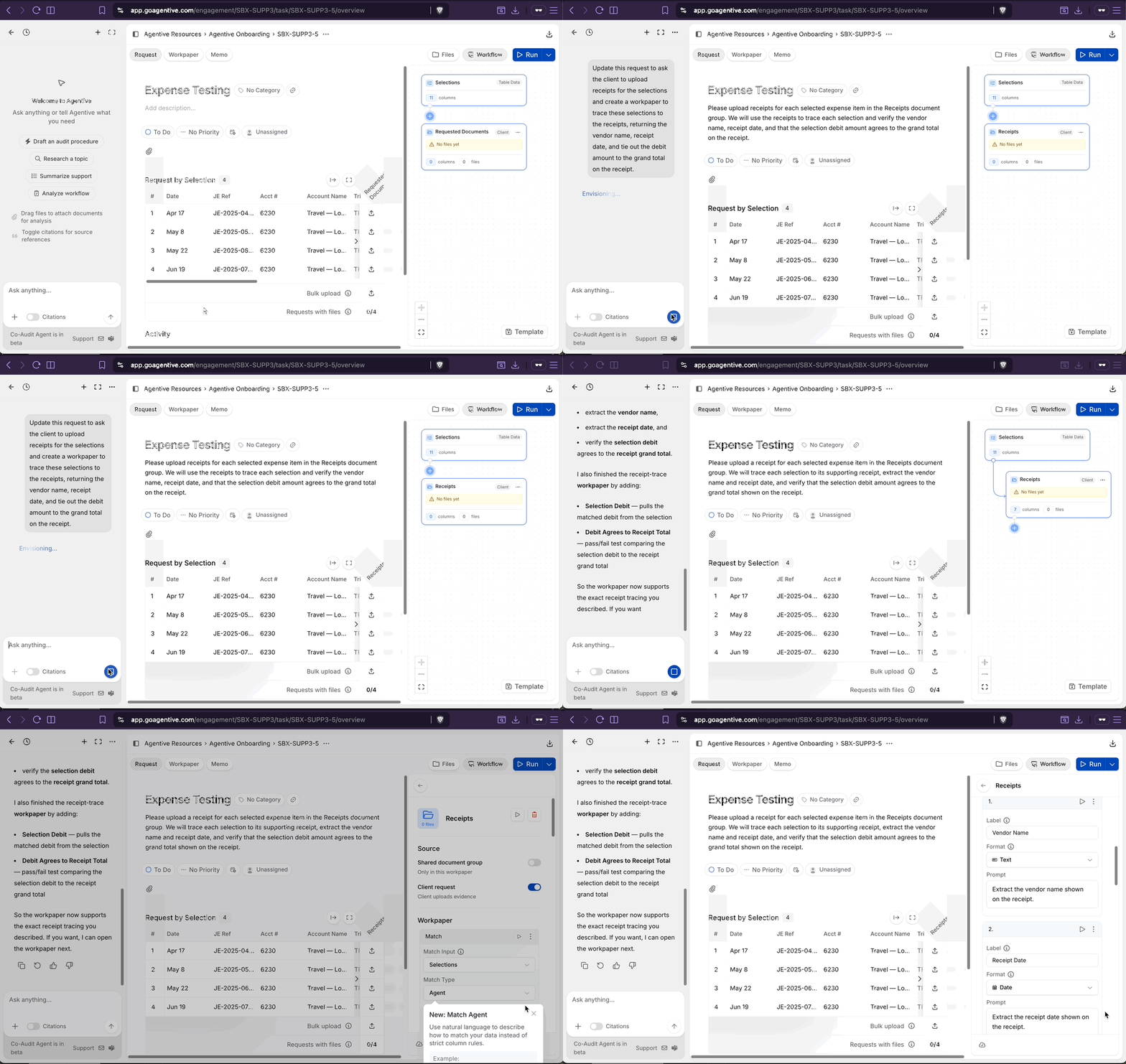
Open Co-Audit
Open the Co-Audit panel on the left side of the request.
Submit the instruction
Enter and submit:
Update this request to ask the client to upload receipts for the
selections and create a workpaper to trace these selections to the
receipts, returning the vendor name, receipt date, and tie out the
debit amount to the grand total on the receipt.
Watch the workflow build
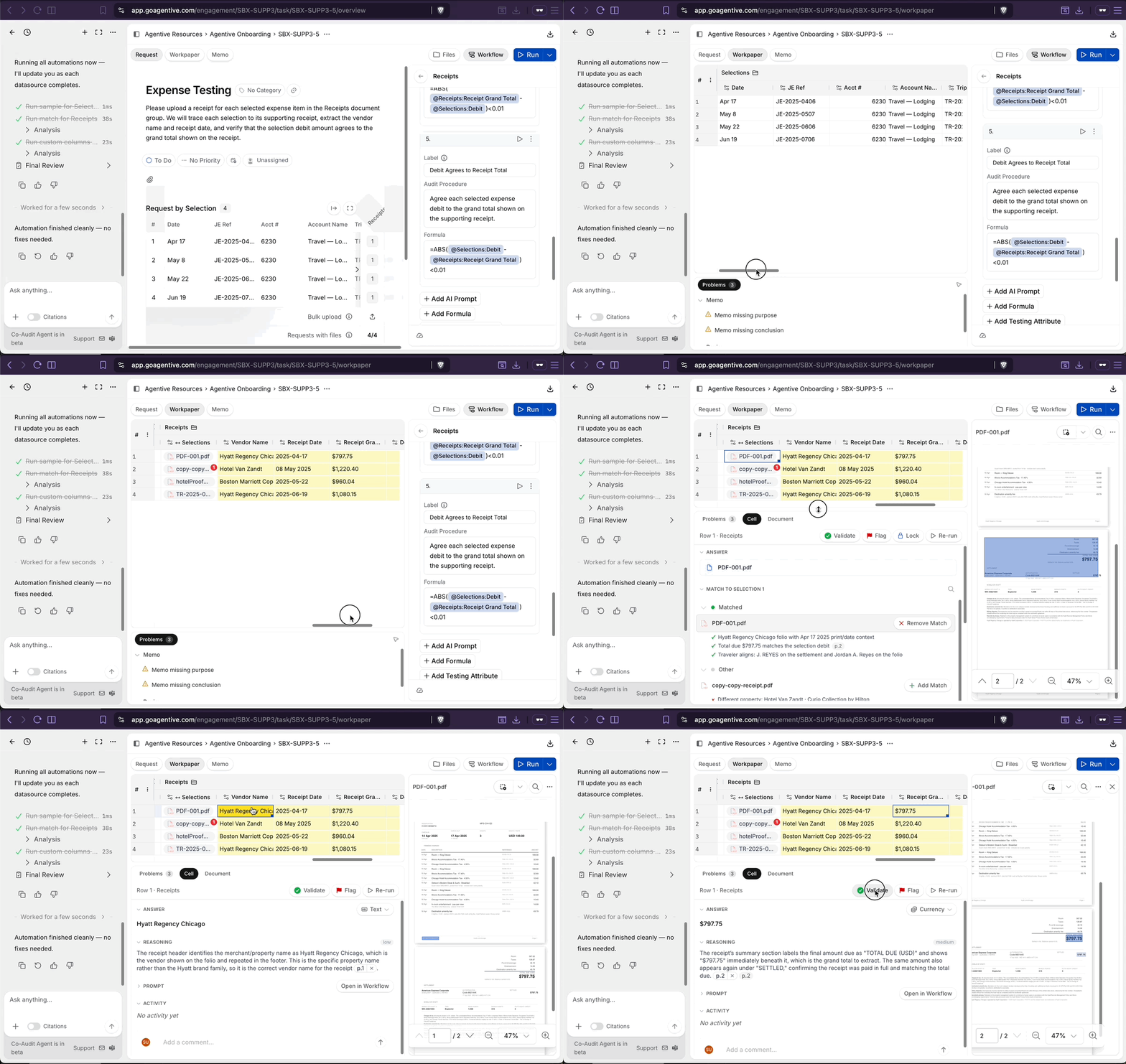
Watch the Workflow tab update. Co-Audit will create an Expense Receipts document group and generate extraction columns: at minimum, Receipt Grand Total and a debit-agrees comparison.
Upload the hotel receipts and review matches
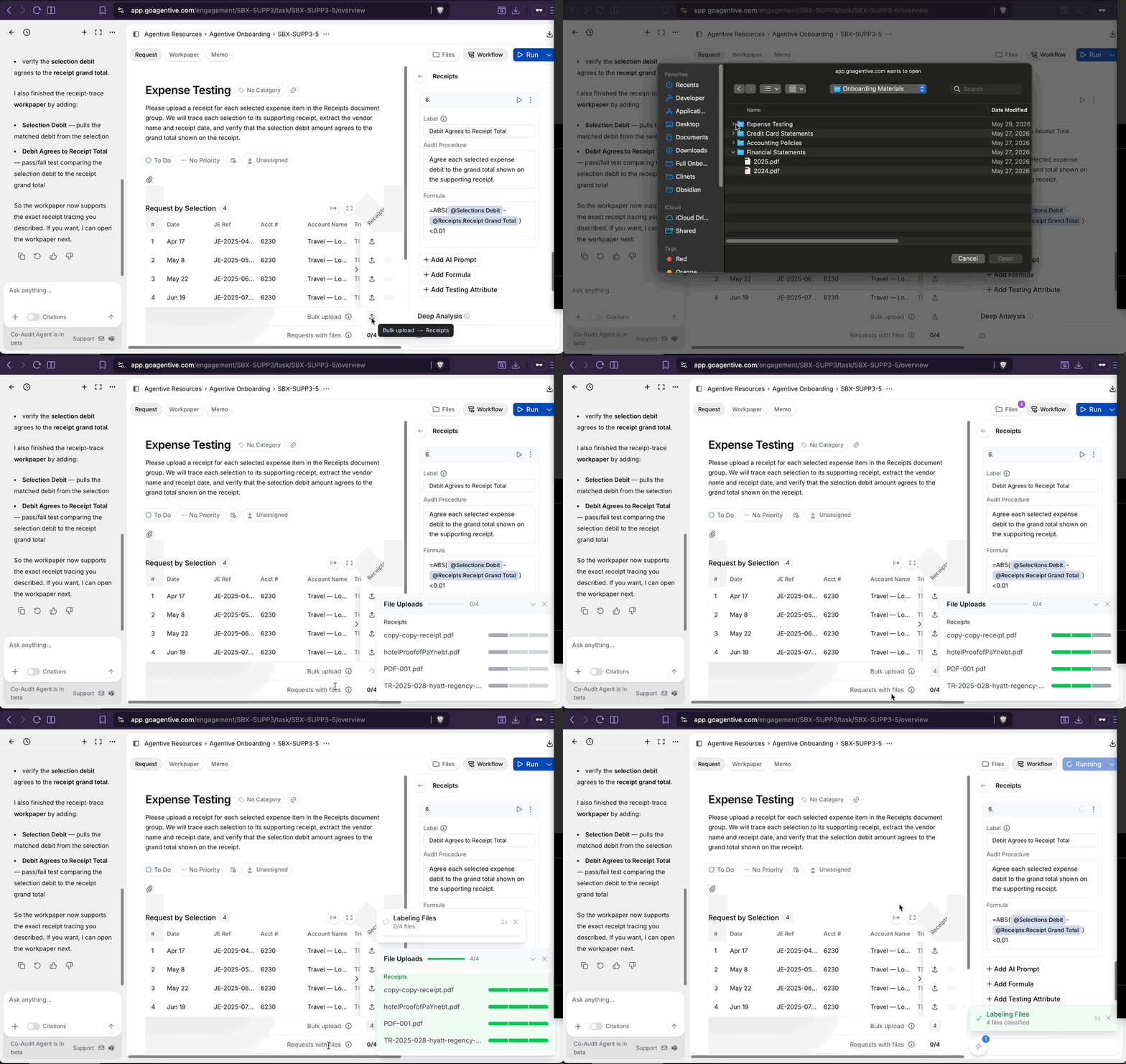
Open the Requested Files area
In the center pane of the request, click the Requested Files upload area.
Bulk-upload the receipts
Select all four hotel receipt PDFs from the onboarding materials and drop them into the bulk upload area. Wait for all four to show a green status indicator.
Uploading to the bulk area (rather than a specific document group folder) lets the Match Agent determine which receipt belongs to which selection. This generally produces better results than pre-sorting files into groups.
Run the workflow
In the Workflow tab, click Run at the top and confirm. The Match Agent runs first, then extraction columns run.
Review a clean match
Open the Workpaper tab and click a match cell in the Expense Receipts column. If the reasoning shows vendor, traveler name, date, and amount all agree, click Validate.
Review counter-evidence (red badge)
If a match cell shows a red badge, click it to see the counter-evidence: the Match Agent surfacing competing signals.
- A minor name-format discrepancy (for example, "Marriott" vs. "Marriott Corporation") is not a reason to reject the match.
- If the match is correct: hover over each counter-evidence item and click X to dismiss it, then click Validate.
- If the match is clearly wrong: right-click the row and click Rerun.
Counter-evidence is not an error; it is the Match Agent showing its work. Dismissing counter-evidence is the documented record that a human reviewed and accepted the match explanation. Do not dismiss counter-evidence for mismatched dollar amounts or dates; those are genuine exceptions.
Validate the extractions
Review Receipt Grand Total and the debit-agrees column. Click citations to confirm values in the source documents, then validate.
Checkpoint
The Expense Receipts group in the Workflow tab should show at least Vendor Name, Receipt Date, Receipt Grand Total, and a debit-agrees column. After running automations, the Workpaper tab should show four rows populated with match cells and extraction values, with at least some cells validated (green).
Add the T&E policy to the Memo tab
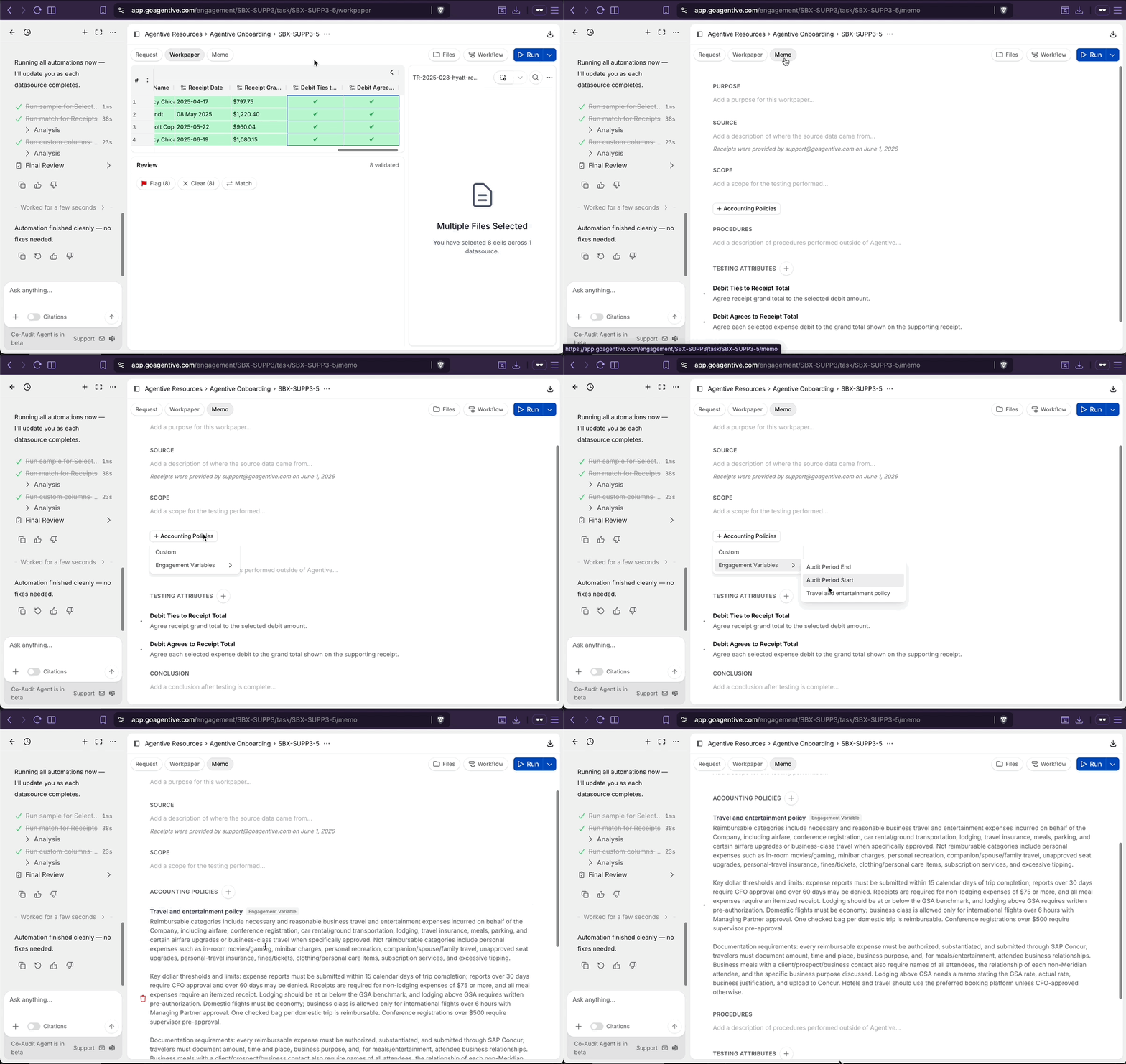
Open the Memo tab
Click the Memo tab at the top center of the Expense Testing request.
Add the Accounting Policy
Click + Accounting Policies. From the picker, select Travel and Entertainment Policy from the Engagement Variables section.
Add the Policy Compliance testing attribute
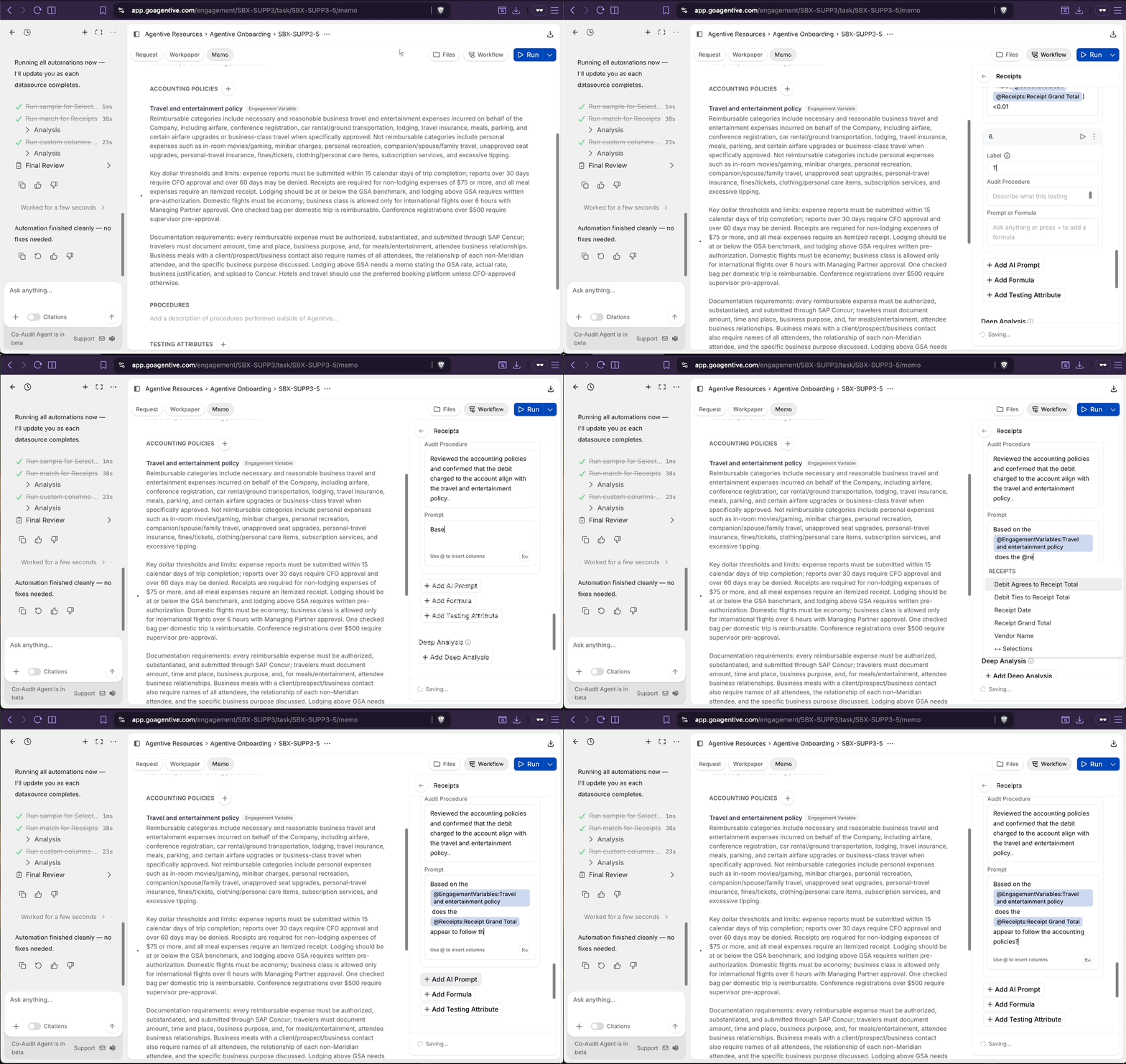
Add a Testing Attribute
In the Workflow tab, scroll to the bottom of the Expense Receipts group and click Add Testing Attribute. Set the Label to Policy Compliance.
Document the audit procedure
In the Audit Procedures field:
The auditor reviewed the accounting policies and confirmed that the
receipts are in compliance.
Reference the Engagement Variable
In the prompt field, type @ and select Travel and Entertainment Policy from the Engagement Variables section of the picker. Complete the instruction:
Based on @Travel and Entertainment Policy, does the document appear
to follow the accounting policies?
You cannot copy and paste @ references
You cannot copy and paste @ references. In the prompt textbox a list appears when you type the @ symbol. Narrow the list by typing the letters of the column name or engagement variable you want to reference, then select the item by clicking it or pressing Enter when it is highlighted.
You know an @ reference is working if there is a blue box around the @ reference text.
Run, review, and iterate
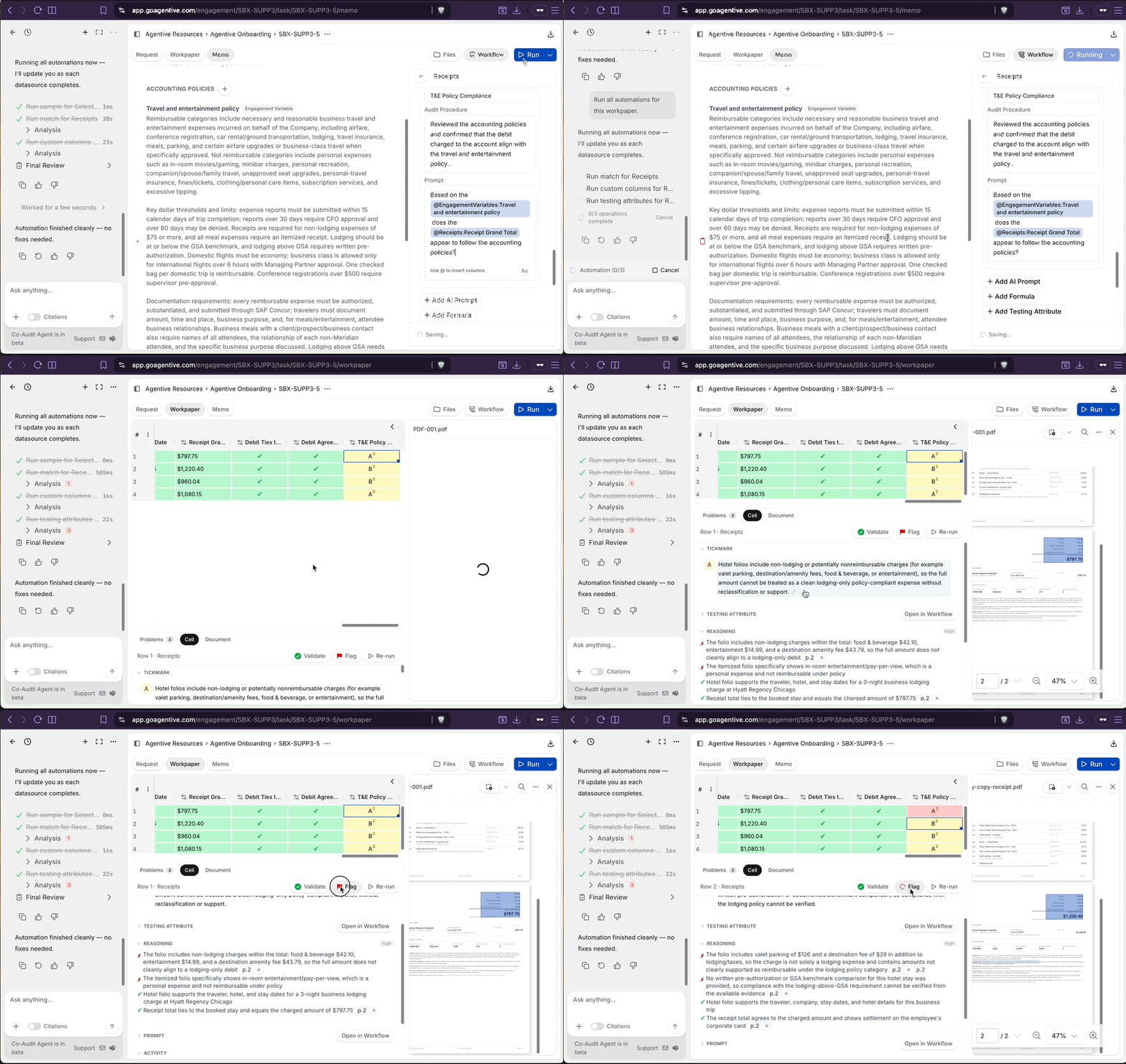
Run the workflow and review the results
Click the run button for the workflow and review the results. The Testing Attributes will populate with either checkmarks or letters with explanations for any exception noted.
Every run may yield different wording for the tickmarks. AI is not deterministic, so results may vary each time you run the workflow.
When this workflow was run during writing, two tickmarks were generated:
- A: Hotel folios include non-lodging or potentially non-reimbursable charges (for example valet parking, destination/amenity fees, food & beverage, or entertainment), so the full amount cannot be treated as a clean lodging-only policy-compliant expense without reclassification or support.
- B: Required support for lodging above GSA/per-diem limits was not provided, such as written pre-authorization or documented benchmark comparison, so compliance with the lodging policy cannot be verified.
Your tickmarks may differ. Always review the AI's output and reasoning.
Recalculate the account-specific charge
Add a new AI Prompt to recalculate the debit charge that should be posted to the specific account in the selection.
Review the @EngagementVariables:Travel and entertainment policy and recalculate the total line item amount of the receipt that should be coded to the @Selections:Account NameReview AI judgment and math
AI can make mistakes. Treat any judgment- or math-based questions with extra care when reviewing their results. Review the Reasoning provided by the agent to understand how it made its determination.
Tie the receipts to the credit card statements
Add the existing Credit Card Statements document group
In the Workflow tab, click the + (plus) button below the Expense Receipts group. Select Add Existing Document Group.
Choose Credit Card Statements
Choose Credit Card Statements from the list.
Set the match input
In the Match Input section for the Credit Card Statements group, set the match target to Expense Receipts.
Add the CC Statement Agrees testing attribute
Add a Testing Attribute
In the Credit Card Statements group, scroll to the bottom and click Add Testing Attribute. Set the Label to CC Statement Agrees.
Document the audit procedure
In the Audit Procedures field:
Agree the receipt to the credit card statement.Build the @ reference
In the prompt field, type @ and select Vendor Name from the Expense Receipts columns. Repeat for Receipt Date and Receipt Grand Total. Complete the instruction:
Does @Vendor Name, @Receipt Date, and @Receipt Grand Total agree
to this statement?
Run the remaining cells
Validate what you have already reviewed
In the Workpaper tab, validate any cells you have already reviewed. Validated cells are locked and will not rerun.
Run only unlocked cells
Return to the Workflow tab and click Run. In the run dialog, choose to run only unlocked cells.
Review the final workpaper
Walk the full row
Open the Workpaper tab and scroll through the full workpaper: selections, expense receipts columns, credit card statement columns.
Validate tie-out matches
Click a match cell in the Credit Card Statements column. If vendor is correct, date is within range, and the amount agrees → validate.
Override bad AI reasoning
If the AI reasoning on a tickmark is wrong: delete the generated text, click the tickmark letter, select Pass, add a comment explaining the override, and validate.
Search for missing matches
For any row where the Match Agent did not automatically find the right document, use the search box at the top of the document viewer to search by a keyword (for example, the hotel name or city). Confirm the match manually and validate.
Checkpoint
All cells in the workpaper should be either green (validated) or flagged (red, waiting for senior review). No yellow cells should remain unless you are intentionally deferring them.
Export the workpaper to Excel
Open the Workpaper tab and click Download
Open the Workpaper tab and click the Download icon in the top right.
Choose an export format
Choose Files + Workpaper XLSX to get the Excel workpaper with source documents embedded. (Choose Workpaper Only if you are on a Mac and do not plan to use the Excel Add-In.)
Save and open
Save the file and open it in Excel.
In the exported file, tickmark colors and letters are preserved. Comments export with the author name. The timestamp on each comment reflects the time of the export, not the time the comment was written.
Install the Excel Add-In
The Excel Add-In replicates the Agentive source-document side pane inside Excel. After installing, clicking any cell in the exported workpaper loads the corresponding source document in a right-hand pane.
📷 IMG-OBG-EXCEL-ADDIN (placeholder)
Screenshot needed: Exported workpaper open in Excel with the Agentive Add-In pane on the right showing a source PDF, with a selected workpaper cell and a citation marker visible.
Download the Add-In
Open the Workpaper tab inside Agentive, click Download, then click Download Excel Add-In.
Install
Follow the on-screen install instructions. If the download is blocked, open Settings → Internet Options and add Agentive to your trusted sites.
Open your export
Open the Files + Workpaper XLSX export in Excel.
Click a cell to load its source
Click any cell. The Add-In pane opens on the right and shows the source document. Click a citation marker in the cell to jump to the exact location where the value was found.
Continue your journey
← Build a workpaper from one Co-Audit instruction
Use Co-Audit to build the Credit Card Statements workpaper end to end.
Clients & Engagements →
Set up the client and engagement structure your day-to-day work lives in.
How is this guide?
Build a workpaper from one Co-Audit instruction
Create a credit card statements request and let Co-Audit generate the client-facing description and the full workpaper from a single natural-language instruction. Upload the statements, run the workflow, and tune the judgment column.
Clients & Engagements
How clients, engagements, and your firm fit together in Agentive, and how to create a new client and engagement from scratch.