Build a workpaper from one Co-Audit instruction
Create a credit card statements request and let Co-Audit generate the client-facing description and the full workpaper from a single natural-language instruction. Upload the statements, run the workflow, and tune the judgment column.
In this section you create a credit card statements request and use Co-Audit to generate both the client-facing request description and the full workpaper column set from a single natural-language instruction. The Credit Card Statements document group you build here will be chained into the expense testing workpaper in the next section.
What you'll do
- Create a client-facing request from scratch named
2025 Credit Card Statements. Leave the description blank so Co-Audit can write it. - Use Co-Audit to generate the request description and the full workpaper (a
Credit Card Statementsdocument group with five AI Prompt Columns: Bank Name, Statement Period, Starting Balance, Ending Balance, and Significant Transactions) from a single natural-language instruction. - Bulk-upload the credit card statements into the Requested Files area so Agentive can process them for AI analysis.
- Run automations and review the extracted values in the Workpaper tab, validating each cell against its source citation.
- Tune the judgment column by refining the Significant Transactions instruction and rerunning just that column.
Create the Credit Card Statements request
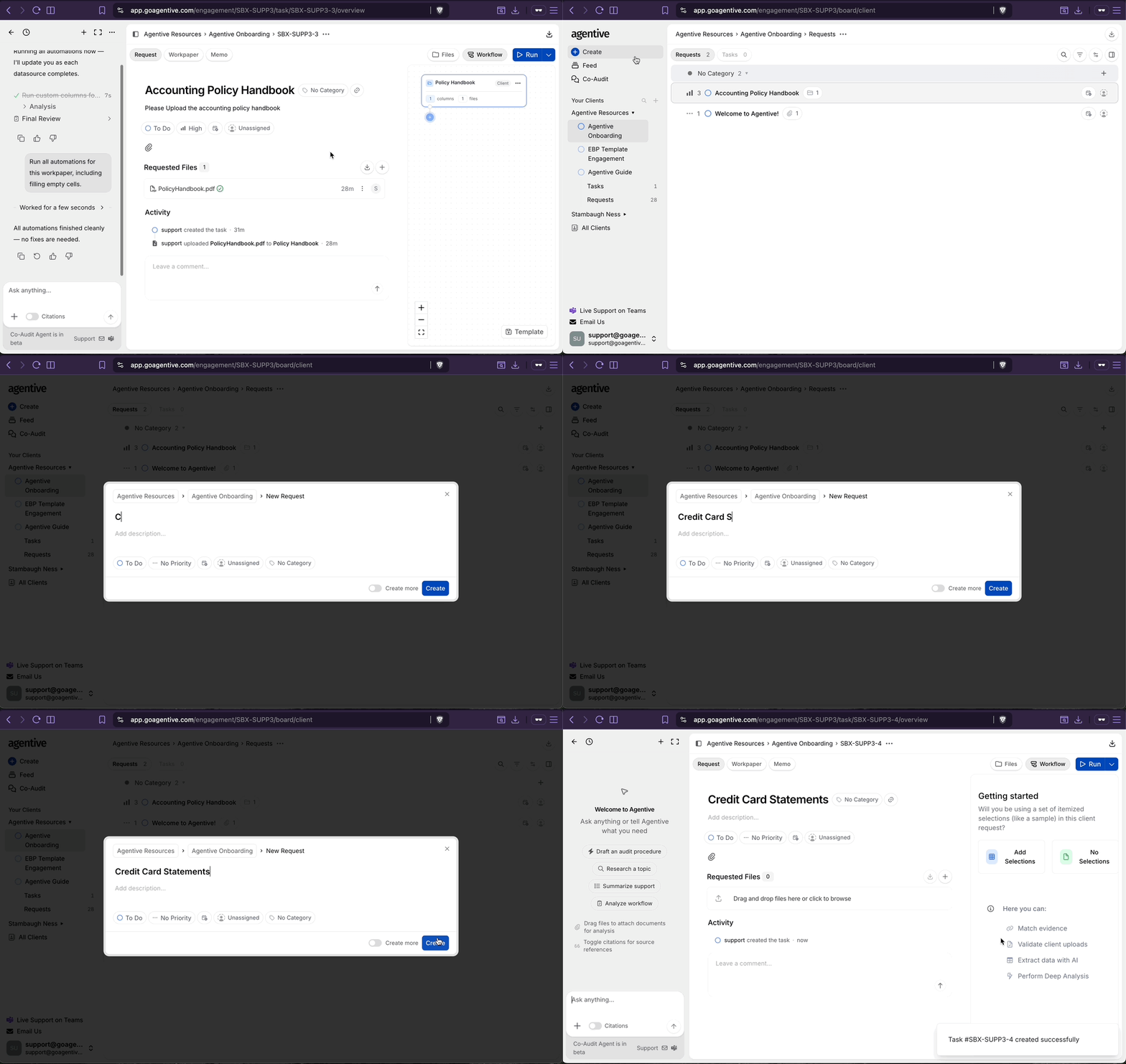
Return to the Request Board
Make sure you are on the Request Board.
Create from scratch
Click Create, then Start from Scratch.
Title the request
- Title:
2025 Credit Card Statements - Leave the description blank. Co-Audit will generate it.
Click Create.
Ask Co-Audit to build the workpaper
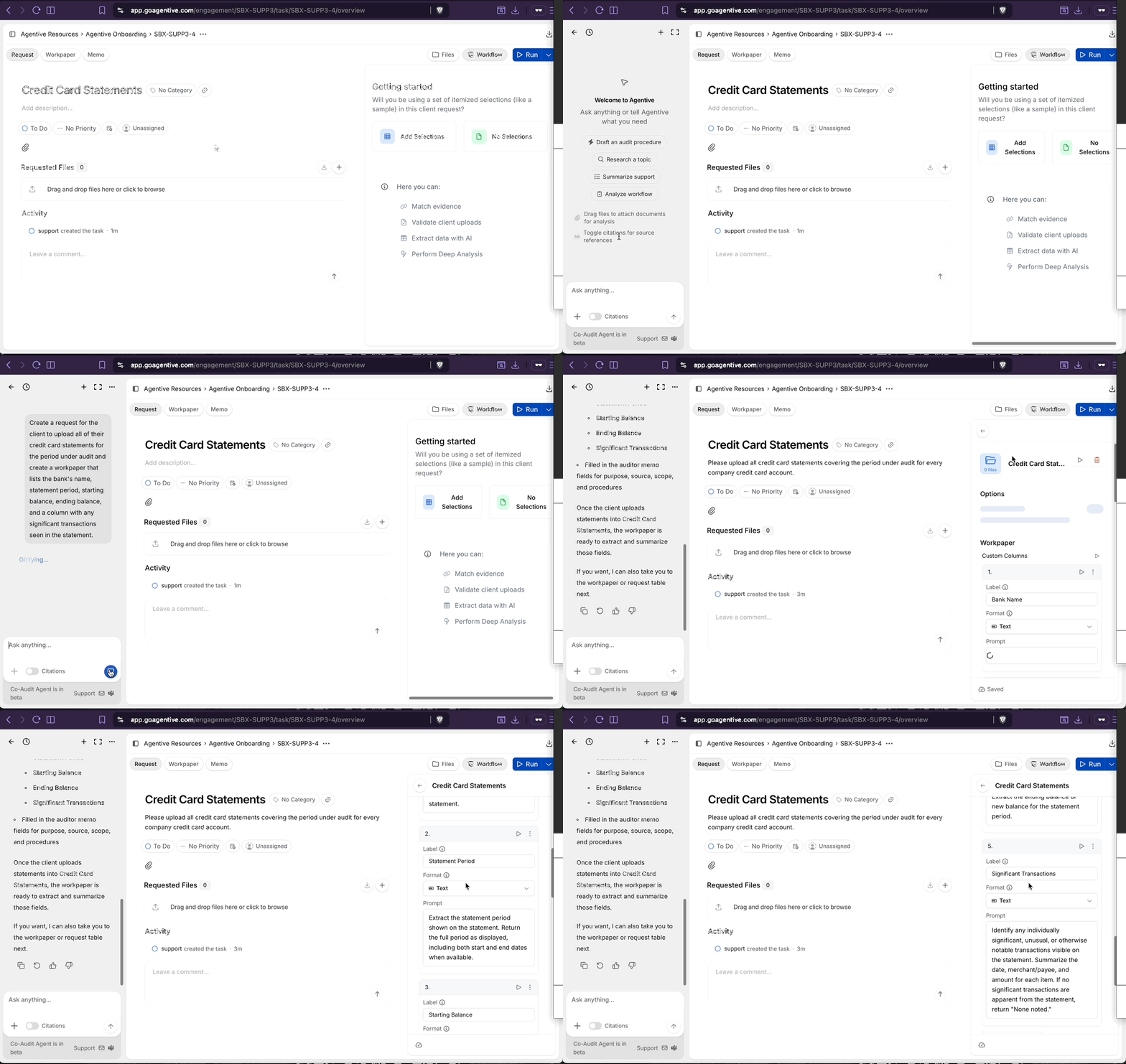
Locate the Co-Audit panel
The Co-Audit panel should be open on the left-hand side. If it is not, click the Expand Sidebar button at the top-left of the screen.
Submit the instruction
Copy and paste the following instructions into the Co-Audit chat:
Create a request for the client to upload all of their credit card
statements for the period under audit and create a workpaper that
lists the bank's name, statement period, starting balance, ending
balance, and a column with any significant transactions seen in
the statement.
Watch the workflow build
Watch the Workflow tab as Co-Audit builds. It will:
- Update the client-facing request description.
- Create a
Credit Card Statementsdocument group. - Generate five AI Prompt Columns: Bank Name, Statement Period, Starting Balance, Ending Balance, and Significant Transactions.
Co-Audit reads your instruction as if you were briefing a new audit staff member: state the goal, the document type, and what you want to extract. It builds the full workflow without requiring you to configure each column individually. Results may vary slightly between sessions; for firm-wide consistency, save a finalized layout as a template after you have tuned your output.
Upload the statements and run the workflow
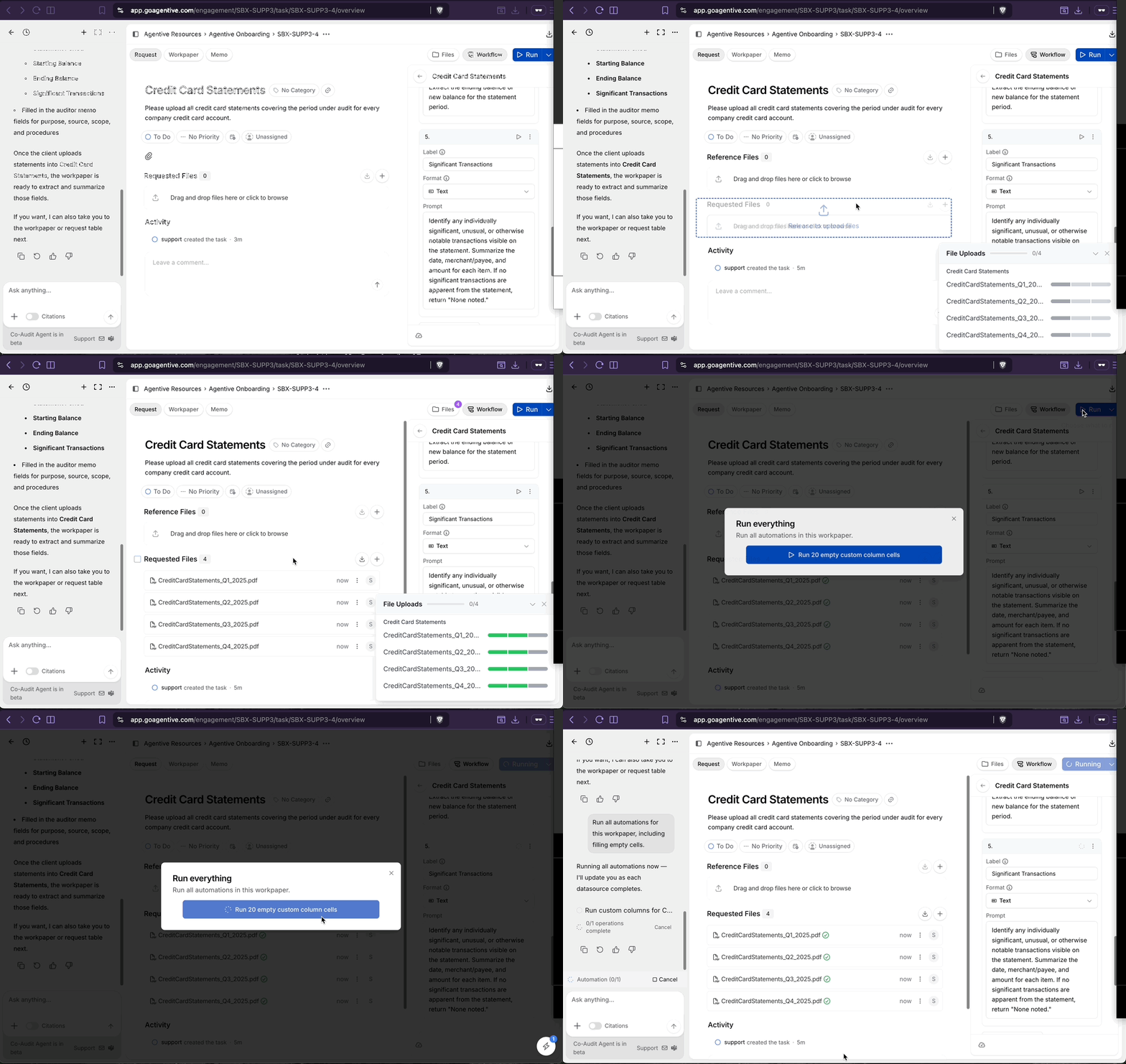
Open the Requested Files area
In the center pane of the request, find the Requested Files upload area.
Upload the four quarterly statements
Select all four quarterly credit card statement PDFs from the onboarding materials and drop them into the upload area. Wait for all four to show a green status indicator.
Run the workflow
In the Workflow tab, click Run at the top and confirm the run.
Review the extracted values and tune
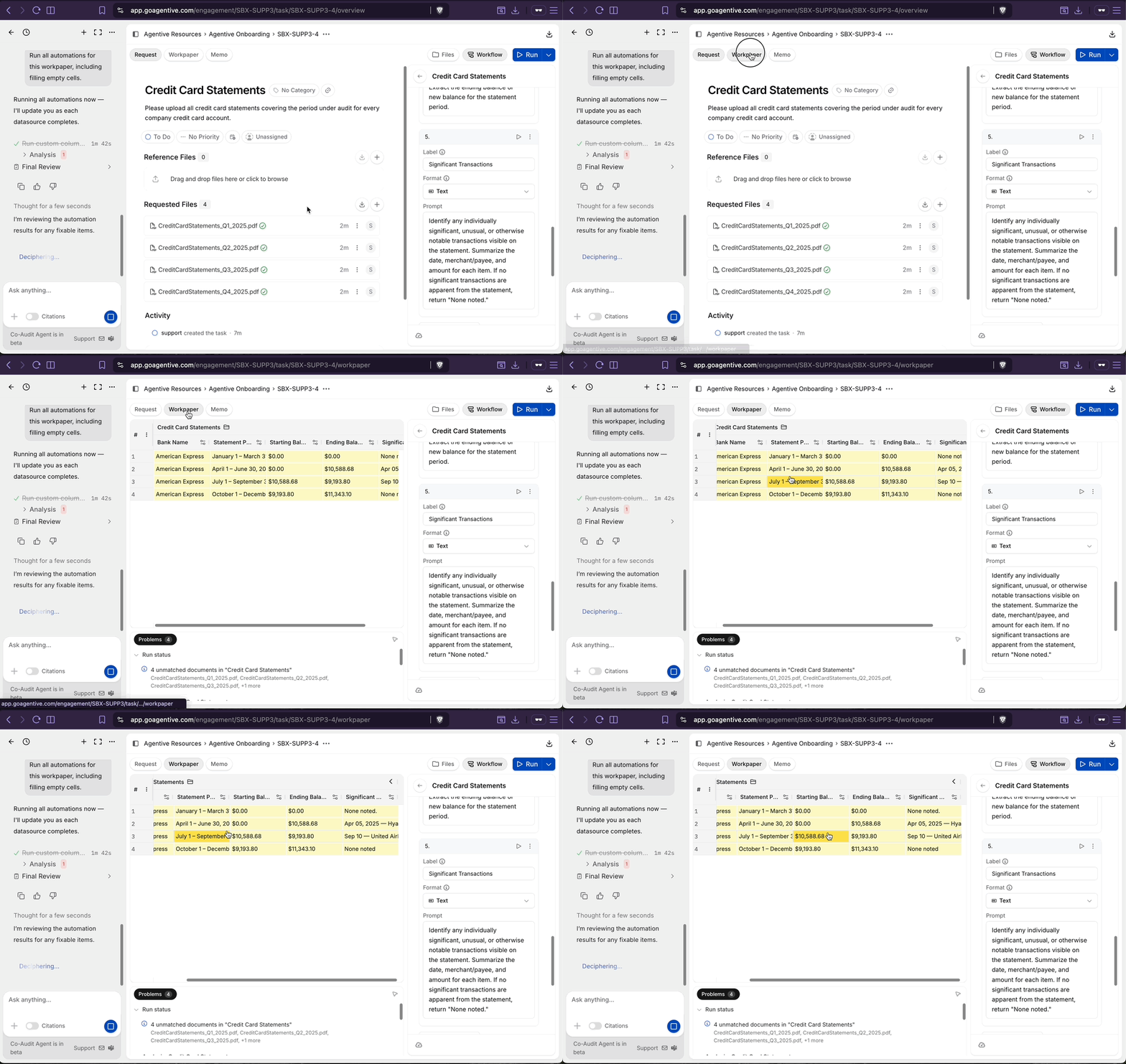
Review each column in the Workpaper tab
Open the Workpaper tab when populated. For each statement:
- Bank Name: validate if correct.
- Statement Period: click the citation pill to confirm the period in the source document, then validate.
- Starting Balance and Ending Balance: validate.
- Significant Transactions: review carefully. This column requires auditor judgment.
Tune the judgment column if needed
For judgment-call columns like Significant Transactions, results may vary between runs. Refine the instruction on that column to constrain the output, then click the play icon on the column header to rerun only that column. Validated cells are locked and will not rerun.
Checkpoint
After Co-Audit finishes and you have run automations, the Workpaper tab should show four rows (one per statement) with all five columns populated. Validated cells should be green, flagged cells red, and unreviewed cells yellow.
Continue your journey
← Load your client's accounting policies
Publish the T&E policy as an Engagement Variable for downstream workpapers.
Build an expense testing workpaper →
Sample a GL, trace selections to receipts, run a policy compliance check, and export to Excel.
How is this guide?
Load your client's accounting policies
Create a client-facing request, upload the policy handbook, summarize the travel and entertainment policy with an AI Prompt, and publish the summary as an Engagement Variable so any workpaper in the engagement can reference it.
Build an expense testing workpaper
Sample a GL subledger with Monetary Unit Sampling, generate the workflow with Co-Audit, trace selections to hotel receipts, run a policy compliance check against your published policy variable, chain to the credit card statements, validate the workpaper, and export to Excel.