Getting started with Agentive
Sign in, find the Agentive Onboarding engagement, download the practice materials, and learn how to orient yourself inside an engagement before you start building.
This guide walks a new Agentive user through a complete first session. You will sign in, open the Agentive Onboarding engagement inside the Agentive Resources client, run a complete Financial Statement Review, create an Accounting Policy Handbook request that publishes an Engagement Variable, build a 2025 Credit Card Statements workpaper from a single Co-Audit instruction, and complete an expense testing workpaper end to end.
What you'll do
- Sign in to Agentive and open the Agentive Onboarding engagement inside the Agentive Resources client.
- Download the Onboarding Materials.zip found in the Welcome to Agentive! request and extract it locally.
- Get oriented with the engagement views you will use throughout the rest of the onboarding.
Sign in and open the onboarding engagement
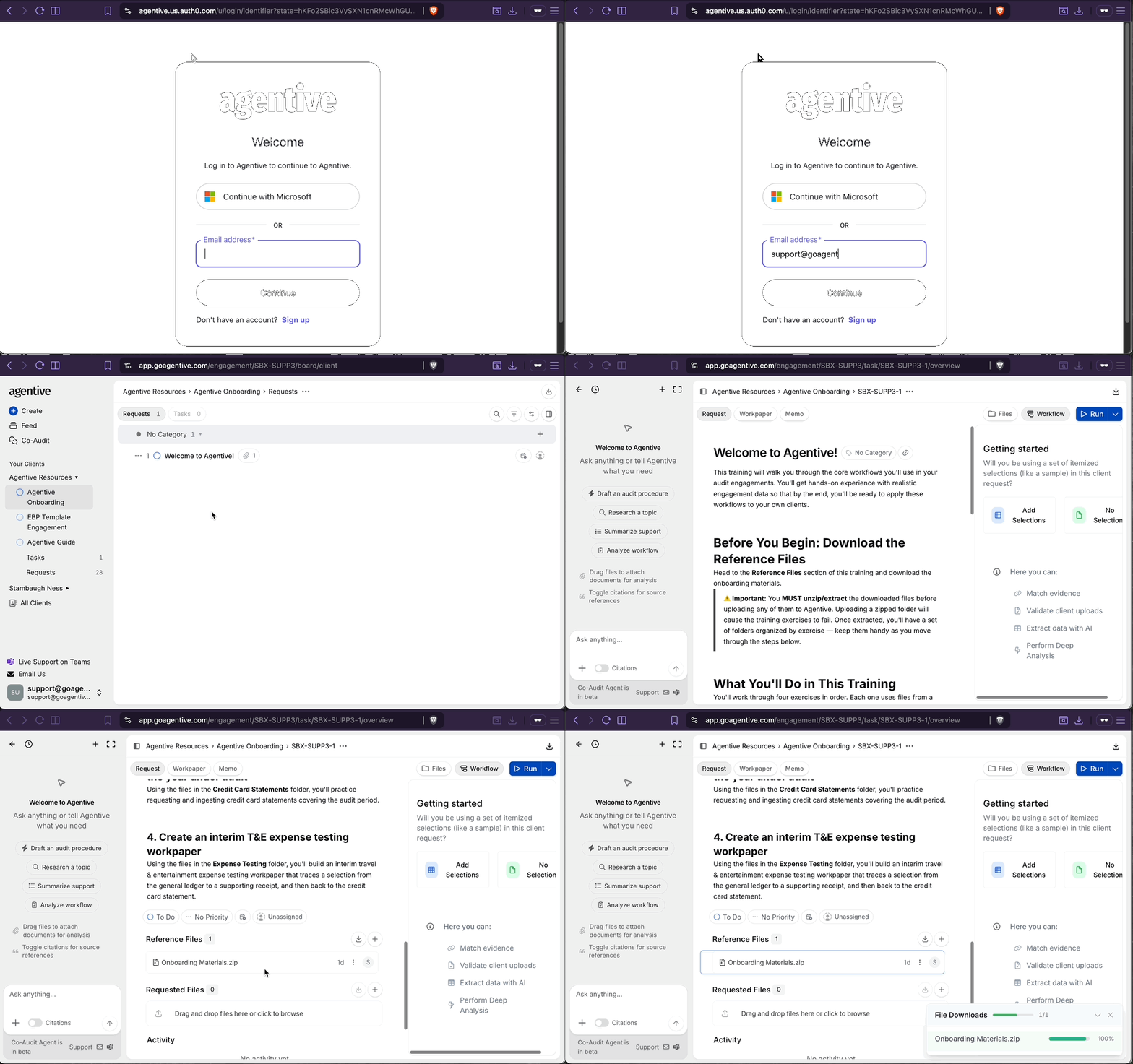
Sign in to Agentive
Go to https://app.goagentive.com and sign in with your work email, or click Sign in with Microsoft and follow the SSO prompts.
Find the Agentive Onboarding engagement
On your first login you should land directly in the Agentive Onboarding engagement. If you do not, select the Agentive Resources client on the left-hand side of the screen and then click into the Agentive Onboarding engagement.
Download the onboarding materials
Select the Welcome to Agentive! request on the Request Board and download the Onboarding Materials.zip file from the request.
Unzip the files before uploading [Windows users]
Locate the downloaded zip file. Right-click on Onboarding Materials.zip, click Extract All, choose where you want the files to go, and click Extract. Uploading a zipped folder to Agentive will cause later exercises to fail.
Get to know your engagement
Expand each section below to see the different engagement views you'll move between throughout the onboarding.
Checkpoint
You should now be logged in to Agentive with the Onboarding Materials folder downloaded and extracted, and you know where to find the Request Board, Task Board, Engagement Settings, and Client Overview.
Continue your journey
← Welcome to Agentive
Return to the auditor documentation home to see every section of the guide at a glance.
Run your first Financial Statement Review →
Create an FSR task, upload the sample statements, and walk the five review modes.
How is this guide?
Welcome to Agentive
Agentive is the audit collaboration and workpaper automation platform. This overview introduces the product, its core concepts, and a guide to every section of the auditor documentation.
Run your first Financial Statement Review
Create a Financial Statement Review task, upload the sample 2024 and 2025 financial statements, and walk the five review modes (Prior Year Consistency, Internal Consistency, Footing and Cross-Footing, Spell Check, and Review Checklist).