The Request Tab
The client-facing surface of a single request. Title, status, and assignment up top; reference files and requested files in the middle; activity and comments at the bottom. The full read of one item of audit work in one view.
The Request tab is the surface the client sees and the auditor uses to drive a single piece of audit work end to end. It sits at the top of every request alongside the Workflow, Workpaper, Memo, and Files tabs, and it's where the conversation between the audit team and the client actually happens: the title and metadata up top, the files in the middle, the activity and comments at the bottom.
This page walks the Request tab in the order it lays out on screen.
What you'll learn
- What the request header fields drive: status, priority, due date, assignment.
- The difference between Reference Files (auditor → client) and Requested Files (client → auditor).
- How the file area changes shape for single document vs. itemized requests.
- How the Activity log and Comments thread keep the audit trail intact.
Request header
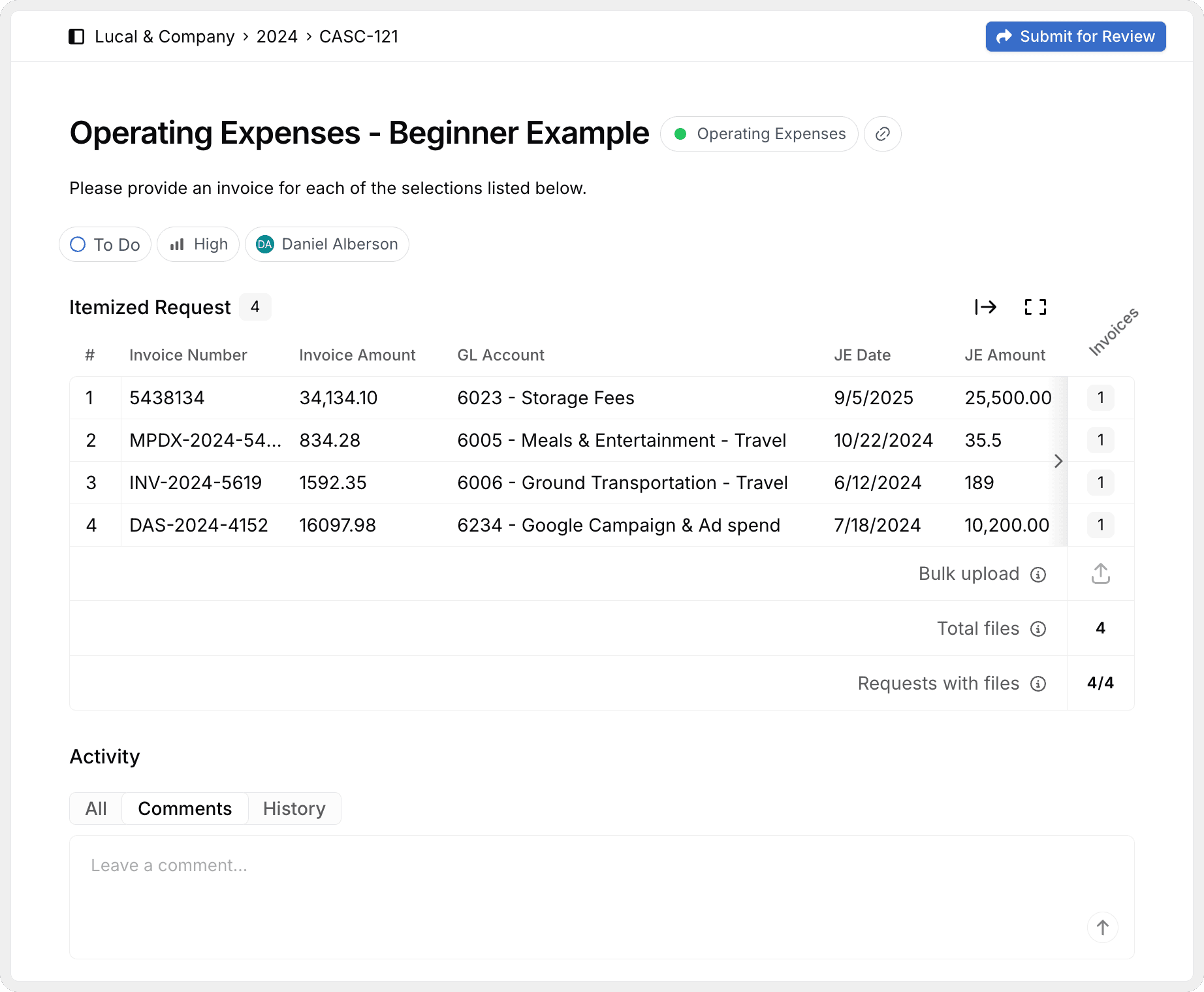
The header is the request's identity card. It's the first thing the client sees in their portal and the first thing the auditor reads when triaging the board.
Title
The plain-English name of the request. Clear and client-readable (e.g., Bank Reconciliations Q4).
Category
The audit area (Cash, Revenue, A/R, Payroll, etc.). Drives grouping and filtering on the Request Board.
Link
A direct link to the request. Copy it into emails, audit notes, or the firm's audit file as a deep link back to this work.
Description
What you need, in what format, for what period. The client reads this in their portal.
Status
Backlog → To Do → In Progress → Review → Done. Backlog hides the request from the client; every other status is client-visible.
Priority
Low, Medium, High, or Urgent. Drives sorting and highlights on the board.
Due date
The date you need the request closed out.
Assignee
The auditor on your team who owns the request, and (optionally) a client contact as the client-side owner.
A request in Backlog is invisible to the client. Moving it out of Backlog publishes it to the client portal. That's the single switch that decides whether the client sees the work.
Reference files
Beneath the header is the Reference Files area: files the auditor attaches for the client. These are not the evidence being requested; they're context. Typical uses:
- The PBC list the request came from.
- Prior-year evidence the client can reuse or update.
- Schedules, screenshots, or sample documents that show the client what's being asked for.
- Items you want to discuss that relate to the request.
Both the auditor and the client can see Reference Files. Only the auditor can add or remove them.
Reference files are read-only context for the client. If you want the client to upload something back to you, use Requested Files below instead.
Requested files

The Requested Files area is where the client uploads the evidence. Its shape depends on how the request is set up: a single bucket for everything, or a structured bulk upload split by document group.
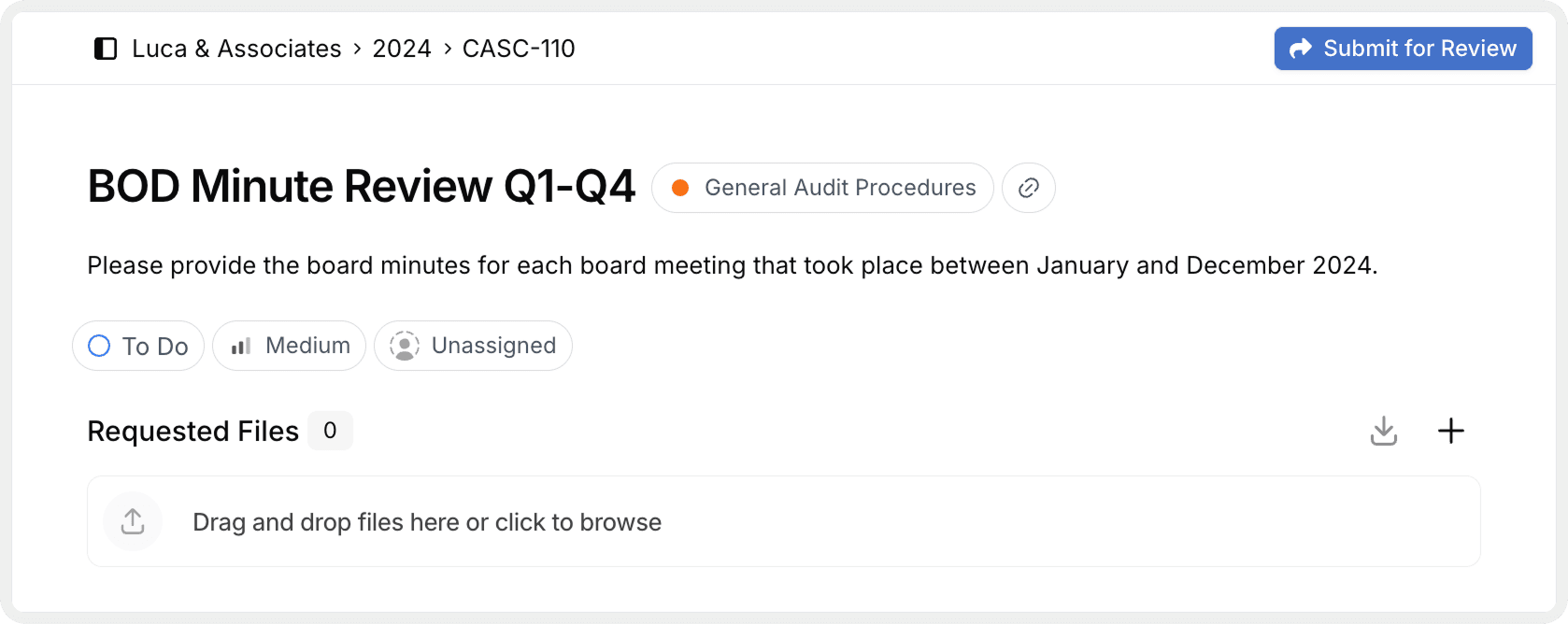
For a single document request, there's one upload area. The client drops every document for the request into it (one file, ten files, doesn't matter), and the auditor picks them up from there.
Use this shape when the evidence isn't sampled and doesn't need to be organized into groups: a single bank reconciliation, a signed engagement letter, a year-end inventory count sheet.
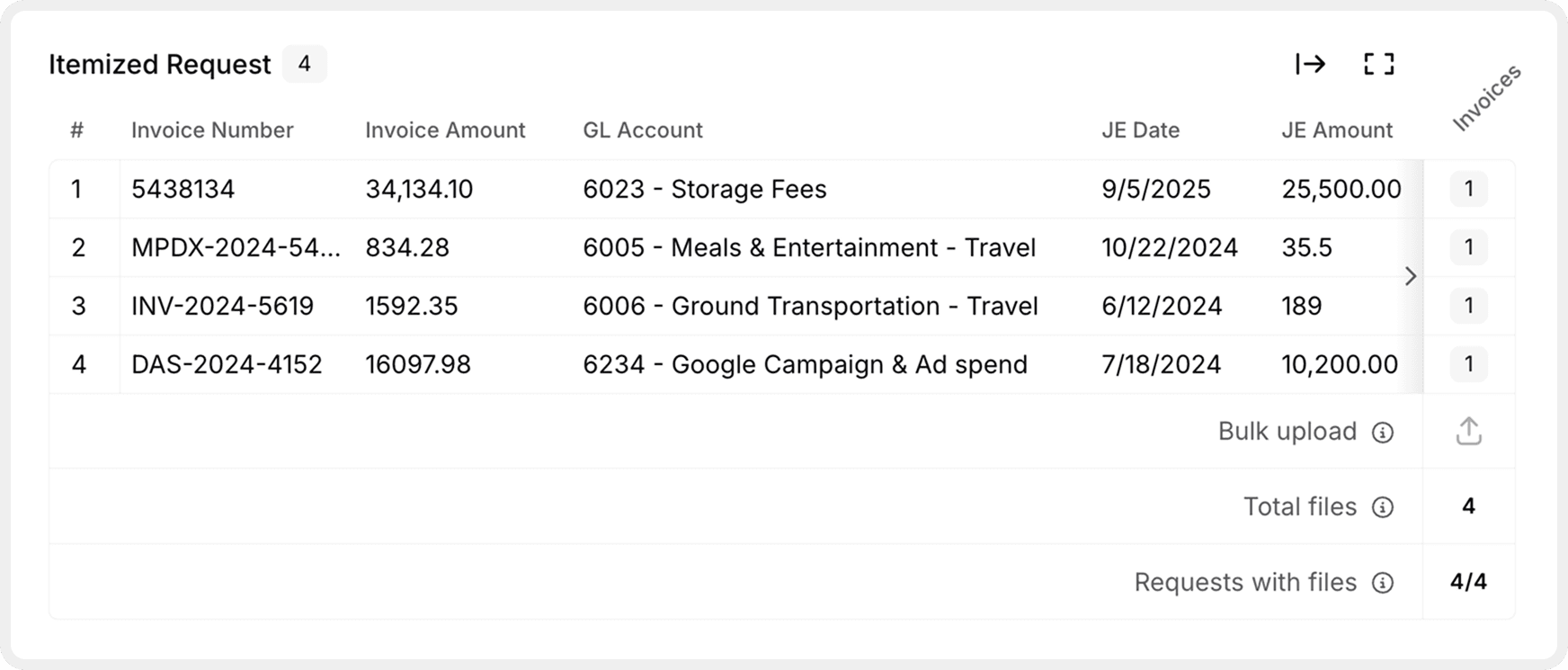
For an itemized request (one built around selections chosen during sampling) the upload area splits into one panel per document group defined on the Workflow tab.
The client uses the bulk upload to drop a batch of files in at once; Agentive routes them into the correct group. A common payroll itemized request might have:
- Employee Records: offer letters, I-9s, pay rate change forms.
- Payroll Records: payroll registers and individual pay stubs.
- Time Cards: clock-in/clock-out records for the sampled periods.
Each group can have its own permission, instructions, and Match Agent input, all set on the Workflow tab.
Whether the request is single or itemized is determined by how the Workflow tab is set up: one document group vs. many. The Request tab just renders what the Workflow tab declared.
Activity
Below the file area sits the Activity log: a timestamped, append-only record of everything that's happened on this request. The activity log is what makes the request defensible later; nothing is removed, nothing is rewritten.
What lands in Activity:
- When the request was created, by whom.
- Status changes (
Backlog → To Do,In Progress → Review, etc.) with the actor and timestamp. - File uploads: what file, what group, who uploaded it, when.
- File removals and replacements.
- Comments posted, edited, and resolved.
- Workflow runs: when Run was clicked and which agents ran.
The Activity log carries through to the audit trail of the exported workpaper. If a reviewer wants to know who uploaded what and when, this is where they read it.
Comments
At the bottom of the Request tab is the Comments thread: the conversation between the audit team and the client about this specific request.
Leave a comment
Type into the comment box and submit. Comments render in chronological order, newest at the bottom.
@-mention people
Type @ to pick anyone on the engagement (your team or the client). Mentioned users get an email notification immediately about the request so they can jump straight into it.
Reply to a comment
Reply in-thread to keep a back-and-forth attached to the comment that started it. Threads keep the conversation readable when several topics overlap on one request.
Resolve a comment
When the question is answered or the issue is closed, mark the comment Resolved. Resolved comments collapse out of the way but stay in the activity log.
@-mentions trigger an immediate email to the person tagged. Use them when you want a real notification, not as decoration on every comment.
Continue your journey
← Request Board
Understand the central board for managing client requests and internal tasks.
The Memo tab →
Give the AI the accounting policies and audit procedures it consults on every run.
How is this guide?
The Request Board
A tour of the Request Board and Task Board. Learn what each one is, how to read the views, filter and group requests, and create the first request in an engagement.
Memo Tab
The structured context (Purpose, Source, Scope, Accounting Policies, Procedures, Testing Attributes, and Conclusion) that tells the AI what the workpaper is doing, what rules to apply, and what it's already done. Captured with the workflow and exported with the audit file.